The plugin ZIP from your Customer Success Manager.
1
Install the plugin
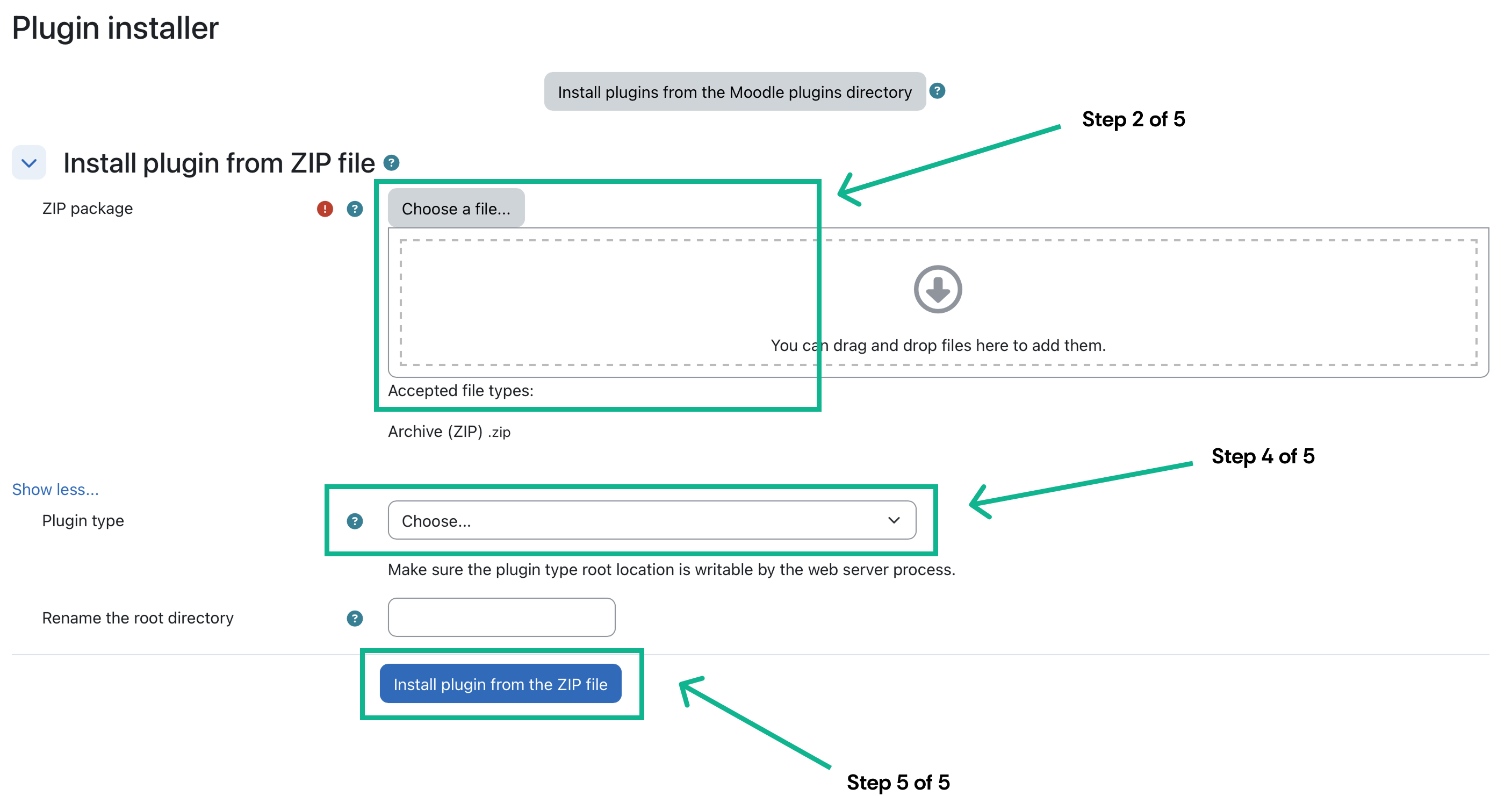
Open https://<your-moodle-instance>/admin/tool/installaddon/index.php.Select Choose a file… and upload the ZIP from your Customer Success Manager. Select Show more… and set Plugin type to Local plugin (local).
Upload the plugin ZIP and select Local plugin.
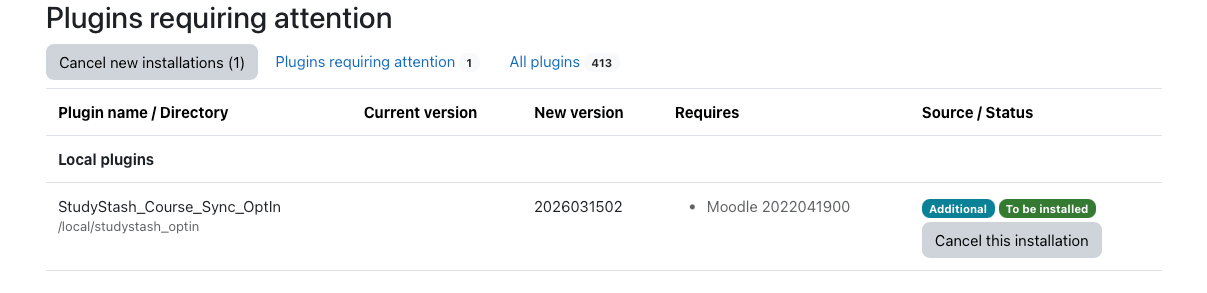
Select Install plugin from the ZIP file. Select Continue after validation, then Continue after the server checks.At the plugins check, select Upgrade Moodle database now.
Complete the plugin installation with the Moodle database upgrade.
If an Upgrading to new version message appears, select Continue.
2
Configure the plugin
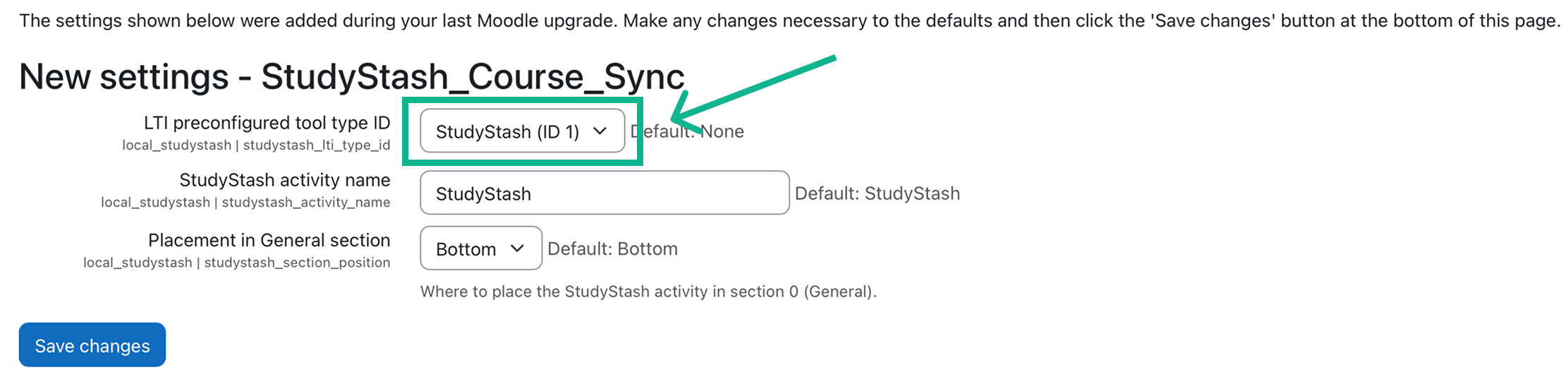
Use these settings:
Setting
Value
Required?
LTI preconfigured tool type ID
Select the correct StudyStash LTI Activity Module
Yes
StudyStash activity name
StudyStash
No
Placement in General section
Bottom
No
Select the StudyStash tool and choose the activity settings.
Select Save changes, then open https://<your-moodle-instance>/local/studystash_optin/index.php.
Open the rollout plugin to manage courses and sync tasks.
3
Choose courses with a CSV
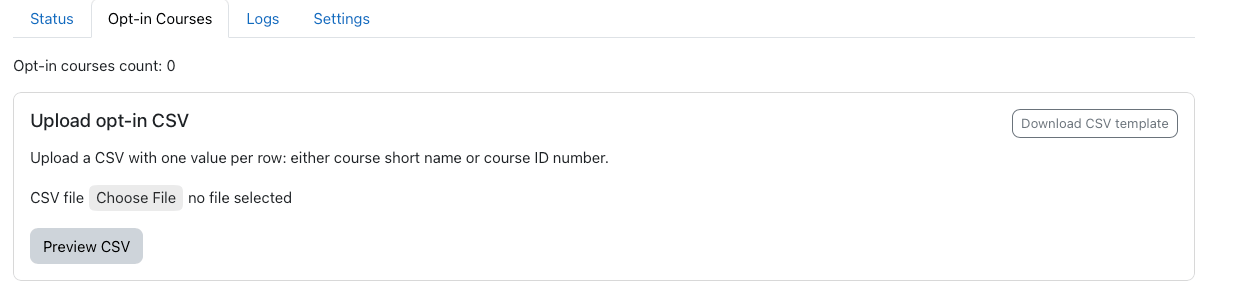
Open Opt-In Courses and select Download CSV template.
Use the Opt-In Courses tab to upload your course list.
Enter one Course ID number or Short name per row. A header row is not required. For example:
SHORTCOURSE-ID-111SHORTCOURSE-ID-222
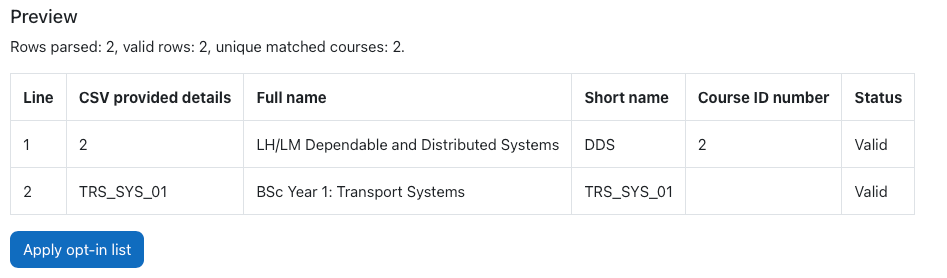
Select Choose File to upload the CSV, then Preview CSV. Check that every row is valid and matches the intended course.
Review the matched course details before applying the list.
Select Apply opt-in list when the preview is correct.
4
Preview the sync
On Status, select Dry Run and wait for the task to finish. Larger course lists may take longer.
Run a preview before changing course activities.
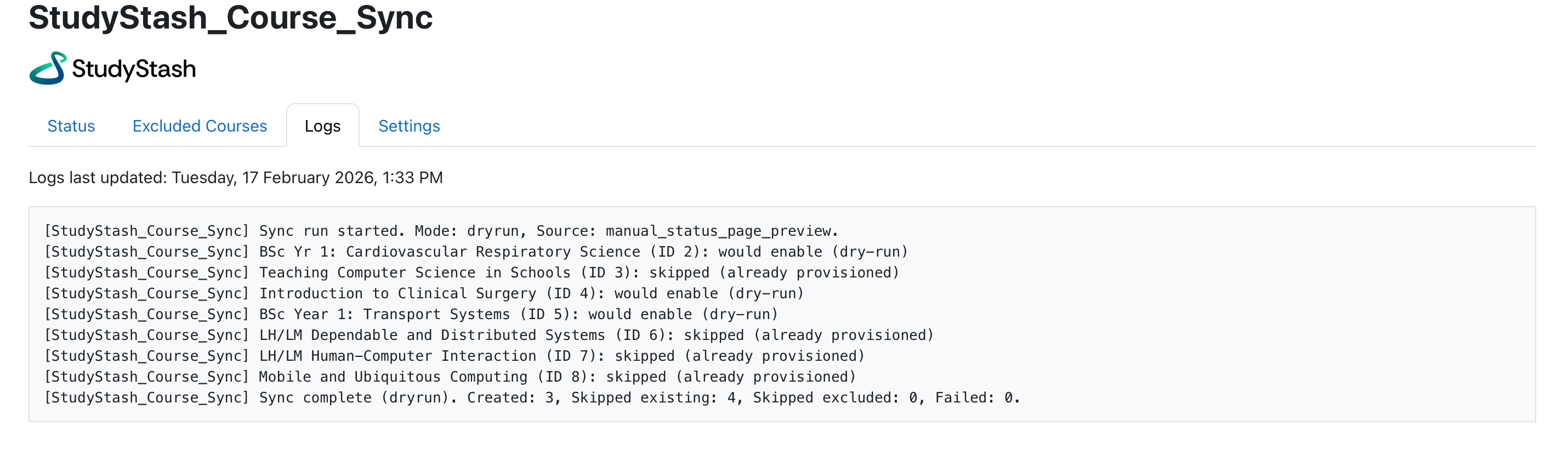
Open Logs and check the planned behaviour for each course before continuing.
5
Sync the courses
When the preview is correct, return to Status and select Sync StudyStash to Courses to apply the changes.
Upload a replacement CSV containing only the courses you want to keep. Each upload replaces the existing opt-in list.This changes the selection for future syncs; it is not an instruction to delete an existing course activity.
Course ID or Course ID number?
Use the Course ID number or Short name in your CSV.
Field
Meaning
Course ID
Moodle’s internal, system-generated identifier. It is assigned when the course is created and cannot normally be changed.
Course ID number
An optional, editable field set by an administrator or course creator, often used to match a course with an external system.
{"docsConfig":{"theme":"mint","$schema":"https://mintlify.com/docs.json","name":"StudyStash Help Centre","description":"Guides and support for StudyStash students, instructors and administrators.","colors":{"primary":"#004C89","light":"#93BCE8","dark":"#004C89"},"logo":{"light":"https://mintcdn.com/studystash-help/UbXlxW0z5agaJ_Cy/logo/studystash-logo-colour-rgb.png?fit=max\u0026auto=format\u0026n=UbXlxW0z5agaJ_Cy\u0026q=85\u0026s=b42380e4f9b27366a5d79712531f7301","dark":"https://mintcdn.com/studystash-help/UbXlxW0z5agaJ_Cy/logo/studystash-logo-white-rgb.png?fit=max\u0026auto=format\u0026n=UbXlxW0z5agaJ_Cy\u0026q=85\u0026s=3ab46876df891935607077352b8c8f23","href":"/"},"favicon":"https://mintcdn.com/studystash-help/UbXlxW0z5agaJ_Cy/images/android-chrome-512x512.png?fit=max\u0026auto=format\u0026n=UbXlxW0z5agaJ_Cy\u0026q=85\u0026s=5bbbe16cd63c9616be8af0a2be969361","appearance":{"default":"light","strict":true},"background":{"color":{"light":"#FFFFFF","dark":"#0C1624"}},"navbar":{"links":[{"href":"/support","label":"Support"}],"primary":{"type":"button","label":"Open StudyStash","href":"https://studystash.com"}},"footer":{"links":[{"header":"StudyStash","items":[{"label":"Website","href":"https://studystash.com"},{"label":"Trust centre","href":"https://trust.studystash.com"},{"label":"Status","href":"https://status.studystash.com"},{"label":"Support requests","href":"https://internal.support.studystash.com/servicedesk/customer/portal/34"}]}]},"search":{"prompt":"Search help guides…"},"fonts":{"family":"Rethink Sans"},"styling":{"eyebrows":"breadcrumbs","latex":false},"contextual":{"options":[],"display":"header"},"navigation":{"pages":[]}},"deployment":{"deploymentMetadataValue":{"subdomain":"studystash-help","hasAudioNarration":false,"actualSubdomain":"studystash-help","customDomains":["help2.studystash.com"],"gitSource":{"type":"github","owner":"studystashapp","repo":"help-center","deployBranch":"main","contentDirectory":"","isPrivate":true,"mountPath":"","label":""},"chroma":{"latestBuiltDeploymentHistoryId":"6aec2e836ea3dafcfecbbbf9","collectionId":"b81fcb05-5829-47d9-8c78-f860a7ddfa21","liveDeploymentHistoryId":"6aec2e836ea3dafcfecbbbf9","schemaVersion":"v3"},"feedback":{"thumbs":false},"entitlements":{},"buildId":"6aec2e836ea3dafcfecbbbf9","clientVersion":"0.0.4067","searchFilterCounts":[{"language":"default","tag":"Administrators","count":25},{"language":"default","tag":"Students","count":14},{"language":"default","tag":"Instructors","count":12},{"language":"default","tag":"Get started","count":11},{"language":"default","tag":"Integrations","count":11},{"language":"default","tag":"Start here","count":8},{"language":"default","tag":"LMS integrations","count":7},{"language":"default","tag":"Your account","count":6},{"language":"default","tag":"Manage students and staff","count":5},{"language":"default","tag":"Pilots and evaluation","count":4}]},"assistantConfig":{"enableAskAiButton":false,"enableStarterQuestions":false,"enableContextualStarterQuestions":false,"enableAskAiSearchBar":true},"basePath":"","hasChatPermissions":false,"hasWebMcpPermissions":false,"toggles":[{"name":"kill-isr","enabled":true,"variant":{"name":"disabled","enabled":false,"feature_enabled":true},"impressionData":false},{"name":"agent-mintlify-slack","enabled":true,"variant":{"name":"disabled","enabled":false,"feature_enabled":true},"impressionData":false},{"name":"agent-integrations-settings","enabled":true,"variant":{"name":"disabled","enabled":false,"feature_enabled":true},"impressionData":false},{"name":"rbac-expansion","enabled":true,"variant":{"name":"disabled","enabled":false,"feature_enabled":true},"impressionData":false},{"name":"automations-pr-grouping","enabled":true,"variant":{"name":"disabled","enabled":false,"feature_enabled":true},"impressionData":false},{"name":"custom-prefix","enabled":true,"variant":{"name":"disabled","enabled":false,"feature_enabled":true},"impressionData":false},{"name":"analytics-v7","enabled":true,"variant":{"name":"disabled","enabled":false,"feature_enabled":true},"impressionData":false},{"name":"user-flows-analytics","enabled":true,"variant":{"name":"disabled","enabled":false,"feature_enabled":true},"impressionData":false},{"name":"no-publish-flow","enabled":true,"variant":{"name":"disabled","enabled":false,"feature_enabled":true},"impressionData":false},{"name":"workos-onboarding","enabled":true,"variant":{"name":"disabled","enabled":false,"feature_enabled":true},"impressionData":false},{"name":"llms-txt-v2","enabled":true,"variant":{"name":"disabled","enabled":false,"feature_enabled":true},"impressionData":false},{"name":"snapshot-serving-live","enabled":true,"variant":{"name":"disabled","enabled":false,"feature_enabled":true},"impressionData":false},{"name":"stripTemperatureMiddleware","enabled":true,"variant":{"name":"disabled","enabled":false,"feature_enabled":true},"impressionData":false},{"name":"support-platform-pylon-zendesk","enabled":true,"variant":{"name":"disabled","enabled":false,"feature_enabled":true},"impressionData":false},{"name":"snapshot-serving","enabled":true,"variant":{"name":"disabled","enabled":false,"feature_enabled":true},"impressionData":false},{"name":"instant-rollback","enabled":true,"variant":{"name":"disabled","enabled":false,"feature_enabled":true},"impressionData":false},{"name":"granular-notifications-server","enabled":true,"variant":{"name":"disabled","enabled":false,"feature_enabled":true},"impressionData":false},{"name":"granular-notifications","enabled":true,"variant":{"name":"disabled","enabled":false,"feature_enabled":true},"impressionData":false},{"name":"automations-fable","enabled":true,"variant":{"name":"disabled","enabled":false,"feature_enabled":true},"impressionData":false},{"name":"fixed-ai-action-pricing","enabled":true,"variant":{"name":"disabled","enabled":false,"feature_enabled":true},"impressionData":false},{"name":"automation-resolve-merge-conflict","enabled":true,"variant":{"name":"disabled","enabled":false,"feature_enabled":true},"impressionData":false},{"name":"scoped-publishing","enabled":true,"variant":{"name":"disabled","enabled":false,"feature_enabled":true},"impressionData":false},{"name":"mintql","enabled":true,"variant":{"name":"disabled","enabled":false,"feature_enabled":true},"impressionData":false},{"name":"page-level-analytics","enabled":true,"variant":{"name":"disabled","enabled":false,"feature_enabled":true},"impressionData":false},{"name":"editor-version-history-v2","enabled":true,"variant":{"name":"disabled","enabled":false,"feature_enabled":true},"impressionData":false},{"name":"billing-page-v2","enabled":true,"variant":{"name":"disabled","enabled":false,"feature_enabled":true},"impressionData":false},{"name":"full-page-search","enabled":true,"variant":{"name":"disabled","enabled":false,"feature_enabled":true},"impressionData":false},{"name":"workspace-projects","enabled":true,"variant":{"name":"disabled","enabled":false,"feature_enabled":true},"impressionData":false},{"name":"assistant-v5","enabled":true,"variant":{"name":"disabled","enabled":false,"feature_enabled":true},"impressionData":false},{"name":"fork-pr-previews","enabled":true,"variant":{"name":"disabled","enabled":false,"feature_enabled":true},"impressionData":false},{"name":"revalidation-jwt","enabled":true,"variant":{"name":"disabled","enabled":false,"feature_enabled":true},"impressionData":false},{"name":"vite-origin","enabled":true,"variant":{"name":"disabled","enabled":false,"feature_enabled":true},"impressionData":false},{"name":"workos-sso-scim","enabled":true,"variant":{"name":"disabled","enabled":false,"feature_enabled":true},"impressionData":false},{"name":"hobby-abuse-scan","enabled":true,"variant":{"name":"disabled","enabled":false,"feature_enabled":true},"impressionData":false},{"name":"dashboard-inbox","enabled":true,"variant":{"name":"disabled","enabled":false,"feature_enabled":true},"impressionData":false},{"name":"workos-signup","enabled":true,"variant":{"name":"disabled","enabled":false,"feature_enabled":true},"impressionData":false},{"name":"turbopuffer-dual-write","enabled":true,"variant":{"name":"disabled","enabled":false,"feature_enabled":true},"impressionData":false},{"name":"workos-enabled","enabled":true,"variant":{"name":"disabled","enabled":false,"feature_enabled":true},"impressionData":false},{"name":"approve-review-flow","enabled":true,"variant":{"name":"disabled","enabled":false,"feature_enabled":true},"impressionData":false},{"name":"sso-setup-deadline-banner","enabled":true,"variant":{"name":"disabled","enabled":false,"feature_enabled":true},"impressionData":false},{"name":"turbopuffer-serve","enabled":true,"variant":{"name":"disabled","enabled":false,"feature_enabled":true},"impressionData":false},{"name":"live-agents","enabled":true,"variant":{"name":"disabled","enabled":false,"feature_enabled":true},"impressionData":false}],"privacy":{"consentBanner":{"enabled":true}},"googleFontsInlined":true},"customCss":[{"filePath":"custom.css","content":":root,.ss-help-layout{--ss-brand-blue: #004c89;--ss-ink: #132b43;--ss-muted: #536578;--ss-line: #d9e2eb;--ss-surface: #f4f7fa;--ss-canvas: #ffffff;--ss-paper: #ffffff;--ss-accent: var(--ss-brand-blue);--ss-blue: var(--ss-brand-blue);--ss-tint: #e4edf3;--ss-on-accent: #ffffff}.dark{--ss-ink: #edf3fa;--ss-muted: #b6c5d6;--ss-line: #2c4058;--ss-surface: #1b2d43;--ss-canvas: #0c1624;--ss-paper: #142438;--ss-accent: #93bce8;--ss-blue: #93bce8;--ss-tint: #1d3550;--ss-on-accent: #0c1624}body:has(.ss-help-layout) #content-area{padding:0}.ss-help-layout{min-height:100vh;display:flex;flex-direction:column;overflow:clip;color:var(--ss-ink);background:var(--ss-canvas);font-family:\"Rethink Sans\", sans-serif;font-size:15px;line-height:1.55}.ss-help-layout *{box-sizing:border-box}.ss-help-layout :is(h1,h2,h3,p,ul){margin:0}.ss-help-layout a{color:inherit;text-decoration:none}.ss-help-layout a:hover{color:var(--ss-accent)}.ss-help-layout :is(a,button,input):focus-visible{outline:3px solid var(--ss-accent);outline-offset:5px}.ss-help-layout h1{font-size:48px;line-height:1.12;letter-spacing:-1.7px;font-weight:600;color:var(--ss-ink)}.ss-help-layout h2{font-size:25px;line-height:1.25;letter-spacing:-.65px;font-weight:600}.ss-help-header{border-bottom:1px solid var(--ss-line)}.ss-header-inner,.ss-footer-inner{max-width:1220px;padding:23px 40px;margin:0 auto;display:flex;align-items:center;justify-content:space-between;gap:24px}.ss-help-brand{display:flex;align-items:center;gap:18px;flex-shrink:0}.ss-help-brand img{display:block;width:153px;height:auto;margin:0}.ss-help-brand .ss-help-logo-dark{display:none}.dark .ss-help-brand .ss-help-logo-light{display:none}.dark .ss-help-brand .ss-help-logo-dark{display:block}.ss-help-brand>span{padding-left:18px;border-left:1px solid var(--ss-line);color:var(--ss-muted);font-size:13px}.ss-help-header-links{display:flex;align-items:center;gap:26px;font-size:13px;font-weight:500}.ss-help-open{display:inline-flex;align-items:center;justify-content:center;gap:10px;min-height:44px;border:1px solid var(--ss-brand-blue);padding:10px 16px;border-radius:8px;font-weight:600;white-space:nowrap}.ss-help-layout a.ss-help-open{background:var(--ss-brand-blue);color:#fff;box-shadow:0 1px 2px #132b4314;transition:background-color .15s ease}.ss-help-layout a.ss-help-open:hover{background:#003d6e;border-color:#003d6e;color:#fff}.ss-help-open svg{flex:0 0 auto}.ss-help-content{width:100%;max-width:1140px;flex:1;isolation:isolate;margin:0 auto;padding:0 40px}.ss-eyebrow{color:var(--ss-accent);font-size:12px;font-weight:600;letter-spacing:.03em}.ss-home-hero{display:grid;grid-template-columns:1fr 1.1fr;align-items:center;gap:40px;padding:18px 0;margin:42px 0 44px}.ss-home-hero h1{font-size:43px;letter-spacing:-1.5px}.ss-home-hero .ss-search{max-width:610px;margin:0 auto;text-align:left}.ss-search{position:relative;width:100%;text-align:left}.ss-search-launcher{display:flex;align-items:center;gap:12px;width:100%;min-height:58px;padding:8px 9px 8px 18px;border:1px solid var(--ss-line);border-radius:9px;background:var(--ss-paper);box-shadow:0 3px 8px #16353106;color:var(--ss-ink);font:inherit;text-align:left;cursor:pointer}.ss-search-launcher:hover{border-color:var(--ss-accent)}.ss-search-launcher:focus-visible{outline:2px solid var(--ss-accent);outline-offset:3px}.ss-search-launcher>svg{width:20px;height:20px;flex-shrink:0;color:var(--ss-accent)}.ss-search-placeholder{flex:1;min-width:0;color:var(--ss-muted);font-size:15px}.ss-search-action{border-radius:6px;padding:11px 18px;background:var(--ss-accent);color:var(--ss-on-accent);font-size:13px;font-weight:500}.ss-section-heading{display:flex;align-items:flex-end;justify-content:space-between;gap:20px;margin-bottom:22px}.ss-section-heading p{color:var(--ss-muted);font-size:14px;margin-top:7px}.ss-help-layout a.ss-help-link{display:inline-flex;align-items:center;gap:12px;color:var(--ss-accent);font-size:13px;font-weight:500}.ss-audience-grid{display:grid;grid-template-columns:repeat(3,minmax(0,1fr));gap:24px}.ss-audience-card{display:block;min-width:0;overflow:hidden;border:1px solid var(--ss-line);border-radius:10px}.ss-audience-card:hover{border-color:var(--ss-accent)}.ss-audience-copy{padding:24px}.ss-audience-copy h3{font-size:25px;font-weight:600;line-height:1.2;letter-spacing:-.7px}.ss-audience-copy p{font-size:14px;line-height:1.6;color:var(--ss-muted);margin:10px 0 0;min-height:44px}.ss-help-support{display:flex;align-items:center;gap:20px;padding:29px 32px;margin:30px 0 44px;border-radius:12px;background:var(--ss-tint)}.ss-help-support h2{font-size:23px;letter-spacing:-.5px;margin-bottom:6px}.ss-help-support p{color:var(--ss-muted);font-size:14px}.ss-help-button{display:inline-flex;align-items:center;justify-content:center;gap:22px;border:1px solid var(--ss-accent);padding:12px 18px;border-radius:7px;font-size:13px;font-weight:500;white-space:nowrap;min-height:44px}.ss-help-support .ss-help-button{margin-left:auto;background:var(--ss-accent);color:var(--ss-on-accent)}.ss-help-layout .ss-help-button:hover{color:var(--ss-accent);background:var(--ss-paper)}.ss-help-footer{border-top:1px solid var(--ss-line);color:var(--ss-muted);font-size:12px}.ss-footer-inner{padding-top:25px;padding-bottom:27px;align-items:flex-start}.ss-footer-inner>a{flex-shrink:0;font-weight:500;color:var(--ss-ink)}.ss-help-footer nav{display:flex;justify-content:flex-end;flex-wrap:wrap;gap:10px 22px}.ss-help-breadcrumb{display:flex;flex-wrap:wrap;align-items:center;gap:11px;margin:25px 0 19px;color:var(--ss-muted);font-size:13px}.ss-role-hero{position:relative;padding:44px 0 38px}.ss-role-hero-copy{max-width:620px;margin:0 auto;text-align:center}.ss-role-hero h1{color:white;font-size:43px;margin:0}.ss-role-hero h1+p{color:#e4edf3;margin-top:13px}.ss-role-hero .ss-search{margin-top:25px}.ss-role-start{position:relative;display:flex;align-items:center;justify-content:space-between;gap:24px;padding:26px 28px;margin:0 0 26px;border:1px solid var(--ss-line);border-radius:10px;background:var(--ss-paper);box-shadow:0 3px 12px #132b4308}.ss-role-start h2{font-size:23px;margin:6px 0}.ss-role-start p:not(.ss-eyebrow){font-size:14px;color:var(--ss-muted)}.ss-topic-nav{display:flex;flex-wrap:wrap;gap:8px;padding:0 0 25px}.ss-topic-nav a{display:block;padding:7px 13px;border:1px solid var(--ss-line);border-radius:6px;color:var(--ss-muted);font-size:13px}.ss-topic-nav a:hover{background:var(--ss-tint)}.ss-role-sections{display:grid;grid-template-columns:repeat(2,minmax(0,1fr));gap:24px;margin:0 0 48px}.ss-role-section{border:1px solid var(--ss-line);border-radius:10px;background:var(--ss-paper);padding:25px 26px 12px}.ss-role-section h2{font-size:21px;font-weight:600;margin-bottom:20px;letter-spacing:-.45px;scroll-margin-top:25px}.ss-role-section ul{list-style:none;padding:0}.ss-role-section li{margin:0;padding:0}.ss-role-section li a{display:flex;align-items:center;justify-content:space-between;gap:20px;padding:14px 0;border-top:1px solid var(--ss-line);font-size:14px;min-height:49px}.ss-role-section li a span:last-child{flex-shrink:0;color:var(--ss-accent)}.ss-role-section:last-child:nth-child(odd){grid-column:1 / -1}.ss-role-section:last-child:nth-child(odd) ul{display:grid;grid-template-columns:repeat(2,minmax(0,1fr));column-gap:36px}@media (max-width: 1000px){.ss-header-inner,.ss-footer-inner,.ss-help-content{padding-left:28px;padding-right:28px}.ss-audience-grid{gap:16px}.ss-audience-copy{padding:20px 18px}.ss-audience-copy h3{font-size:23px}.ss-role-hero h1{font-size:36px}}@media (max-width: 760px){.ss-help-brand>span{display:none}.ss-home-hero{grid-template-columns:1fr;gap:22px}.ss-home-hero h1{font-size:36px}.ss-audience-grid{grid-template-columns:1fr;gap:22px}.ss-audience-card{display:grid;grid-template-columns:124px minmax(0,1fr);align-items:center}.ss-audience-copy p{min-height:0}.ss-role-hero{padding:32px 0}.ss-role-sections{gap:18px}.ss-role-section{padding:22px 20px 9px}.ss-footer-inner{flex-direction:column;gap:16px}.ss-help-footer nav{justify-content:flex-start}}@media (max-width: 520px){.ss-header-inner{padding:17px 20px;gap:14px}.ss-help-brand img{width:139px}.ss-help-header-links{font-size:12px;gap:12px}.ss-header-inner{flex-wrap:wrap}.ss-help-header-links{width:100%;justify-content:space-between}.ss-help-content{padding:0 20px}.ss-home-hero{padding:0;margin:32px 0;gap:22px}.ss-home-hero h1{font-size:32px;letter-spacing:-1px;margin-top:9px}.ss-search-launcher{padding:6px 7px 6px 11px;gap:9px}.ss-search-placeholder{font-size:16px}.ss-search-action{padding:10px 12px}.ss-section-heading{align-items:flex-start;flex-direction:column;gap:13px}.ss-section-heading h2{font-size:25px}.ss-section-heading p{font-size:13px}.ss-audience-card{grid-template-columns:88px minmax(0,1fr)}.ss-audience-copy{padding:20px 18px}.ss-audience-copy h3{font-size:21px}.ss-audience-copy p{font-size:13px;margin-top:7px;margin-bottom:0}.ss-help-support{flex-direction:column;align-items:flex-start;padding:24px;margin:20px 0 30px;gap:18px}.ss-help-support h2{font-size:23px}.ss-help-support .ss-help-button{margin-left:0}.ss-footer-inner{padding:24px 20px}.ss-help-footer nav{gap:13px 19px}.ss-help-breadcrumb{font-size:12px;margin:22px 0 17px}.ss-role-hero h1{font-size:32px;letter-spacing:-1px}.ss-role-hero h1+p{font-size:14px}.ss-role-start{flex-direction:column;align-items:flex-start;gap:17px;padding:24px 20px}.ss-role-sections,.ss-role-section:last-child:nth-child(odd) ul{grid-template-columns:1fr}.ss-role-section{padding:22px 20px 8px}.ss-topic-nav{gap:7px;padding:18px 0 22px}.ss-topic-nav a{font-size:12px}}.ss-audience-nav{display:flex;align-items:center;gap:26px;max-width:1220px;margin:0 auto;padding:0 40px 14px;font-size:13px}.ss-audience-nav a{padding:6px 0;color:var(--ss-muted);border-bottom:2px solid transparent}.ss-audience-nav a[aria-current=\"page\"]{color:var(--ss-accent);border-color:var(--ss-accent);font-weight:600}.ss-audience-copy h3{display:flex;align-items:center;justify-content:space-between;gap:12px}.ss-audience-copy h3>span{color:var(--ss-accent);font-size:23px;font-weight:400}#content [data-component-part=\"step-indicator\"]{background:var(--ss-tint);color:var(--ss-accent);font-size:13px}#content [data-component-part=\"step-title\"]{font-size:19px;line-height:1.4;font-weight:600;color:var(--ss-ink);letter-spacing:-.25px}#content [data-component-part=\"step-line\"]{background:var(--ss-line)}#header .breadcrumb-list{flex-wrap:wrap}#header .breadcrumb-list a{color:var(--ss-accent)}@media (min-width: 1001px){.ss-help-header{position:relative}.ss-audience-nav{position:absolute;top:23px;left:50%;transform:translateX(-50%);padding:6px 0;gap:24px}}.ss-product-visual{display:flex;align-items:center;justify-content:center;height:170px;overflow:hidden;padding:24px;border-radius:9px 9px 0 0;background:var(--ss-surface)}.ss-product-window{display:block;flex-shrink:0;width:100%;max-width:340px;height:auto;overflow:hidden;border-radius:8px;box-shadow:0 2px 10px #16353108}.ss-product-students .ss-product-window{width:158px;height:124px;background:white}.ss-product-educators .ss-product-window{background:white}.ss-product-administrators .ss-product-window{max-width:196px}.ss-role-hero>.ss-product-visual{height:100%;min-height:260px;border-radius:9px}.ss-role-hero .ss-product-students .ss-product-window{width:230px;height:180px}.ss-role-hero .ss-product-administrators .ss-product-window{max-width:330px}@media (max-width: 1000px){.ss-audience-nav{padding-left:28px;padding-right:28px}.ss-home-hero{gap:24px}.ss-home-hero h1{font-size:36px}.ss-product-visual{height:162px;padding:18px}.ss-audience-copy p{min-height:44px}}@media (max-width: 760px){.ss-audience-card .ss-product-visual{height:100%;min-height:124px;padding:14px;border-radius:0}.ss-audience-card .ss-product-window{max-width:100%;height:auto}.ss-audience-copy p{min-height:0}.ss-role-hero>.ss-product-visual{display:none}}@media (max-width: 520px){.ss-header-inner{padding-bottom:10px}.ss-audience-nav{padding:0 20px 9px;gap:0;justify-content:space-between;font-size:12px}.ss-audience-nav a{min-height:44px;display:flex;align-items:center}.ss-home-hero{padding:0;gap:22px}.ss-home-hero h1{font-size:32px}.ss-audience-card .ss-product-visual{min-height:118px;padding:10px}}html:has(.ss-help-layout),body:has(.ss-help-layout){color-scheme:light;background:#ffffff}.ss-help-layout .ss-help-brand .ss-help-logo-light{display:block}.ss-help-layout .ss-help-brand .ss-help-logo-dark{display:none}.ss-help-layout-home .ss-home-hero{position:relative;display:flex;flex-direction:column;gap:25px;padding:44px 0 38px;margin:0;text-align:center}.ss-help-layout-home .ss-home-hero::before,.ss-help-layout-audience .ss-role-hero::before{content:'';position:absolute;z-index:-1;top:0;bottom:-135px;left:50%;width:100vw;transform:translateX(-50%);background:var(--ss-brand-blue)}.ss-help-layout-audience .ss-role-hero::before{bottom:-65px}.ss-help-layout-home .ss-home-hero h1{color:white}.ss-help-layout-home .ss-home-hero .ss-search{max-width:620px}.ss-help-layout-home .ss-audiences{position:relative;padding-bottom:52px}.ss-help-layout-home .ss-directory-heading{color:white;font-size:17px;font-weight:500;letter-spacing:-.25px;margin:0 0 20px}.ss-help-layout-home .ss-audience-card{display:block;background:var(--ss-paper);border-color:var(--ss-line);box-shadow:0 3px 12px #132b4308}.ss-help-layout-home .ss-audience-card:hover{border-color:var(--ss-accent)}.ss-help-layout-home .ss-audience-card .ss-product-visual{height:270px;min-height:0;padding:18px;border-radius:9px 9px 0 0}.ss-help-layout-home .ss-audience-card .ss-product-window{width:100%;max-width:min(300px, 100%);height:auto}.ss-help-layout-home .ss-product-students .ss-product-window{width:234px;aspect-ratio:1}.ss-help-layout-home .ss-product-administrators .ss-product-window{width:300px;max-width:100%;box-shadow:none;border-radius:0}.ss-help-layout-home .ss-audience-copy{padding:22px 24px}.ss-help-layout .ss-footer-inner{padding-top:25px;padding-bottom:25px}#footer.advanced-footer{width:100%;border-color:var(--ss-line);background:var(--ss-canvas);color:var(--ss-muted)}#footer.advanced-footer>div{max-width:1220px;padding:28px 40px;gap:16px}#footer.advanced-footer>div>div:first-child{align-items:center;gap:24px}#footer.advanced-footer>div>div:first-child>div{min-width:0;flex:0 1 auto}#footer.advanced-footer>div>div:first-child>div:last-child{display:block}#footer.advanced-footer .nav-logo{width:153px;max-width:100%;height:auto}#footer.advanced-footer>div>div:first-child div:has(>a[href^=\"https://\"]){display:flex;flex-direction:row;flex-wrap:wrap;justify-content:flex-end;gap:8px 24px}#footer.advanced-footer>div>div:first-child a[href^=\"https://\"]{display:inline-flex;align-items:center;min-height:32px;max-width:none;white-space:nowrap;color:var(--ss-muted);font-size:13px}#footer.advanced-footer>div>div:nth-child(2){background:var(--ss-line)}#footer.advanced-footer>div>div:last-child{gap:20px}#footer.advanced-footer>div>div:last-child a{color:var(--ss-muted);font-size:12px}#footer.advanced-footer>div>div:last-child a svg{height:12px}#footer.advanced-footer>div>div a[href]:hover{color:var(--ss-accent)}#footer.advanced-footer button[aria-pressed]{width:36px;height:36px;padding:10px;border-radius:6px;color:var(--ss-muted)}#footer.advanced-footer button[aria-pressed=\"true\"]{background:var(--ss-tint);color:var(--ss-accent)}#footer.advanced-footer button[aria-pressed]:hover{background:var(--ss-tint);color:var(--ss-accent)}#footer.advanced-footer :is(a,button):focus-visible{outline:2px solid var(--ss-accent);outline-offset:4px}@media (max-width: 1000px){#footer.advanced-footer>div{padding-left:28px;padding-right:28px}}@media (max-width: 760px){#footer.advanced-footer>div{padding:24px 20px}#footer.advanced-footer>div>div:first-child{flex-direction:column;align-items:flex-start;gap:16px}#footer.advanced-footer>div>div:first-child div:has(>a[href^=\"https://\"]){justify-content:flex-start;gap:4px 20px}#footer.advanced-footer>div>div:last-child{gap:12px}#footer.advanced-footer>div>div:last-child>div:last-child{gap:4px}}@media (max-width: 760px){.ss-help-layout-home .ss-audiences{padding-bottom:36px}.ss-help-layout-home .ss-audience-grid{gap:12px;max-width:480px;margin:0 auto}.ss-help-layout-home .ss-home-hero{padding:24px 0;gap:18px}.ss-help-layout-home .ss-home-hero::before{bottom:-100px}.ss-help-layout-home .ss-directory-heading{max-width:480px;margin-left:auto;margin-right:auto}.ss-help-layout-home .ss-audience-card{display:grid;grid-template-columns:96px minmax(0, 1fr);align-items:stretch}.ss-help-layout-home .ss-audience-card .ss-product-visual{height:100%;min-height:116px;padding:10px;border-radius:0}.ss-help-layout-home .ss-audience-card .ss-product-window{width:100%;max-width:100%}.ss-help-layout-home .ss-audience-copy{align-self:center;padding:17px 16px}.ss-help-layout-home .ss-audience-copy h3{font-size:20px;letter-spacing:-.4px;gap:8px}.ss-help-layout-home .ss-audience-copy p{margin-top:6px;min-height:0;font-size:13px;line-height:1.5}}@media (max-width: 520px){.ss-help-layout-home .ss-header-inner{padding-bottom:17px}.ss-help-layout-home .ss-directory-heading{font-size:16px;margin-bottom:16px}.ss-audience-copy h3>span{font-size:20px}}@media (max-width: 360px){.ss-audience-card{grid-template-columns:64px minmax(0,1fr)}.ss-help-layout-home .ss-audience-card{grid-template-columns:64px minmax(0,1fr)}.ss-help-layout-home .ss-audience-copy{padding-left:12px;padding-right:12px}.ss-help-layout-home .ss-audience-copy h3{font-size:18px}.ss-audience-copy{padding-left:15px;padding-right:15px}.ss-audience-copy h3{font-size:20px}}img[src*=\"/assets/lms/canvas.png\"]{transform:scale(1.4);clip-path:inset(16%)}img[src*=\"/assets/lms/moodle.png\"]{transform:scale(1.12)}.ss-announcement{margin:16px 0 28px;padding:20px;border:1px solid var(--ss-line);border-radius:8px;background:var(--ss-paper)}.ss-announcement-tools{display:flex;flex-wrap:wrap;align-items:center;justify-content:flex-end;gap:8px 12px;margin-bottom:16px}.ss-announcement-tools button{display:inline-flex;align-items:center;gap:8px;min-height:40px;padding:8px 12px;border:1px solid var(--ss-line);border-radius:6px;background:var(--ss-surface);color:var(--ss-accent);font-size:13px;font-weight:600;cursor:pointer}.ss-announcement-tools button:hover{border-color:var(--ss-accent)}.ss-announcement-tools button:focus-visible{outline:2px solid var(--ss-accent);outline-offset:3px}.ss-announcement-tools [role=\"status\"]{font-size:12px;color:var(--ss-muted)}.ss-announcement-content{font-size:15px;line-height:1.7;overflow-wrap:anywhere}.ss-announcement-content>[data-as=\"p\"]{display:block;margin:14px 0}.ss-announcement-content>:first-child{margin-top:0}.ss-announcement-content>:last-child{margin-bottom:0}body:not(:has(.ss-help-layout)) #header{padding-bottom:24px;margin-bottom:28px;border-bottom:1px solid var(--ss-line)}body:not(:has(.ss-help-layout)) #header h1{color:var(--ss-ink);font-weight:600;font-size:clamp(30px, 3vw, 40px);line-height:1.15;letter-spacing:-1px}body:not(:has(.ss-help-layout)) #header .prose{color:var(--ss-muted);line-height:1.65}body:not(:has(.ss-help-layout)) #content{--tw-prose-headings: var(--ss-ink);--tw-prose-links: var(--ss-accent);line-height:1.8}body:not(:has(.ss-help-layout)) #content h2{font-size:25px;line-height:1.3;letter-spacing:-.5px;font-weight:600}body:not(:has(.ss-help-layout)) #content h3{color:var(--ss-ink);font-size:20px;line-height:1.4;font-weight:600}.ss-article-screenshot{margin:24px 0;max-width:680px;border:1px solid var(--ss-line);border-radius:10px;overflow:hidden;background:var(--ss-surface)}.ss-article-screenshot .ss-screenshot-crop{display:block;width:100%;height:auto;background:white}.ss-article-screenshot figcaption{display:flex;flex-wrap:wrap;justify-content:space-between;gap:8px 18px;padding:13px 16px;border-top:1px solid var(--ss-line);font-size:13px;line-height:1.5;color:var(--ss-muted)}.ss-article-screenshot figcaption a{color:var(--ss-accent);font-weight:500;text-decoration:underline;text-underline-offset:3px}.ss-article-screenshot a:focus-visible{outline:3px solid var(--ss-accent);outline-offset:-3px}.ss-article-screenshot.ss-crop-menu{max-width:370px}.ss-article-screenshot.ss-crop-sharing{max-width:520px}.ss-screenshot{border-radius:10px}.ss-video{border-radius:10px}@media (max-width: 520px){body:not(:has(.ss-help-layout)) #header{padding-bottom:20px;margin-bottom:24px}body:not(:has(.ss-help-layout)) #content h2{font-size:23px}}.ss-video{margin:28px 0;overflow:hidden;border:1px solid var(--ss-line);border-radius:10px;background:var(--ss-surface)}.ss-video video{display:block;width:100%;height:auto;max-height:520px;margin:0;background:#eaf0f4;border-radius:0}.ss-video figcaption{padding:13px 16px;display:flex;justify-content:space-between;align-items:baseline;flex-wrap:wrap;gap:4px 12px;color:var(--ss-ink);font-size:13px;line-height:1.5}.ss-video figcaption span{color:var(--ss-muted);font-size:11px;white-space:nowrap}.ss-checklist,.ss-finder{border:1px solid var(--ss-line);padding:24px;border-radius:6px;margin:24px 0;background:var(--ss-surface);color:var(--ss-ink)}.ss-checklist-heading{display:flex;flex-wrap:wrap;justify-content:space-between;gap:10px;align-items:center}.ss-checklist-heading h3{margin:0;font-size:18px;font-weight:700}.ss-checklist-heading span{color:var(--ss-muted);font-size:12px}.ss-checklist progress{display:block;width:100%;height:7px;accent-color:#087b79;margin:16px 0;border:0;border-radius:5px;overflow:hidden}.ss-checklist progress::-webkit-progress-bar{background:#cfe1e3}.ss-checklist progress::-webkit-progress-value{background:#087b79}.ss-checklist ul{list-style:none;padding:0;margin:0}.ss-checklist li{display:flex;align-items:start;gap:14px;padding:18px 0;border-bottom:1px solid var(--ss-line)}.ss-checklist li:last-child{border:0}.ss-checklist input{width:20px;height:20px;margin-top:2px;accent-color:#087b79;flex:0 0 auto}.ss-checklist label{cursor:pointer;font-size:15px;font-weight:650}.ss-checklist li p{margin:5px 0;color:var(--ss-muted);font-size:13px;line-height:1.6}.ss-checklist a,.ss-finder a{color:var(--ss-blue);font-size:13px;font-weight:650}.ss-small{font-size:12px;color:var(--ss-muted);line-height:1.6;margin-top:16px}.ss-complete{color:var(--ss-accent);font-weight:650;font-size:14px}.ss-finder fieldset{border:0;padding:0;margin:0 0 24px;min-width:0}.ss-finder legend{font-size:16px;font-weight:650;margin-bottom:14px}.ss-choices{display:flex;flex-wrap:wrap;gap:10px}.ss-choices button{text-align:left;font-size:14px;padding:12px 16px;border-radius:5px;border:1px solid var(--ss-line);background:transparent;color:var(--ss-ink);cursor:pointer}.ss-choices button[aria-pressed=\"true\"]{color:#fff;border-color:#086c72;background:#086c72}.ss-finder-result{border-top:1px solid var(--ss-line);padding-top:20px}.ss-finder-result h3{margin:0 0 8px;font-size:18px;font-weight:700}.ss-finder-result p{color:var(--ss-muted);font-size:14px;line-height:1.7}.ss-finder-result ul{list-style:none;margin:14px 0 0;padding:0;display:grid;gap:12px}.ss-finder :is(a,button):focus-visible,.ss-checklist :is(a,input):focus-visible{outline:3px solid #159897;outline-offset:4px;border-radius:5px}.ss-route-card{border-radius:6px!important}.ss-route-card h2{font-size:18px}#content-area h2{letter-spacing:-.02em}#content-area h3{letter-spacing:-.015em}.ss-transcript{padding:0 16px 14px;font-size:13px;color:var(--ss-muted)}.ss-transcript summary{cursor:pointer;color:var(--ss-blue);font-weight:600}.ss-transcript p{margin:14px 0 0;line-height:1.8}.ss-screenshot{border-radius:10px;border-color:var(--ss-line);background:var(--ss-surface)}.ss-screenshot img{border-radius:3px}#topbar-cta-button{background:transparent}#topbar-cta-button a>span{background:var(--ss-brand-blue);border-radius:7px}@media (max-width: 480px){.ss-checklist,.ss-finder{padding:18px}.ss-choices{flex-direction:column}.ss-choices button{width:100%}.ss-video figcaption{padding:10px 12px}}#navbar{color:var(--ss-ink)}#navbar-transition{background:#ffffff;border-color:var(--ss-line);backdrop-filter:none}#navbar a:has(>.nav-logo){display:flex;align-items:center;flex-shrink:0;gap:16px}#navbar a:has(>.nav-logo)::after{content:\"Help centre\";padding-left:16px;border-left:1px solid var(--ss-line);color:var(--ss-muted);font-size:14px;font-weight:400;white-space:nowrap}#navbar .nav-logo{width:153px;height:auto}#navbar #search-bar-entry{max-width:400px;height:40px;border:1px solid var(--ss-line);border-radius:7px;background:var(--ss-surface);color:var(--ss-muted);box-shadow:none}#navbar #search-bar-entry:hover{border-color:#9aafc2;background:#edf2f6}#navbar [data-search-item=\"trigger-icon\"]{color:var(--ss-muted)}#navbar [data-search-item=\"trigger-hint\"]{border:1px solid var(--ss-line);border-radius:4px;padding:0 5px;background:white;color:var(--ss-muted);font-weight:400}#navbar .navbar-link a{min-height:40px;padding:0 8px;color:var(--ss-muted);font-weight:500}#navbar .navbar-link a:hover{color:var(--ss-brand-blue)}#navbar #topbar-cta-button>a{min-height:40px;padding:9px 15px;border-radius:7px;background:var(--ss-brand-blue);color:white;box-shadow:0 1px 2px #132b4314}#navbar #topbar-cta-button>a:hover{background:#003d6e}#navbar #topbar-cta-button>a>span{display:none}#navbar #topbar-cta-button>a>div{gap:8px}#navbar .nav-tabs{align-items:center;gap:6px}#navbar .nav-tabs-item{height:36px;padding:0 14px;border-radius:6px;color:var(--ss-muted);font-size:14px;text-shadow:none}#navbar .nav-tabs-item:hover{background:var(--ss-surface);color:var(--ss-brand-blue)}#navbar .nav-tabs-item[data-active=\"true\"]{background:var(--ss-tint);color:var(--ss-brand-blue);font-weight:600}#navbar .nav-tabs-item>div{display:none}#navbar :is(a,button):focus-visible{outline:2px solid var(--ss-brand-blue);outline-offset:3px}#navbar #search-bar-entry-mobile,#navbar button[aria-label=\"More actions\"]{width:40px;height:40px;border-radius:7px;color:var(--ss-muted)}#navbar #search-bar-entry-mobile:hover,#navbar button[aria-label=\"More actions\"]:hover{background:var(--ss-surface)}#navbar button[aria-label=\"More actions\"]::after{inset:0}@media (min-width: 1024px){body:has(.ss-help-layout-home) #search-bar-entry{visibility:hidden}}@media (max-width: 600px){#navbar .nav-logo{width:140px}#navbar a:has(>.nav-logo)::after{display:none}}#navbar button:has(>div>.sr-only)>div:last-child>div:first-child{display:none}nav[aria-label=\"Mobile menu\"] a{min-height:44px;color:var(--ss-ink)}nav[aria-label=\"Mobile menu\"] a[href=\"https://studystash.com\"]{margin-top:4px;border-radius:7px;background:var(--ss-brand-blue);color:white}nav[aria-label=\"Mobile menu\"] a[href=\"https://studystash.com\"]:hover{background:#003d6e}nav[aria-label=\"Mobile menu\"] a:focus-visible{outline:2px solid var(--ss-brand-blue);outline-offset:3px}.ss-setup-table{container-type:inline-size;margin:24px 0;color:var(--ss-ink);font-size:14px;line-height:1.6}.ss-setup-table table{width:100%;table-layout:fixed;border-collapse:collapse;text-align:left}.ss-setup-table th,.ss-setup-table td{padding:14px 12px;border-bottom:1px solid var(--ss-line);vertical-align:top;overflow-wrap:anywhere}.ss-setup-table thead th{background:var(--ss-surface);font-weight:600}.ss-setup-table th:first-child{width:30%}.ss-setup-table tbody th{font-weight:500}.ss-setup-value{min-width:0}.ss-setup-value code{background:none;border:0;padding:0;display:block;font-size:13px;line-height:1.7;white-space:normal;overflow-wrap:anywhere;color:var(--ss-ink)}.ss-setup-value button{display:inline-flex;align-items:center;min-height:36px;margin-top:6px;padding:4px 10px;border:1px solid var(--ss-line);border-radius:5px;background:var(--ss-paper);color:var(--ss-accent);font:inherit;font-size:12px;font-weight:600;cursor:pointer}.ss-setup-value button:hover{border-color:var(--ss-accent);background:var(--ss-surface)}.ss-setup-value button:focus-visible,a.ss-request-action:focus-visible{outline:2px solid var(--ss-accent);outline-offset:3px}.ss-copy-status{margin-top:8px;color:var(--ss-muted);font-size:13px}.ss-visually-hidden{position:absolute;width:1px;height:1px;padding:0;margin:-1px;overflow:hidden;clip-path:inset(50%);white-space:nowrap;border:0}#content a.ss-request-action{display:inline-flex;align-items:center;min-height:44px;margin:8px 0 18px;padding:10px 16px;border:0;border-radius:7px;background:var(--ss-brand-blue);color:white;font-weight:600;text-decoration:none}#content a.ss-request-action:hover{background:#003d6e}@media (max-width: 600px){.ss-setup-table table,.ss-setup-table tbody,.ss-setup-table tr,.ss-setup-table tbody th,.ss-setup-table td{display:block;width:100%}.ss-setup-table thead{position:absolute;width:1px;height:1px;overflow:hidden;clip-path:inset(50%)}.ss-setup-table tbody tr{padding:14px 0;border-bottom:1px solid var(--ss-line)}.ss-setup-table tbody th,.ss-setup-table td{padding:0;border:0}.ss-setup-table tbody th:first-child{width:100%;margin-bottom:6px;font-weight:600}.ss-setup-table td+td{margin-top:12px}.ss-setup-table td::before{content:attr(data-label);display:block;margin-bottom:4px;color:var(--ss-muted);font-size:12px}.ss-setup-value button{min-height:44px;padding:6px 14px}}@container (max-width: 600px){.ss-setup-wide,.ss-setup-wide tbody,.ss-setup-wide tr,.ss-setup-wide tbody th,.ss-setup-wide td{display:block;width:100%}.ss-setup-wide thead{position:absolute;width:1px;height:1px;overflow:hidden;clip-path:inset(50%)}.ss-setup-wide tbody tr{padding:14px 0;border-bottom:1px solid var(--ss-line)}.ss-setup-wide tbody th,.ss-setup-wide td{padding:0;border:0}.ss-setup-wide tbody th:first-child{width:100%;margin-bottom:8px;font-weight:600}.ss-setup-wide td+td{margin-top:12px}.ss-setup-wide td::before{content:attr(data-label);display:block;margin-bottom:4px;color:var(--ss-muted);font-size:12px}}.tab-container:has(>.ss-lms-access-tabs){container-type:inline-size}.ss-lms-access-tabs [role=\"tab\"]:focus-visible{outline:2px solid var(--ss-accent);outline-offset:3px;border-radius:5px}@container (max-width: 460px){.ss-lms-access-tabs{display:grid;grid-template-columns:repeat(2, minmax(0, 1fr));gap:8px;overflow:visible;border-bottom:0}.ss-lms-access-tabs [data-component-part=\"tab-button\"]{justify-content:center;max-width:none;min-height:44px;margin:0;padding:9px 8px;border:1px solid var(--ss-line);border-radius:7px;color:var(--ss-ink)}.ss-lms-access-tabs [data-active=\"true\"]{border-color:var(--ss-accent);background:var(--ss-tint);color:var(--ss-accent)}}"}],"page":{"pagePath":"integrations/moodle-opt-in-sync","slug":"/integrations/moodle-opt-in-sync","pageMetadata":{"icon":"/assets/lms/moodle.png","title":"Moodle rollout: opt-in","sidebarTitle":"Opt-in courses","description":"Add StudyStash only to courses in your CSV opt-in list.","href":"/integrations/moodle-opt-in-sync"},"description":{"compiledSource":"\"use strict\";\nconst {jsx: _jsx} = arguments[0];\nconst {useMDXComponents: _provideComponents} = arguments[0];\nfunction _createMdxContent(props) {\n const _components = {\n p: \"p\",\n ..._provideComponents(),\n ...props.components\n };\n return _jsx(_components.p, {\n children: \"Add StudyStash only to courses in your CSV opt-in list.\"\n });\n}\nfunction MDXContent(props = {}) {\n const {wrapper: MDXLayout} = {\n ..._provideComponents(),\n ...props.components\n };\n return MDXLayout ? _jsx(MDXLayout, {\n ...props,\n children: _jsx(_createMdxContent, {\n ...props\n })\n }) : _createMdxContent(props);\n}\nreturn {\n default: MDXContent\n};\n","frontmatter":{},"scope":{}},"pageType":"default","mdx":{"mdxSource":{"compiledSource":"\"use strict\";const{Fragment:_Fragment,jsx:_jsx,jsxs:_jsxs}=arguments[0];const{useMDXComponents:_provideComponents}=arguments[0];function _createMdxContent(props){const _components={a:`a`,code:`code`,li:`li`,p:`p`,pre:`pre`,span:`span`,strong:`strong`,tbody:`tbody`,td:`td`,th:`th`,thead:`thead`,tr:`tr`,ul:`ul`,..._provideComponents(),...props.components},{Accordion,CodeBlock,Frame,Heading,OptimizedImage,Step,Steps,Table}=_components;if(!Accordion)_missingMdxReference(`Accordion`,true);if(!CodeBlock)_missingMdxReference(`CodeBlock`,true);if(!Frame)_missingMdxReference(`Frame`,true);if(!Heading)_missingMdxReference(`Heading`,true);if(!OptimizedImage)_missingMdxReference(`OptimizedImage`,true);if(!Step)_missingMdxReference(`Step`,true);if(!Steps)_missingMdxReference(`Steps`,true);if(!Table)_missingMdxReference(`Table`,true);return _jsxs(_Fragment,{children:[_jsxs(_components.p,{children:[`Compare the `,_jsx(_components.a,{href:`/integrations/moodle-course-sync`,children:`rollout approaches`}),` before choosing a plugin.`]}),`\n`,_jsx(Heading,{level:`2`,id:`before-you-begin`,children:`Before you begin`}),`\n`,_jsxs(_components.ul,{children:[`\n`,_jsxs(_components.li,{children:[`Moodle 4.0+ (version `,_jsx(_components.code,{children:`>= 2022041900`}),`).`]}),`\n`,_jsxs(_components.li,{children:[`Administrator access with `,_jsx(_components.code,{children:`moodle/site:config`}),` permission.`]}),`\n`,_jsxs(_components.li,{children:[`A `,_jsx(_components.a,{href:`/integrations/moodle`,children:`preconfigured StudyStash LTI tool`}),`.`]}),`\n`,_jsx(_components.li,{children:`Cron running in Moodle.`}),`\n`,_jsx(_components.li,{children:`The plugin ZIP from your Customer Success Manager.`}),`\n`]}),`\n`,_jsxs(Steps,{children:[_jsxs(Step,{title:`Install the plugin`,titleSize:`h2`,id:`install-the-plugin`,children:[_jsxs(_components.p,{children:[`Open `,_jsx(_components.code,{children:`https://\u003cyour-moodle-instance>/admin/tool/installaddon/index.php`}),`.`]}),_jsxs(_components.p,{children:[`Select `,_jsx(_components.strong,{children:`Choose a file…`}),` and upload the ZIP from your Customer Success Manager. Select `,_jsx(_components.strong,{children:`Show more…`}),` and set `,_jsx(_components.strong,{children:`Plugin type`}),` to `,_jsx(_components.strong,{children:`Local plugin (local)`}),`.`]}),_jsx(Frame,{className:`ss-screenshot`,caption:`Upload the plugin ZIP and select Local plugin.`,children:_jsx(OptimizedImage,{loading:`lazy`,src:`https://mintcdn.com/studystash-help/UbXlxW0z5agaJ_Cy/assets/93847554/94076930-plugin-installer.png?fit=max\u0026auto=format\u0026n=UbXlxW0z5agaJ_Cy\u0026q=85\u0026s=ab34f1c39f399bc4f1d58262eac4b6f3`,alt:`Upload the plugin ZIP and select Local plugin.`,\"data-og-width\":`2814`,width:`2814`,\"data-og-height\":`1481`,height:`1481`,\"data-path\":`assets/93847554/94076930-plugin-installer.png`,\"data-optimize\":`true`,\"data-opv\":`3`,srcset:`https://mintcdn.com/studystash-help/UbXlxW0z5agaJ_Cy/assets/93847554/94076930-plugin-installer.png?w=280\u0026fit=max\u0026auto=format\u0026n=UbXlxW0z5agaJ_Cy\u0026q=85\u0026s=ba8da0fc518315f97005f892375d15c9 280w, https://mintcdn.com/studystash-help/UbXlxW0z5agaJ_Cy/assets/93847554/94076930-plugin-installer.png?w=560\u0026fit=max\u0026auto=format\u0026n=UbXlxW0z5agaJ_Cy\u0026q=85\u0026s=c8ebbb8c5c43cbb39af0df93baabc147 560w, https://mintcdn.com/studystash-help/UbXlxW0z5agaJ_Cy/assets/93847554/94076930-plugin-installer.png?w=840\u0026fit=max\u0026auto=format\u0026n=UbXlxW0z5agaJ_Cy\u0026q=85\u0026s=943c5f1794dff7f5c4e041daece17d41 840w, https://mintcdn.com/studystash-help/UbXlxW0z5agaJ_Cy/assets/93847554/94076930-plugin-installer.png?w=1100\u0026fit=max\u0026auto=format\u0026n=UbXlxW0z5agaJ_Cy\u0026q=85\u0026s=7533bb2cda94348196464b9606e376e7 1100w, https://mintcdn.com/studystash-help/UbXlxW0z5agaJ_Cy/assets/93847554/94076930-plugin-installer.png?w=1650\u0026fit=max\u0026auto=format\u0026n=UbXlxW0z5agaJ_Cy\u0026q=85\u0026s=205219da7e29b9acfaee681dec1b4cdd 1650w, https://mintcdn.com/studystash-help/UbXlxW0z5agaJ_Cy/assets/93847554/94076930-plugin-installer.png?w=2500\u0026fit=max\u0026auto=format\u0026n=UbXlxW0z5agaJ_Cy\u0026q=85\u0026s=0b2b4ea4d94a7e497815e2ed24a0f6fe 2500w`})}),_jsxs(_components.p,{children:[`Select `,_jsx(_components.strong,{children:`Install plugin from the ZIP file`}),`. Select `,_jsx(_components.strong,{children:`Continue`}),` after validation, then `,_jsx(_components.strong,{children:`Continue`}),` after the server checks.`]}),_jsxs(_components.p,{children:[`At the plugins check, select `,_jsx(_components.strong,{children:`Upgrade Moodle database now`}),`.`]}),_jsx(Frame,{className:`ss-screenshot`,caption:`Complete the plugin installation with the Moodle database upgrade.`,children:_jsx(OptimizedImage,{loading:`lazy`,src:`https://mintcdn.com/studystash-help/FFz54l9hIeIDPaHl/assets/107282435/107479086-image-20260316-005318.png?fit=max\u0026auto=format\u0026n=FFz54l9hIeIDPaHl\u0026q=85\u0026s=b4c7fe70485ee0ac79c93aedd0588691`,alt:`Complete the plugin installation with the Moodle database upgrade.`,\"data-og-width\":`1207`,width:`1207`,\"data-og-height\":`293`,height:`293`,\"data-path\":`assets/107282435/107479086-image-20260316-005318.png`,\"data-optimize\":`true`,\"data-opv\":`3`,srcset:`https://mintcdn.com/studystash-help/FFz54l9hIeIDPaHl/assets/107282435/107479086-image-20260316-005318.png?w=280\u0026fit=max\u0026auto=format\u0026n=FFz54l9hIeIDPaHl\u0026q=85\u0026s=7f7921f3b70558d7ac6a76aa1adb18e3 280w, https://mintcdn.com/studystash-help/FFz54l9hIeIDPaHl/assets/107282435/107479086-image-20260316-005318.png?w=560\u0026fit=max\u0026auto=format\u0026n=FFz54l9hIeIDPaHl\u0026q=85\u0026s=ebd5b2c3aa3fc829d93b838216b437f6 560w, https://mintcdn.com/studystash-help/FFz54l9hIeIDPaHl/assets/107282435/107479086-image-20260316-005318.png?w=840\u0026fit=max\u0026auto=format\u0026n=FFz54l9hIeIDPaHl\u0026q=85\u0026s=a28e97c021065251fedbd082245adb35 840w, https://mintcdn.com/studystash-help/FFz54l9hIeIDPaHl/assets/107282435/107479086-image-20260316-005318.png?w=1100\u0026fit=max\u0026auto=format\u0026n=FFz54l9hIeIDPaHl\u0026q=85\u0026s=ea91f04435204790168507422dd95707 1100w, https://mintcdn.com/studystash-help/FFz54l9hIeIDPaHl/assets/107282435/107479086-image-20260316-005318.png?w=1650\u0026fit=max\u0026auto=format\u0026n=FFz54l9hIeIDPaHl\u0026q=85\u0026s=9a708b4e9d2aa3bb681b27ded624276b 1650w, https://mintcdn.com/studystash-help/FFz54l9hIeIDPaHl/assets/107282435/107479086-image-20260316-005318.png?w=2500\u0026fit=max\u0026auto=format\u0026n=FFz54l9hIeIDPaHl\u0026q=85\u0026s=c96ae21ec9e326a59408b80850e3be34 2500w`})}),_jsxs(_components.p,{children:[`If an `,_jsx(_components.strong,{children:`Upgrading to new version`}),` message appears, select `,_jsx(_components.strong,{children:`Continue`}),`.`]})]}),_jsxs(Step,{title:`Configure the plugin`,titleSize:`h2`,id:`configure-the-plugin`,children:[_jsx(_components.p,{children:`Use these settings:`}),_jsxs(Table,{children:[_jsx(_components.thead,{children:_jsxs(_components.tr,{children:[_jsx(_components.th,{children:`Setting`}),_jsx(_components.th,{children:`Value`}),_jsx(_components.th,{children:`Required?`})]})}),_jsxs(_components.tbody,{children:[_jsxs(_components.tr,{children:[_jsx(_components.td,{children:`LTI preconfigured tool type ID`}),_jsx(_components.td,{children:`Select the correct StudyStash LTI Activity Module`}),_jsx(_components.td,{children:`Yes`})]}),_jsxs(_components.tr,{children:[_jsx(_components.td,{children:`StudyStash activity name`}),_jsx(_components.td,{children:`StudyStash`}),_jsx(_components.td,{children:`No`})]}),_jsxs(_components.tr,{children:[_jsx(_components.td,{children:`Placement in General section`}),_jsx(_components.td,{children:`Bottom`}),_jsx(_components.td,{children:`No`})]})]})]}),_jsx(Frame,{className:`ss-screenshot`,caption:`Select the StudyStash tool and choose the activity settings.`,children:_jsx(OptimizedImage,{loading:`lazy`,src:`https://mintcdn.com/studystash-help/UbXlxW0z5agaJ_Cy/assets/93847554/94076937-new-settings.png?fit=max\u0026auto=format\u0026n=UbXlxW0z5agaJ_Cy\u0026q=85\u0026s=b883baaf648cfe582ee07d3102a989ee`,alt:`Select the StudyStash tool and choose the activity settings.`,\"data-og-width\":`2223`,width:`2223`,\"data-og-height\":`548`,height:`548`,\"data-path\":`assets/93847554/94076937-new-settings.png`,\"data-optimize\":`true`,\"data-opv\":`3`,srcset:`https://mintcdn.com/studystash-help/UbXlxW0z5agaJ_Cy/assets/93847554/94076937-new-settings.png?w=280\u0026fit=max\u0026auto=format\u0026n=UbXlxW0z5agaJ_Cy\u0026q=85\u0026s=cb3a753457dbb4659b0e1177b559c651 280w, https://mintcdn.com/studystash-help/UbXlxW0z5agaJ_Cy/assets/93847554/94076937-new-settings.png?w=560\u0026fit=max\u0026auto=format\u0026n=UbXlxW0z5agaJ_Cy\u0026q=85\u0026s=12e4b7300d3c6bfeb45f13bdecbdaf06 560w, https://mintcdn.com/studystash-help/UbXlxW0z5agaJ_Cy/assets/93847554/94076937-new-settings.png?w=840\u0026fit=max\u0026auto=format\u0026n=UbXlxW0z5agaJ_Cy\u0026q=85\u0026s=f04f21fe828d48097aba898859e89ff9 840w, https://mintcdn.com/studystash-help/UbXlxW0z5agaJ_Cy/assets/93847554/94076937-new-settings.png?w=1100\u0026fit=max\u0026auto=format\u0026n=UbXlxW0z5agaJ_Cy\u0026q=85\u0026s=eac4f443299ae6f5143b92f59d8bd753 1100w, https://mintcdn.com/studystash-help/UbXlxW0z5agaJ_Cy/assets/93847554/94076937-new-settings.png?w=1650\u0026fit=max\u0026auto=format\u0026n=UbXlxW0z5agaJ_Cy\u0026q=85\u0026s=dfc04b8f33e571ca5ea1ed92f8403ab7 1650w, https://mintcdn.com/studystash-help/UbXlxW0z5agaJ_Cy/assets/93847554/94076937-new-settings.png?w=2500\u0026fit=max\u0026auto=format\u0026n=UbXlxW0z5agaJ_Cy\u0026q=85\u0026s=04769aac6fb3143bb44d1e5b8fe45a5b 2500w`})}),_jsxs(_components.p,{children:[`Select `,_jsx(_components.strong,{children:`Save changes`}),`, then open `,_jsx(_components.code,{children:`https://\u003cyour-moodle-instance>/local/studystash_optin/index.php`}),`.`]}),_jsx(Frame,{className:`ss-screenshot`,caption:`Open the rollout plugin to manage courses and sync tasks.`,children:_jsx(OptimizedImage,{loading:`lazy`,src:`https://mintcdn.com/studystash-help/FFz54l9hIeIDPaHl/assets/107282435/106987534-image-20260316-004242.png?fit=max\u0026auto=format\u0026n=FFz54l9hIeIDPaHl\u0026q=85\u0026s=eb7ebe3fe96caeea7434e0021168860e`,alt:`Open the rollout plugin to manage courses and sync tasks.`,\"data-og-width\":`985`,width:`985`,\"data-og-height\":`410`,height:`410`,\"data-path\":`assets/107282435/106987534-image-20260316-004242.png`,\"data-optimize\":`true`,\"data-opv\":`3`,srcset:`https://mintcdn.com/studystash-help/FFz54l9hIeIDPaHl/assets/107282435/106987534-image-20260316-004242.png?w=280\u0026fit=max\u0026auto=format\u0026n=FFz54l9hIeIDPaHl\u0026q=85\u0026s=2c7cb83544f5b6079cda2f93966978dc 280w, https://mintcdn.com/studystash-help/FFz54l9hIeIDPaHl/assets/107282435/106987534-image-20260316-004242.png?w=560\u0026fit=max\u0026auto=format\u0026n=FFz54l9hIeIDPaHl\u0026q=85\u0026s=33328640e78ee91d71bde8dd92aec763 560w, https://mintcdn.com/studystash-help/FFz54l9hIeIDPaHl/assets/107282435/106987534-image-20260316-004242.png?w=840\u0026fit=max\u0026auto=format\u0026n=FFz54l9hIeIDPaHl\u0026q=85\u0026s=0389c602461d5e7a1d32607d7eaccc2e 840w, https://mintcdn.com/studystash-help/FFz54l9hIeIDPaHl/assets/107282435/106987534-image-20260316-004242.png?w=1100\u0026fit=max\u0026auto=format\u0026n=FFz54l9hIeIDPaHl\u0026q=85\u0026s=417c5dab3180fbcb9a93c9fdd1ddfd63 1100w, https://mintcdn.com/studystash-help/FFz54l9hIeIDPaHl/assets/107282435/106987534-image-20260316-004242.png?w=1650\u0026fit=max\u0026auto=format\u0026n=FFz54l9hIeIDPaHl\u0026q=85\u0026s=2d98f07bbb560484b8ba92f888fbd33b 1650w, https://mintcdn.com/studystash-help/FFz54l9hIeIDPaHl/assets/107282435/106987534-image-20260316-004242.png?w=2500\u0026fit=max\u0026auto=format\u0026n=FFz54l9hIeIDPaHl\u0026q=85\u0026s=d871b557ade6ab71f3af5d91b0ff6f9c 2500w`})})]}),_jsxs(Step,{title:`Choose courses with a CSV`,titleSize:`h2`,id:`choose-courses-with-a-csv`,children:[_jsxs(_components.p,{children:[`Open `,_jsx(_components.strong,{children:`Opt-In Courses`}),` and select `,_jsx(_components.strong,{children:`Download CSV template`}),`.`]}),_jsx(Frame,{className:`ss-screenshot`,caption:`Use the Opt-In Courses tab to upload your course list.`,children:_jsx(OptimizedImage,{loading:`lazy`,src:`https://mintcdn.com/studystash-help/FFz54l9hIeIDPaHl/assets/107282435/107479078-image-20260316-004330.png?fit=max\u0026auto=format\u0026n=FFz54l9hIeIDPaHl\u0026q=85\u0026s=108277c2acb8f61cbbdfc9ff39d191f1`,alt:`Use the Opt-In Courses tab to upload your course list.`,\"data-og-width\":`1233`,width:`1233`,\"data-og-height\":`301`,height:`301`,\"data-path\":`assets/107282435/107479078-image-20260316-004330.png`,\"data-optimize\":`true`,\"data-opv\":`3`,srcset:`https://mintcdn.com/studystash-help/FFz54l9hIeIDPaHl/assets/107282435/107479078-image-20260316-004330.png?w=280\u0026fit=max\u0026auto=format\u0026n=FFz54l9hIeIDPaHl\u0026q=85\u0026s=5b415a4fd0e1e9c33c39fb6c206fdf03 280w, https://mintcdn.com/studystash-help/FFz54l9hIeIDPaHl/assets/107282435/107479078-image-20260316-004330.png?w=560\u0026fit=max\u0026auto=format\u0026n=FFz54l9hIeIDPaHl\u0026q=85\u0026s=3bb1e4d853a9bf958a0fa0919eaaade8 560w, https://mintcdn.com/studystash-help/FFz54l9hIeIDPaHl/assets/107282435/107479078-image-20260316-004330.png?w=840\u0026fit=max\u0026auto=format\u0026n=FFz54l9hIeIDPaHl\u0026q=85\u0026s=83a0907cec6f499440b246a9a4c8471a 840w, https://mintcdn.com/studystash-help/FFz54l9hIeIDPaHl/assets/107282435/107479078-image-20260316-004330.png?w=1100\u0026fit=max\u0026auto=format\u0026n=FFz54l9hIeIDPaHl\u0026q=85\u0026s=a5b8516c517cbb98077454444411c591 1100w, https://mintcdn.com/studystash-help/FFz54l9hIeIDPaHl/assets/107282435/107479078-image-20260316-004330.png?w=1650\u0026fit=max\u0026auto=format\u0026n=FFz54l9hIeIDPaHl\u0026q=85\u0026s=daef47530ca7acb8d792eb40bf9673b2 1650w, https://mintcdn.com/studystash-help/FFz54l9hIeIDPaHl/assets/107282435/107479078-image-20260316-004330.png?w=2500\u0026fit=max\u0026auto=format\u0026n=FFz54l9hIeIDPaHl\u0026q=85\u0026s=e97c67d0e735fdf4fbad57b70b33faf2 2500w`})}),_jsxs(_components.p,{children:[`Enter one `,_jsx(_components.strong,{children:`Course ID number`}),` or `,_jsx(_components.strong,{children:`Short name`}),` per row. A header row is not required. For example:`]}),_jsx(CodeBlock,{filename:``,numberOfLines:`3`,language:`text`,children:_jsx(_components.pre,{className:`shiki shiki-themes github-light-default dark-plus`,style:{backgroundColor:`#ffffff`,\"--shiki-dark-bg\":`#0B0C0E`,color:`#1f2328`,\"--shiki-dark\":`#D4D4D4`},language:`text`,children:_jsxs(_components.code,{language:`text`,numberOfLines:`3`,children:[_jsx(_components.span,{className:`line`,children:_jsx(_components.span,{children:`SHORTCOURSE-ID-111`})}),`\n`,_jsx(_components.span,{className:`line`,children:_jsx(_components.span,{children:`SHORTCOURSE-ID-222`})}),`\n`,_jsx(_components.span,{className:`line`,children:_jsx(_components.span,{})})]})})}),_jsxs(_components.p,{children:[`Select `,_jsx(_components.strong,{children:`Choose File`}),` to upload the CSV, then `,_jsx(_components.strong,{children:`Preview CSV`}),`. Check that every row is valid and matches the intended course.`]}),_jsx(Frame,{className:`ss-screenshot`,caption:`Review the matched course details before applying the list.`,children:_jsx(OptimizedImage,{loading:`lazy`,src:`https://mintcdn.com/studystash-help/FFz54l9hIeIDPaHl/assets/107282435/106987542-image-20260316-005709.png?fit=max\u0026auto=format\u0026n=FFz54l9hIeIDPaHl\u0026q=85\u0026s=6cc892df7d4563e6e806f08e4881c353`,alt:`Review the matched course details before applying the list.`,\"data-og-width\":`947`,width:`947`,\"data-og-height\":`278`,height:`278`,\"data-path\":`assets/107282435/106987542-image-20260316-005709.png`,\"data-optimize\":`true`,\"data-opv\":`3`,srcset:`https://mintcdn.com/studystash-help/FFz54l9hIeIDPaHl/assets/107282435/106987542-image-20260316-005709.png?w=280\u0026fit=max\u0026auto=format\u0026n=FFz54l9hIeIDPaHl\u0026q=85\u0026s=9bfb362fd5af9541276497b39e041b4b 280w, https://mintcdn.com/studystash-help/FFz54l9hIeIDPaHl/assets/107282435/106987542-image-20260316-005709.png?w=560\u0026fit=max\u0026auto=format\u0026n=FFz54l9hIeIDPaHl\u0026q=85\u0026s=4a4193afdd049ecf984bf863ccb8c654 560w, https://mintcdn.com/studystash-help/FFz54l9hIeIDPaHl/assets/107282435/106987542-image-20260316-005709.png?w=840\u0026fit=max\u0026auto=format\u0026n=FFz54l9hIeIDPaHl\u0026q=85\u0026s=7847363646bdd35cadbbc291bba044b0 840w, https://mintcdn.com/studystash-help/FFz54l9hIeIDPaHl/assets/107282435/106987542-image-20260316-005709.png?w=1100\u0026fit=max\u0026auto=format\u0026n=FFz54l9hIeIDPaHl\u0026q=85\u0026s=60f9bbce6dc2c89c8831c10256f4b5ed 1100w, https://mintcdn.com/studystash-help/FFz54l9hIeIDPaHl/assets/107282435/106987542-image-20260316-005709.png?w=1650\u0026fit=max\u0026auto=format\u0026n=FFz54l9hIeIDPaHl\u0026q=85\u0026s=28ff601e43ad01d50d277f4946a048d5 1650w, https://mintcdn.com/studystash-help/FFz54l9hIeIDPaHl/assets/107282435/106987542-image-20260316-005709.png?w=2500\u0026fit=max\u0026auto=format\u0026n=FFz54l9hIeIDPaHl\u0026q=85\u0026s=83d38bf18c7f767e4b102b6341a1d72b 2500w`})}),_jsxs(_components.p,{children:[`Select `,_jsx(_components.strong,{children:`Apply opt-in list`}),` when the preview is correct.`]})]}),_jsxs(Step,{title:`Preview the sync`,titleSize:`h2`,id:`preview-the-sync`,children:[_jsxs(_components.p,{children:[`On `,_jsx(_components.strong,{children:`Status`}),`, select `,_jsx(_components.strong,{children:`Dry Run`}),` and wait for the task to finish. Larger course lists may take longer.`]}),_jsx(Frame,{className:`ss-screenshot`,caption:`Run a preview before changing course activities.`,children:_jsx(OptimizedImage,{loading:`lazy`,src:`https://mintcdn.com/studystash-help/UbXlxW0z5agaJ_Cy/assets/93847554/93847611-image-20260217-235418.png?fit=max\u0026auto=format\u0026n=UbXlxW0z5agaJ_Cy\u0026q=85\u0026s=e58911b6e9d4a718b9ea3e19f746988c`,alt:`Run a preview before changing course activities.`,\"data-og-width\":`2860`,width:`2860`,\"data-og-height\":`828`,height:`828`,\"data-path\":`assets/93847554/93847611-image-20260217-235418.png`,\"data-optimize\":`true`,\"data-opv\":`3`,srcset:`https://mintcdn.com/studystash-help/UbXlxW0z5agaJ_Cy/assets/93847554/93847611-image-20260217-235418.png?w=280\u0026fit=max\u0026auto=format\u0026n=UbXlxW0z5agaJ_Cy\u0026q=85\u0026s=98156fe72203d8e44d9adda96ad43579 280w, https://mintcdn.com/studystash-help/UbXlxW0z5agaJ_Cy/assets/93847554/93847611-image-20260217-235418.png?w=560\u0026fit=max\u0026auto=format\u0026n=UbXlxW0z5agaJ_Cy\u0026q=85\u0026s=f54282632a578e693bfed80d8cc6ee2c 560w, https://mintcdn.com/studystash-help/UbXlxW0z5agaJ_Cy/assets/93847554/93847611-image-20260217-235418.png?w=840\u0026fit=max\u0026auto=format\u0026n=UbXlxW0z5agaJ_Cy\u0026q=85\u0026s=dc85ddc7a97a5a576d4751674a9ac93d 840w, https://mintcdn.com/studystash-help/UbXlxW0z5agaJ_Cy/assets/93847554/93847611-image-20260217-235418.png?w=1100\u0026fit=max\u0026auto=format\u0026n=UbXlxW0z5agaJ_Cy\u0026q=85\u0026s=674e3e6eb2a6e6b7ff011e4330dd151f 1100w, https://mintcdn.com/studystash-help/UbXlxW0z5agaJ_Cy/assets/93847554/93847611-image-20260217-235418.png?w=1650\u0026fit=max\u0026auto=format\u0026n=UbXlxW0z5agaJ_Cy\u0026q=85\u0026s=d906637585624bb7b7e29376df131283 1650w, https://mintcdn.com/studystash-help/UbXlxW0z5agaJ_Cy/assets/93847554/93847611-image-20260217-235418.png?w=2500\u0026fit=max\u0026auto=format\u0026n=UbXlxW0z5agaJ_Cy\u0026q=85\u0026s=7c93b11df61507d06036f10f9045e815 2500w`})}),_jsxs(_components.p,{children:[`Open `,_jsx(_components.strong,{children:`Logs`}),` and check the planned behaviour for each course before continuing.`]})]}),_jsxs(Step,{title:`Sync the courses`,titleSize:`h2`,id:`sync-the-courses`,children:[_jsxs(_components.p,{children:[`When the preview is correct, return to `,_jsx(_components.strong,{children:`Status`}),` and select `,_jsx(_components.strong,{children:`Sync StudyStash to Courses`}),` to apply the changes.`]}),_jsx(Frame,{className:`ss-screenshot`,caption:`Run the sync after checking the dry-run logs.`,children:_jsx(OptimizedImage,{loading:`lazy`,src:`https://mintcdn.com/studystash-help/FFz54l9hIeIDPaHl/assets/107282435/107479093-image-20260316-010418.png?fit=max\u0026auto=format\u0026n=FFz54l9hIeIDPaHl\u0026q=85\u0026s=49b1058ac8d0b7071b6d02e4f6f44d81`,alt:`Run the sync after checking the dry-run logs.`,\"data-og-width\":`552`,width:`552`,\"data-og-height\":`197`,height:`197`,\"data-path\":`assets/107282435/107479093-image-20260316-010418.png`,\"data-optimize\":`true`,\"data-opv\":`3`,srcset:`https://mintcdn.com/studystash-help/FFz54l9hIeIDPaHl/assets/107282435/107479093-image-20260316-010418.png?w=280\u0026fit=max\u0026auto=format\u0026n=FFz54l9hIeIDPaHl\u0026q=85\u0026s=4dd640488e54967a5817b4563c7b2542 280w, https://mintcdn.com/studystash-help/FFz54l9hIeIDPaHl/assets/107282435/107479093-image-20260316-010418.png?w=560\u0026fit=max\u0026auto=format\u0026n=FFz54l9hIeIDPaHl\u0026q=85\u0026s=5af792e21ab805b98ec550f71075f21e 560w, https://mintcdn.com/studystash-help/FFz54l9hIeIDPaHl/assets/107282435/107479093-image-20260316-010418.png?w=840\u0026fit=max\u0026auto=format\u0026n=FFz54l9hIeIDPaHl\u0026q=85\u0026s=c844d8b028c6de3d1535dde5d7935dea 840w, https://mintcdn.com/studystash-help/FFz54l9hIeIDPaHl/assets/107282435/107479093-image-20260316-010418.png?w=1100\u0026fit=max\u0026auto=format\u0026n=FFz54l9hIeIDPaHl\u0026q=85\u0026s=9ecda53d41e37a22f603a84327a064e5 1100w, https://mintcdn.com/studystash-help/FFz54l9hIeIDPaHl/assets/107282435/107479093-image-20260316-010418.png?w=1650\u0026fit=max\u0026auto=format\u0026n=FFz54l9hIeIDPaHl\u0026q=85\u0026s=1298d5ffc7ab3388081b1b60b4ca403a 1650w, https://mintcdn.com/studystash-help/FFz54l9hIeIDPaHl/assets/107282435/107479093-image-20260316-010418.png?w=2500\u0026fit=max\u0026auto=format\u0026n=FFz54l9hIeIDPaHl\u0026q=85\u0026s=7e2bda3f9edca40dead057b427d6b4a1 2500w`})})]})]}),`\n`,_jsx(Heading,{level:`2`,id:`update-the-course-list`,children:`Update the course list`}),`\n`,_jsxs(Accordion,{title:`Remove a course from the opt-in list`,id:`remove-a-course-from-the-opt-in-list`,children:[_jsx(_components.p,{children:`Upload a replacement CSV containing only the courses you want to keep. Each upload replaces the existing opt-in list.`}),_jsx(_components.p,{children:`This changes the selection for future syncs; it is not an instruction to delete an existing course activity.`})]}),`\n`,_jsxs(Accordion,{title:`Course ID or Course ID number?`,id:`course-id-or-course-id-number`,children:[_jsxs(_components.p,{children:[`Use the `,_jsx(_components.strong,{children:`Course ID number`}),` or `,_jsx(_components.strong,{children:`Short name`}),` in your CSV.`]}),_jsxs(Table,{children:[_jsx(_components.thead,{children:_jsxs(_components.tr,{children:[_jsx(_components.th,{children:`Field`}),_jsx(_components.th,{children:`Meaning`})]})}),_jsxs(_components.tbody,{children:[_jsxs(_components.tr,{children:[_jsx(_components.td,{children:`Course ID`}),_jsx(_components.td,{children:`Moodle’s internal, system-generated identifier. It is assigned when the course is created and cannot normally be changed.`})]}),_jsxs(_components.tr,{children:[_jsx(_components.td,{children:`Course ID number`}),_jsx(_components.td,{children:`An optional, editable field set by an administrator or course creator, often used to match a course with an external system.`})]})]})]})]})]})}function MDXContent(props={}){const{wrapper:MDXLayout}={..._provideComponents(),...props.components};return MDXLayout?_jsx(MDXLayout,{...props,children:_jsx(_createMdxContent,{...props})}):_createMdxContent(props)}return{default:MDXContent};function _missingMdxReference(id,component){throw new Error(`Expected `+(component?`component`:`object`)+\" `\"+id+\"` to be defined: you likely forgot to import, pass, or provide it.\")}","frontmatter":{},"scope":{"config":{},"pageMetadata":{"icon":"/assets/lms/moodle.png","title":"Moodle rollout: opt-in","sidebarTitle":"Opt-in courses","description":"Add StudyStash only to courses in your CSV opt-in list.","href":"/integrations/moodle-opt-in-sync"}}},"mdxSourceWithNoJs":null},"mdxExtracts":{"tableOfContents":[{"title":"Before you begin","slug":"before-you-begin","depth":2,"children":[]},{"title":"Install the plugin","slug":"install-the-plugin","depth":2,"children":[]},{"title":"Configure the plugin","slug":"configure-the-plugin","depth":2,"children":[]},{"title":"Choose courses with a CSV","slug":"choose-courses-with-a-csv","depth":2,"children":[]},{"title":"Preview the sync","slug":"preview-the-sync","depth":2,"children":[]},{"title":"Sync the courses","slug":"sync-the-courses","depth":2,"children":[]},{"title":"Update the course list","slug":"update-the-course-list","depth":2,"children":[]}],"codeExamples":{}},"jsLinks":[],"subdomain":"studystash-help","siteName":"StudyStash Help Centre","title":"Moodle rollout: opt-in - StudyStash Help Centre","navMaps":{"firstHrefInVersion":{},"firstHrefInLanguage":{}},"lastModified":"2026-11-05T04:16:33.217Z","originalFileLocation":"integrations/moodle-opt-in-sync.mdx"},"headHtml":"\u003cscript data-mint-head>(function(){var d=document.documentElement,p=\"light\";if(!p){try{p=localStorage.getItem(\"isDarkMode\")}catch(e){}if(p==='true')p='dark';else if(p==='false')p='light';if(p!=='light'\u0026\u0026p!=='dark'\u0026\u0026p!=='system')p=\"light\"}var r=p==='system'?(matchMedia(\"(prefers-color-scheme: dark)\").matches?'dark':'light'):p;d.classList.remove(r==='dark'?'light':'dark');d.classList.add(r);d.setAttribute(\"data-theme-preference\",p)})();\u003c/script>\u003cmeta data-mint-head name=\"description\" content=\"Add StudyStash only to courses in your CSV opt-in list.\">\u003cmeta data-mint-head name=\"application-name\" content=\"StudyStash Help Centre\">\u003cmeta data-mint-head name=\"generator\" content=\"Mintlify\">\u003clink data-mint-head rel=\"icon\" type=\"image/png\" sizes=\"192x192\" href=\"/mintlify-assets/_mintlify/favicons/studystash-help/-b5B2t5a5Xx_s6QU/_generated/favicon/android-chrome-192x192.png\" media=\"(prefers-color-scheme: light)\">\u003clink data-mint-head rel=\"apple-touch-icon\" type=\"image/png\" sizes=\"180x180\" href=\"/mintlify-assets/_mintlify/favicons/studystash-help/-b5B2t5a5Xx_s6QU/_generated/favicon/apple-touch-icon.png\">\u003clink data-mint-head rel=\"icon\" type=\"image/png\" sizes=\"16x16\" href=\"/mintlify-assets/_mintlify/favicons/studystash-help/-b5B2t5a5Xx_s6QU/_generated/favicon/favicon-16x16.png\" media=\"(prefers-color-scheme: light)\">\u003clink data-mint-head rel=\"icon\" type=\"image/png\" sizes=\"32x32\" href=\"/mintlify-assets/_mintlify/favicons/studystash-help/-b5B2t5a5Xx_s6QU/_generated/favicon/favicon-32x32.png\" media=\"(prefers-color-scheme: light)\">\u003clink data-mint-head rel=\"shortcut icon\" type=\"image/x-icon\" href=\"/mintlify-assets/_mintlify/favicons/studystash-help/-b5B2t5a5Xx_s6QU/_generated/favicon/favicon.ico\" media=\"(prefers-color-scheme: light)\">\u003clink data-mint-head rel=\"icon\" type=\"image/png\" sizes=\"192x192\" href=\"/mintlify-assets/_mintlify/favicons/studystash-help/-b5B2t5a5Xx_s6QU/_generated/favicon-dark/android-chrome-192x192.png\" media=\"(prefers-color-scheme: dark)\">\u003clink data-mint-head rel=\"icon\" type=\"image/png\" sizes=\"16x16\" href=\"/mintlify-assets/_mintlify/favicons/studystash-help/-b5B2t5a5Xx_s6QU/_generated/favicon-dark/favicon-16x16.png\" media=\"(prefers-color-scheme: dark)\">\u003clink data-mint-head rel=\"icon\" type=\"image/png\" sizes=\"32x32\" href=\"/mintlify-assets/_mintlify/favicons/studystash-help/-b5B2t5a5Xx_s6QU/_generated/favicon-dark/favicon-32x32.png\" media=\"(prefers-color-scheme: dark)\">\u003clink data-mint-head rel=\"shortcut icon\" type=\"image/x-icon\" href=\"/mintlify-assets/_mintlify/favicons/studystash-help/-b5B2t5a5Xx_s6QU/_generated/favicon-dark/favicon.ico\" media=\"(prefers-color-scheme: dark)\">\u003cmeta data-mint-head property=\"og:title\" content=\"Moodle rollout: opt-in - StudyStash Help Centre\">\u003cmeta data-mint-head property=\"og:description\" content=\"Add StudyStash only to courses in your CSV opt-in list.\">\u003cmeta data-mint-head property=\"og:site_name\" content=\"StudyStash Help Centre\">\u003cmeta data-mint-head property=\"og:url\" content=\"https://help2.studystash.com/integrations/moodle-opt-in-sync\">\u003cmeta data-mint-head property=\"og:type\" content=\"website\">\u003cmeta data-mint-head property=\"og:image\" content=\"https://studystash-help.mintlify.app/_mintlify/api/og/v2?division=Roll+out+to+multiple+courses\u0026amp;title=Moodle+rollout%3A+opt-in\u0026amp;description=Add+StudyStash+only+to+courses+in+your+CSV+opt-in+list.\u0026amp;theme=6572ff383200a8150fc7ac1b\u0026amp;signature=a16c62ac85f6daf12bb3b5522f88e17259c5ccfa0c1c05b8c5aa26d960b09975\">\u003cmeta data-mint-head property=\"og:image:width\" content=\"1200\">\u003cmeta data-mint-head property=\"og:image:height\" content=\"630\">\u003cmeta data-mint-head name=\"twitter:card\" content=\"summary_large_image\">\u003cmeta data-mint-head name=\"twitter:title\" content=\"Moodle rollout: opt-in - StudyStash Help Centre\">\u003cmeta data-mint-head name=\"twitter:description\" content=\"Add StudyStash only to courses in your CSV opt-in list.\">\u003cmeta data-mint-head name=\"twitter:image\" content=\"https://studystash-help.mintlify.app/_mintlify/api/og/v2?division=Roll+out+to+multiple+courses\u0026amp;title=Moodle+rollout%3A+opt-in\u0026amp;description=Add+StudyStash+only+to+courses+in+your+CSV+opt-in+list.\u0026amp;theme=6572ff383200a8150fc7ac1b\u0026amp;signature=a16c62ac85f6daf12bb3b5522f88e17259c5ccfa0c1c05b8c5aa26d960b09975\">\u003cmeta data-mint-head name=\"twitter:image:width\" content=\"1200\">\u003cmeta data-mint-head name=\"twitter:image:height\" content=\"630\">\u003cmeta data-mint-head name=\"msapplication-config\" content=\"/mintlify-assets/_mintlify/favicons/studystash-help/-b5B2t5a5Xx_s6QU/_generated/favicon/browserconfig.xml\">\u003cmeta data-mint-head name=\"apple-mobile-web-app-title\" content=\"StudyStash Help Centre\">\u003cmeta data-mint-head name=\"msapplication-TileColor\" content=\"#004C89\">\u003clink data-mint-head rel=\"canonical\" href=\"https://help2.studystash.com/integrations/moodle-opt-in-sync\">\u003clink data-mint-head rel=\"alternate\" type=\"application/xml\" href=\"/sitemap.xml\">\u003clink data-mint-head rel=\"alternate\" type=\"text/markdown\" href=\"/integrations/moodle-opt-in-sync.md\">\u003cscript data-mint-head type=\"application/ld+json\">{\"@context\":\"https://schema.org\",\"@graph\":[{\"@type\":\"Organization\",\"@id\":\"https://help2.studystash.com/#organization\",\"name\":\"StudyStash Help Centre\",\"url\":\"https://help2.studystash.com\",\"logo\":{\"@type\":\"ImageObject\",\"url\":\"https://mintcdn.com/studystash-help/UbXlxW0z5agaJ_Cy/logo/studystash-logo-colour-rgb.png?fit=max\u0026auto=format\u0026n=UbXlxW0z5agaJ_Cy\u0026q=85\u0026s=b42380e4f9b27366a5d79712531f7301\"}},{\"@type\":\"WebSite\",\"@id\":\"https://help2.studystash.com#website\",\"name\":\"StudyStash Help Centre\",\"url\":\"https://help2.studystash.com\",\"publisher\":{\"@id\":\"https://help2.studystash.com/#organization\"}},{\"@type\":\"WebPage\",\"@id\":\"https://help2.studystash.com/integrations/moodle-opt-in-sync#webpage\",\"url\":\"https://help2.studystash.com/integrations/moodle-opt-in-sync\",\"name\":\"Moodle rollout: opt-in\",\"description\":\"Add StudyStash only to courses in your CSV opt-in list.\",\"dateModified\":\"2026-11-05T04:16:33.217Z\",\"isPartOf\":{\"@id\":\"https://help2.studystash.com#website\"},\"breadcrumb\":{\"@id\":\"https://help2.studystash.com/integrations/moodle-opt-in-sync#breadcrumb\"}},{\"@type\":\"BreadcrumbList\",\"@id\":\"https://help2.studystash.com/integrations/moodle-opt-in-sync#breadcrumb\",\"itemListElement\":[{\"@type\":\"ListItem\",\"position\":1,\"name\":\"Integrations\",\"item\":\"https://help2.studystash.com/integrations/canvas\"},{\"@type\":\"ListItem\",\"position\":2,\"name\":\"LMS integrations\",\"item\":\"https://help2.studystash.com/integrations/canvas\"},{\"@type\":\"ListItem\",\"position\":3,\"name\":\"Moodle\",\"item\":\"https://help2.studystash.com/integrations/moodle\"},{\"@type\":\"ListItem\",\"position\":4,\"name\":\"Roll out to multiple courses\",\"item\":\"https://help2.studystash.com/integrations/moodle-course-sync\"},{\"@type\":\"ListItem\",\"position\":5,\"name\":\"Moodle rollout: opt-in\",\"item\":\"https://help2.studystash.com/integrations/moodle-opt-in-sync\"}]},{\"@type\":[\"Article\",\"TechArticle\"],\"@id\":\"https://help2.studystash.com/integrations/moodle-opt-in-sync#article\",\"headline\":\"Moodle rollout: opt-in\",\"name\":\"Moodle rollout: opt-in\",\"description\":\"Add StudyStash only to courses in your CSV opt-in list.\",\"url\":\"https://help2.studystash.com/integrations/moodle-opt-in-sync\",\"mainEntityOfPage\":{\"@id\":\"https://help2.studystash.com/integrations/moodle-opt-in-sync#webpage\"},\"dateModified\":\"2026-11-05T04:16:33.217Z\",\"publisher\":{\"@id\":\"https://help2.studystash.com/#organization\"},\"isPartOf\":{\"@id\":\"https://help2.studystash.com#website\"}}]}\u003c/script>\u003cscript data-mint-head type=\"application/ld+json\">{\"@context\":\"https://schema.org\",\"@type\":\"WebSite\",\"name\":\"StudyStash Help Centre\",\"creator\":{\"@type\":\"Organization\",\"name\":\"Mintlify\",\"url\":\"https://mintlify.com\"}}\u003c/script>","siteName":"StudyStash Help Centre","nav":{"global":null,"tabs":[{"tab":"Start here","pages":[{"title":"Start here","href":""}]},{"tab":"Students","pages":[{"title":"Students","href":"/students/overview"}]},{"tab":"Instructors","pages":[{"title":"Instructors","href":"/educators/overview"}]},{"tab":"Administrators","groups":[{"group":"Get started","root":{"title":"Get started for administrators","sidebarTitle":"Get started","href":"/administrators/overview"},"expanded":true,"pages":[{"title":"Use the Admin Dashboard","sidebarTitle":"Admin Dashboard","href":"/administrators/admin-dashboard"},{"title":"Get documents for your pilot","sidebarTitle":"Pilot documentation","href":"/administrators/pilot-documentation"}]},{"group":"Manage students and staff","pages":[{"group":"Import students and staff","root":{"title":"Import students and instructors","sidebarTitle":"Import students and staff","href":"/administrators/student-csv-template"},"pages":[{"icon":"https://mintlify.s3.us-west-1.amazonaws.com/studystash-help/assets/lms/canvas.png","title":"Export a student list from Canvas","sidebarTitle":"Export from Canvas","href":"/administrators/export-canvas-roster"},{"icon":"https://mintlify.s3.us-west-1.amazonaws.com/studystash-help/assets/lms/moodle.png","title":"Export a student list from Moodle","sidebarTitle":"Export from Moodle","href":"/administrators/export-moodle-roster"}]},{"title":"Set up instructor insight emails","sidebarTitle":"Set up insight emails","href":"/administrators/set-up-insight-emails"},{"title":"Set student reminder dates","sidebarTitle":"Student reminders","href":"/administrators/student-reminders"},{"title":"Understand student activity","sidebarTitle":"Active students","href":"/administrators/active-students"}]},{"group":"Integrations","pages":[{"group":"LMS integrations","pages":[{"icon":"https://mintlify.s3.us-west-1.amazonaws.com/studystash-help/assets/lms/canvas.png","title":"Set up StudyStash in Canvas","sidebarTitle":"Set up Canvas","href":"/integrations/canvas"},{"group":"Moodle","icon":"/assets/lms/moodle.png","pages":[{"icon":"https://mintlify.s3.us-west-1.amazonaws.com/studystash-help/assets/lms/moodle.png","title":"Set up StudyStash in Moodle","sidebarTitle":"Set up Moodle","href":"/integrations/moodle"},{"group":"Roll out to multiple courses","root":{"icon":"https://mintlify.s3.us-west-1.amazonaws.com/studystash-help/assets/lms/moodle.png","title":"Roll out StudyStash to multiple Moodle courses","sidebarTitle":"Roll out to multiple courses","description":"Choose whether to include selected courses or exclude courses from a wider rollout.","href":"/integrations/moodle-course-sync"},"pages":[{"icon":"https://mintlify.s3.us-west-1.amazonaws.com/studystash-help/assets/lms/moodle.png","title":"Moodle rollout: opt-in","sidebarTitle":"Opt-in courses","href":"/integrations/moodle-opt-in-sync"},{"icon":"https://mintlify.s3.us-west-1.amazonaws.com/studystash-help/assets/lms/moodle.png","title":"Moodle rollout: opt-out","sidebarTitle":"Opt-out courses","description":"Add StudyStash to all eligible courses except those you explicitly exclude.","href":"/integrations/moodle-opt-out-sync"}]}]},{"group":"D2L Brightspace","icon":"/assets/lms/brightspace.png","pages":[{"icon":"https://mintlify.s3.us-west-1.amazonaws.com/studystash-help/assets/lms/brightspace.png","title":"Set up StudyStash in D2L Brightspace","sidebarTitle":"Set up Brightspace","href":"/integrations/d2l-brightspace"},{"icon":"https://mintlify.s3.us-west-1.amazonaws.com/studystash-help/assets/lms/brightspace.png","title":"Open StudyStash in a new window in Brightspace","sidebarTitle":"Open in a new window","href":"/integrations/brightspace-new-window"}]},{"icon":"https://mintlify.s3.us-west-1.amazonaws.com/studystash-help/assets/lms/blackboard.png","title":"Set up StudyStash in Blackboard","sidebarTitle":"Set up Blackboard","href":"/integrations/blackboard"}]},{"group":"Single sign-on","pages":[{"title":"Set up single sign-on","sidebarTitle":"Set up SSO","href":"/integrations/single-sign-on"},{"icon":"https://mintlify.s3.us-west-1.amazonaws.com/studystash-help/assets/integrations/microsoft-entra.svg","title":"Set up Microsoft Entra ID","sidebarTitle":"Microsoft Entra ID","href":"/integrations/microsoft-entra-id"},{"title":"Scope access for your pilot","sidebarTitle":"Access during a pilot","href":"/administrators/pilot-sso-scope"}]},{"group":"Other integrations","pages":[{"icon":"https://mintlify.s3.us-west-1.amazonaws.com/studystash-help/assets/integrations/eab.png","title":"Connect StudyStash to Navigate360","sidebarTitle":"Navigate360","href":"/integrations/navigate360"}]}]},{"group":"Content compatibility","pages":[{"title":"SCORM, H5P and other content formats","sidebarTitle":"Content formats","href":"/integrations/scorm-xapi-h5p"},{"title":"Use third-party course content","sidebarTitle":"Third-party content","href":"/educators/third-party-content"},{"title":"Video and transcripts","sidebarTitle":"Video and transcripts","href":"/educators/video-uploads"}]},{"group":"Pilots and evaluation","pages":[{"title":"Request a custom consent form","sidebarTitle":"Custom consent forms","href":"/administrators/custom-consent-form"},{"title":"Request a live demo","sidebarTitle":"Request a demo","href":"/administrators/request-demo"},{"title":"Pilot evaluation questions","sidebarTitle":"Evaluation questions","href":"/educators/evaluation-questions"},{"title":"StudyStash and D2L Lumi","href":"/about/studystash-and-d2l-lumi"}]}]}]},"basePath":"","title":"Moodle rollout: opt-in - StudyStash Help Centre","buildId":"dpl_9VVk5y1P8k1ATeJguVngy9Q3cmbD","deploymentId":"dpl_9VVk5y1P8k1ATeJguVngy9Q3cmbD","dynamics":["07c022d89b","a74be98ba7"],"chunks":["Frame-BdiBGm0H.js","DynamicMarkdown-CbqEDjbV.js","zoom-image-lightbox-CvtNkYOX.js","lightbox-handle-r17bVUz3.js"]}