Register the LTI 1.3 tool, connect the deployment and test a course launch.
You need Moodle administrator access to manage Advantage tools and access to the StudyStash Admin Dashboard.
1
Register the external tool
Open Site administration → Plugins → Activity modules → External tool → Manage tools, then select Configure a tool manually.
Configure the external tool
Enter these Tool settings:
2
Set services and privacy
Under Services, use:Under Privacy, use:
3
Save and copy the deployment details
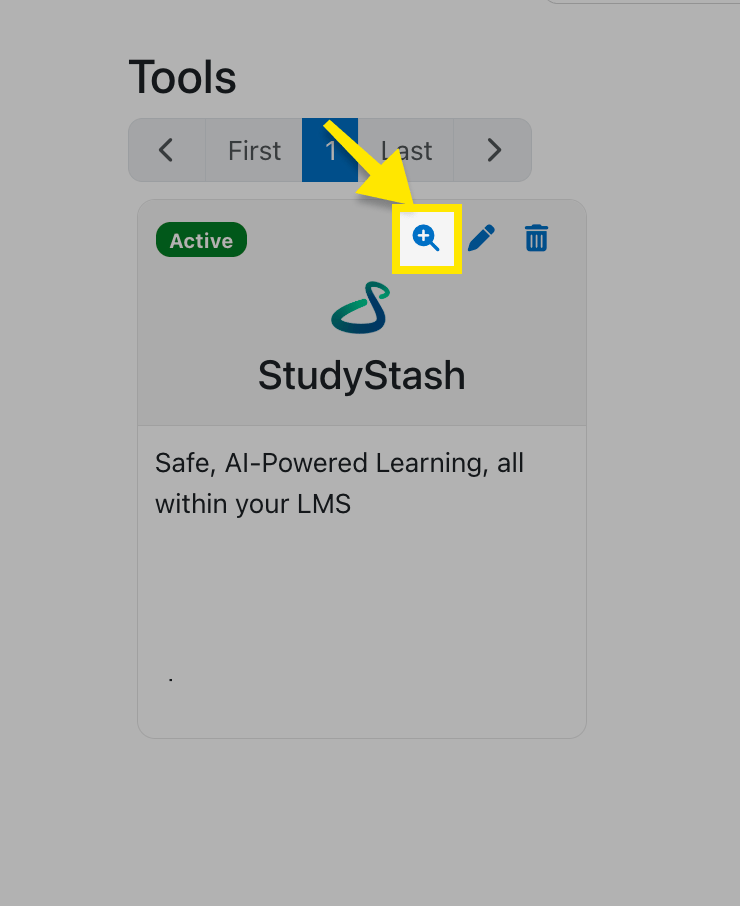
Select Save. On Manage tools, find StudyStash and open View configuration details. Copy the Client ID and .
Copy the deployment details
4
Connect Moodle to StudyStash
In the Admin Dashboard, select the relevant campus and open Integrations. Under Learning Management System (LMS), select Add LMS Connection or + LMS.Choose Moodle and the environment: Production for your live installation, or Test for a test installation. Enter the LMS URL, Client ID and Deployment ID from Moodle, then select Add deployment.Configured means the settings are complete. Connected means StudyStash has confirmed a successful launch and access.
5
Test a course launch
Add StudyStash to a Moodle course, then select Test connection on the Moodle row or connection page in StudyStash. To confirm everything is working, StudyStash will watch for a successful launch from your Moodle course.Return to Moodle, open the course and launch the StudyStash activity. Once you successfully access StudyStash, the status changes to Connected automatically.Test attempts expire within 10 minutes. If yours expires, select Test connection to start again.For a wider rollout, see Moodle course rollout.
If the activity does not open, check whether your browser blocked the new window. If StudyStash shows an error, check the Moodle connection details and any Launch rules, then retry. Still stuck? Contact support with the course URL, error and time of the attempt.
Change an existing installation to open in a new window
For an existing installation, edit the StudyStash tool under Manage tools. Set Default launch container to New window and select Save changes.
Open in a new window
{"docsConfig":{"theme":"mint","$schema":"https://mintlify.com/docs.json","name":"StudyStash Help Centre","description":"Guides and support for StudyStash students, instructors and administrators.","colors":{"primary":"#004C89","light":"#93BCE8","dark":"#004C89"},"logo":{"light":"https://mintcdn.com/studystash-help/UbXlxW0z5agaJ_Cy/logo/studystash-logo-colour-rgb.png?fit=max\u0026auto=format\u0026n=UbXlxW0z5agaJ_Cy\u0026q=85\u0026s=b42380e4f9b27366a5d79712531f7301","dark":"https://mintcdn.com/studystash-help/UbXlxW0z5agaJ_Cy/logo/studystash-logo-white-rgb.png?fit=max\u0026auto=format\u0026n=UbXlxW0z5agaJ_Cy\u0026q=85\u0026s=3ab46876df891935607077352b8c8f23","href":"/"},"favicon":"https://mintcdn.com/studystash-help/UbXlxW0z5agaJ_Cy/images/android-chrome-512x512.png?fit=max\u0026auto=format\u0026n=UbXlxW0z5agaJ_Cy\u0026q=85\u0026s=5bbbe16cd63c9616be8af0a2be969361","appearance":{"default":"light","strict":true},"background":{"color":{"light":"#FFFFFF","dark":"#0C1624"}},"navbar":{"links":[{"href":"/support","label":"Support"}],"primary":{"type":"button","label":"Open StudyStash","href":"https://studystash.com"}},"footer":{"links":[{"header":"StudyStash","items":[{"label":"Website","href":"https://studystash.com"},{"label":"Trust centre","href":"https://trust.studystash.com"},{"label":"Status","href":"https://status.studystash.com"},{"label":"Support requests","href":"https://internal.support.studystash.com/servicedesk/customer/portal/34"}]}]},"search":{"prompt":"Search help guides…"},"fonts":{"family":"Rethink Sans"},"styling":{"eyebrows":"breadcrumbs","latex":false},"contextual":{"options":[],"display":"header"},"navigation":{"pages":[]}},"deployment":{"deploymentMetadataValue":{"subdomain":"studystash-help","hasAudioNarration":false,"actualSubdomain":"studystash-help","customDomains":["help2.studystash.com"],"gitSource":{"type":"github","owner":"studystashapp","repo":"help-center","deployBranch":"main","contentDirectory":"","isPrivate":true,"mountPath":"","label":""},"chroma":{"latestBuiltDeploymentHistoryId":"6aec2e836ea3dafcfecbbbf9","collectionId":"b81fcb05-5829-47d9-8c78-f860a7ddfa21","liveDeploymentHistoryId":"6aec2e836ea3dafcfecbbbf9","schemaVersion":"v3"},"feedback":{"thumbs":false},"entitlements":{},"buildId":"6aec2e836ea3dafcfecbbbf9","clientVersion":"0.0.4067","searchFilterCounts":[{"language":"default","tag":"Administrators","count":25},{"language":"default","tag":"Students","count":14},{"language":"default","tag":"Instructors","count":12},{"language":"default","tag":"Get started","count":11},{"language":"default","tag":"Integrations","count":11},{"language":"default","tag":"Start here","count":8},{"language":"default","tag":"LMS integrations","count":7},{"language":"default","tag":"Your account","count":6},{"language":"default","tag":"Manage students and staff","count":5},{"language":"default","tag":"Pilots and evaluation","count":4}]},"assistantConfig":{"enableAskAiButton":false,"enableStarterQuestions":false,"enableContextualStarterQuestions":false,"enableAskAiSearchBar":true},"basePath":"","hasChatPermissions":false,"hasWebMcpPermissions":false,"toggles":[{"name":"kill-isr","enabled":true,"variant":{"name":"disabled","enabled":false,"feature_enabled":true},"impressionData":false},{"name":"agent-mintlify-slack","enabled":true,"variant":{"name":"disabled","enabled":false,"feature_enabled":true},"impressionData":false},{"name":"agent-integrations-settings","enabled":true,"variant":{"name":"disabled","enabled":false,"feature_enabled":true},"impressionData":false},{"name":"rbac-expansion","enabled":true,"variant":{"name":"disabled","enabled":false,"feature_enabled":true},"impressionData":false},{"name":"automations-pr-grouping","enabled":true,"variant":{"name":"disabled","enabled":false,"feature_enabled":true},"impressionData":false},{"name":"custom-prefix","enabled":true,"variant":{"name":"disabled","enabled":false,"feature_enabled":true},"impressionData":false},{"name":"analytics-v7","enabled":true,"variant":{"name":"disabled","enabled":false,"feature_enabled":true},"impressionData":false},{"name":"user-flows-analytics","enabled":true,"variant":{"name":"disabled","enabled":false,"feature_enabled":true},"impressionData":false},{"name":"no-publish-flow","enabled":true,"variant":{"name":"disabled","enabled":false,"feature_enabled":true},"impressionData":false},{"name":"workos-onboarding","enabled":true,"variant":{"name":"disabled","enabled":false,"feature_enabled":true},"impressionData":false},{"name":"llms-txt-v2","enabled":true,"variant":{"name":"disabled","enabled":false,"feature_enabled":true},"impressionData":false},{"name":"snapshot-serving-live","enabled":true,"variant":{"name":"disabled","enabled":false,"feature_enabled":true},"impressionData":false},{"name":"stripTemperatureMiddleware","enabled":true,"variant":{"name":"disabled","enabled":false,"feature_enabled":true},"impressionData":false},{"name":"support-platform-pylon-zendesk","enabled":true,"variant":{"name":"disabled","enabled":false,"feature_enabled":true},"impressionData":false},{"name":"snapshot-serving","enabled":true,"variant":{"name":"disabled","enabled":false,"feature_enabled":true},"impressionData":false},{"name":"instant-rollback","enabled":true,"variant":{"name":"disabled","enabled":false,"feature_enabled":true},"impressionData":false},{"name":"granular-notifications-server","enabled":true,"variant":{"name":"disabled","enabled":false,"feature_enabled":true},"impressionData":false},{"name":"granular-notifications","enabled":true,"variant":{"name":"disabled","enabled":false,"feature_enabled":true},"impressionData":false},{"name":"automations-fable","enabled":true,"variant":{"name":"disabled","enabled":false,"feature_enabled":true},"impressionData":false},{"name":"fixed-ai-action-pricing","enabled":true,"variant":{"name":"disabled","enabled":false,"feature_enabled":true},"impressionData":false},{"name":"automation-resolve-merge-conflict","enabled":true,"variant":{"name":"disabled","enabled":false,"feature_enabled":true},"impressionData":false},{"name":"scoped-publishing","enabled":true,"variant":{"name":"disabled","enabled":false,"feature_enabled":true},"impressionData":false},{"name":"mintql","enabled":true,"variant":{"name":"disabled","enabled":false,"feature_enabled":true},"impressionData":false},{"name":"page-level-analytics","enabled":true,"variant":{"name":"disabled","enabled":false,"feature_enabled":true},"impressionData":false},{"name":"editor-version-history-v2","enabled":true,"variant":{"name":"disabled","enabled":false,"feature_enabled":true},"impressionData":false},{"name":"billing-page-v2","enabled":true,"variant":{"name":"disabled","enabled":false,"feature_enabled":true},"impressionData":false},{"name":"full-page-search","enabled":true,"variant":{"name":"disabled","enabled":false,"feature_enabled":true},"impressionData":false},{"name":"workspace-projects","enabled":true,"variant":{"name":"disabled","enabled":false,"feature_enabled":true},"impressionData":false},{"name":"assistant-v5","enabled":true,"variant":{"name":"disabled","enabled":false,"feature_enabled":true},"impressionData":false},{"name":"fork-pr-previews","enabled":true,"variant":{"name":"disabled","enabled":false,"feature_enabled":true},"impressionData":false},{"name":"revalidation-jwt","enabled":true,"variant":{"name":"disabled","enabled":false,"feature_enabled":true},"impressionData":false},{"name":"vite-origin","enabled":true,"variant":{"name":"disabled","enabled":false,"feature_enabled":true},"impressionData":false},{"name":"workos-sso-scim","enabled":true,"variant":{"name":"disabled","enabled":false,"feature_enabled":true},"impressionData":false},{"name":"hobby-abuse-scan","enabled":true,"variant":{"name":"disabled","enabled":false,"feature_enabled":true},"impressionData":false},{"name":"dashboard-inbox","enabled":true,"variant":{"name":"disabled","enabled":false,"feature_enabled":true},"impressionData":false},{"name":"workos-signup","enabled":true,"variant":{"name":"disabled","enabled":false,"feature_enabled":true},"impressionData":false},{"name":"turbopuffer-dual-write","enabled":true,"variant":{"name":"disabled","enabled":false,"feature_enabled":true},"impressionData":false},{"name":"workos-enabled","enabled":true,"variant":{"name":"disabled","enabled":false,"feature_enabled":true},"impressionData":false},{"name":"approve-review-flow","enabled":true,"variant":{"name":"disabled","enabled":false,"feature_enabled":true},"impressionData":false},{"name":"sso-setup-deadline-banner","enabled":true,"variant":{"name":"disabled","enabled":false,"feature_enabled":true},"impressionData":false},{"name":"turbopuffer-serve","enabled":true,"variant":{"name":"disabled","enabled":false,"feature_enabled":true},"impressionData":false},{"name":"live-agents","enabled":true,"variant":{"name":"disabled","enabled":false,"feature_enabled":true},"impressionData":false}],"privacy":{"consentBanner":{"enabled":true}},"googleFontsInlined":true},"customCss":[{"filePath":"custom.css","content":":root,.ss-help-layout{--ss-brand-blue: #004c89;--ss-ink: #132b43;--ss-muted: #536578;--ss-line: #d9e2eb;--ss-surface: #f4f7fa;--ss-canvas: #ffffff;--ss-paper: #ffffff;--ss-accent: var(--ss-brand-blue);--ss-blue: var(--ss-brand-blue);--ss-tint: #e4edf3;--ss-on-accent: #ffffff}.dark{--ss-ink: #edf3fa;--ss-muted: #b6c5d6;--ss-line: #2c4058;--ss-surface: #1b2d43;--ss-canvas: #0c1624;--ss-paper: #142438;--ss-accent: #93bce8;--ss-blue: #93bce8;--ss-tint: #1d3550;--ss-on-accent: #0c1624}body:has(.ss-help-layout) #content-area{padding:0}.ss-help-layout{min-height:100vh;display:flex;flex-direction:column;overflow:clip;color:var(--ss-ink);background:var(--ss-canvas);font-family:\"Rethink Sans\", sans-serif;font-size:15px;line-height:1.55}.ss-help-layout *{box-sizing:border-box}.ss-help-layout :is(h1,h2,h3,p,ul){margin:0}.ss-help-layout a{color:inherit;text-decoration:none}.ss-help-layout a:hover{color:var(--ss-accent)}.ss-help-layout :is(a,button,input):focus-visible{outline:3px solid var(--ss-accent);outline-offset:5px}.ss-help-layout h1{font-size:48px;line-height:1.12;letter-spacing:-1.7px;font-weight:600;color:var(--ss-ink)}.ss-help-layout h2{font-size:25px;line-height:1.25;letter-spacing:-.65px;font-weight:600}.ss-help-header{border-bottom:1px solid var(--ss-line)}.ss-header-inner,.ss-footer-inner{max-width:1220px;padding:23px 40px;margin:0 auto;display:flex;align-items:center;justify-content:space-between;gap:24px}.ss-help-brand{display:flex;align-items:center;gap:18px;flex-shrink:0}.ss-help-brand img{display:block;width:153px;height:auto;margin:0}.ss-help-brand .ss-help-logo-dark{display:none}.dark .ss-help-brand .ss-help-logo-light{display:none}.dark .ss-help-brand .ss-help-logo-dark{display:block}.ss-help-brand>span{padding-left:18px;border-left:1px solid var(--ss-line);color:var(--ss-muted);font-size:13px}.ss-help-header-links{display:flex;align-items:center;gap:26px;font-size:13px;font-weight:500}.ss-help-open{display:inline-flex;align-items:center;justify-content:center;gap:10px;min-height:44px;border:1px solid var(--ss-brand-blue);padding:10px 16px;border-radius:8px;font-weight:600;white-space:nowrap}.ss-help-layout a.ss-help-open{background:var(--ss-brand-blue);color:#fff;box-shadow:0 1px 2px #132b4314;transition:background-color .15s ease}.ss-help-layout a.ss-help-open:hover{background:#003d6e;border-color:#003d6e;color:#fff}.ss-help-open svg{flex:0 0 auto}.ss-help-content{width:100%;max-width:1140px;flex:1;isolation:isolate;margin:0 auto;padding:0 40px}.ss-eyebrow{color:var(--ss-accent);font-size:12px;font-weight:600;letter-spacing:.03em}.ss-home-hero{display:grid;grid-template-columns:1fr 1.1fr;align-items:center;gap:40px;padding:18px 0;margin:42px 0 44px}.ss-home-hero h1{font-size:43px;letter-spacing:-1.5px}.ss-home-hero .ss-search{max-width:610px;margin:0 auto;text-align:left}.ss-search{position:relative;width:100%;text-align:left}.ss-search-launcher{display:flex;align-items:center;gap:12px;width:100%;min-height:58px;padding:8px 9px 8px 18px;border:1px solid var(--ss-line);border-radius:9px;background:var(--ss-paper);box-shadow:0 3px 8px #16353106;color:var(--ss-ink);font:inherit;text-align:left;cursor:pointer}.ss-search-launcher:hover{border-color:var(--ss-accent)}.ss-search-launcher:focus-visible{outline:2px solid var(--ss-accent);outline-offset:3px}.ss-search-launcher>svg{width:20px;height:20px;flex-shrink:0;color:var(--ss-accent)}.ss-search-placeholder{flex:1;min-width:0;color:var(--ss-muted);font-size:15px}.ss-search-action{border-radius:6px;padding:11px 18px;background:var(--ss-accent);color:var(--ss-on-accent);font-size:13px;font-weight:500}.ss-section-heading{display:flex;align-items:flex-end;justify-content:space-between;gap:20px;margin-bottom:22px}.ss-section-heading p{color:var(--ss-muted);font-size:14px;margin-top:7px}.ss-help-layout a.ss-help-link{display:inline-flex;align-items:center;gap:12px;color:var(--ss-accent);font-size:13px;font-weight:500}.ss-audience-grid{display:grid;grid-template-columns:repeat(3,minmax(0,1fr));gap:24px}.ss-audience-card{display:block;min-width:0;overflow:hidden;border:1px solid var(--ss-line);border-radius:10px}.ss-audience-card:hover{border-color:var(--ss-accent)}.ss-audience-copy{padding:24px}.ss-audience-copy h3{font-size:25px;font-weight:600;line-height:1.2;letter-spacing:-.7px}.ss-audience-copy p{font-size:14px;line-height:1.6;color:var(--ss-muted);margin:10px 0 0;min-height:44px}.ss-help-support{display:flex;align-items:center;gap:20px;padding:29px 32px;margin:30px 0 44px;border-radius:12px;background:var(--ss-tint)}.ss-help-support h2{font-size:23px;letter-spacing:-.5px;margin-bottom:6px}.ss-help-support p{color:var(--ss-muted);font-size:14px}.ss-help-button{display:inline-flex;align-items:center;justify-content:center;gap:22px;border:1px solid var(--ss-accent);padding:12px 18px;border-radius:7px;font-size:13px;font-weight:500;white-space:nowrap;min-height:44px}.ss-help-support .ss-help-button{margin-left:auto;background:var(--ss-accent);color:var(--ss-on-accent)}.ss-help-layout .ss-help-button:hover{color:var(--ss-accent);background:var(--ss-paper)}.ss-help-footer{border-top:1px solid var(--ss-line);color:var(--ss-muted);font-size:12px}.ss-footer-inner{padding-top:25px;padding-bottom:27px;align-items:flex-start}.ss-footer-inner>a{flex-shrink:0;font-weight:500;color:var(--ss-ink)}.ss-help-footer nav{display:flex;justify-content:flex-end;flex-wrap:wrap;gap:10px 22px}.ss-help-breadcrumb{display:flex;flex-wrap:wrap;align-items:center;gap:11px;margin:25px 0 19px;color:var(--ss-muted);font-size:13px}.ss-role-hero{position:relative;padding:44px 0 38px}.ss-role-hero-copy{max-width:620px;margin:0 auto;text-align:center}.ss-role-hero h1{color:white;font-size:43px;margin:0}.ss-role-hero h1+p{color:#e4edf3;margin-top:13px}.ss-role-hero .ss-search{margin-top:25px}.ss-role-start{position:relative;display:flex;align-items:center;justify-content:space-between;gap:24px;padding:26px 28px;margin:0 0 26px;border:1px solid var(--ss-line);border-radius:10px;background:var(--ss-paper);box-shadow:0 3px 12px #132b4308}.ss-role-start h2{font-size:23px;margin:6px 0}.ss-role-start p:not(.ss-eyebrow){font-size:14px;color:var(--ss-muted)}.ss-topic-nav{display:flex;flex-wrap:wrap;gap:8px;padding:0 0 25px}.ss-topic-nav a{display:block;padding:7px 13px;border:1px solid var(--ss-line);border-radius:6px;color:var(--ss-muted);font-size:13px}.ss-topic-nav a:hover{background:var(--ss-tint)}.ss-role-sections{display:grid;grid-template-columns:repeat(2,minmax(0,1fr));gap:24px;margin:0 0 48px}.ss-role-section{border:1px solid var(--ss-line);border-radius:10px;background:var(--ss-paper);padding:25px 26px 12px}.ss-role-section h2{font-size:21px;font-weight:600;margin-bottom:20px;letter-spacing:-.45px;scroll-margin-top:25px}.ss-role-section ul{list-style:none;padding:0}.ss-role-section li{margin:0;padding:0}.ss-role-section li a{display:flex;align-items:center;justify-content:space-between;gap:20px;padding:14px 0;border-top:1px solid var(--ss-line);font-size:14px;min-height:49px}.ss-role-section li a span:last-child{flex-shrink:0;color:var(--ss-accent)}.ss-role-section:last-child:nth-child(odd){grid-column:1 / -1}.ss-role-section:last-child:nth-child(odd) ul{display:grid;grid-template-columns:repeat(2,minmax(0,1fr));column-gap:36px}@media (max-width: 1000px){.ss-header-inner,.ss-footer-inner,.ss-help-content{padding-left:28px;padding-right:28px}.ss-audience-grid{gap:16px}.ss-audience-copy{padding:20px 18px}.ss-audience-copy h3{font-size:23px}.ss-role-hero h1{font-size:36px}}@media (max-width: 760px){.ss-help-brand>span{display:none}.ss-home-hero{grid-template-columns:1fr;gap:22px}.ss-home-hero h1{font-size:36px}.ss-audience-grid{grid-template-columns:1fr;gap:22px}.ss-audience-card{display:grid;grid-template-columns:124px minmax(0,1fr);align-items:center}.ss-audience-copy p{min-height:0}.ss-role-hero{padding:32px 0}.ss-role-sections{gap:18px}.ss-role-section{padding:22px 20px 9px}.ss-footer-inner{flex-direction:column;gap:16px}.ss-help-footer nav{justify-content:flex-start}}@media (max-width: 520px){.ss-header-inner{padding:17px 20px;gap:14px}.ss-help-brand img{width:139px}.ss-help-header-links{font-size:12px;gap:12px}.ss-header-inner{flex-wrap:wrap}.ss-help-header-links{width:100%;justify-content:space-between}.ss-help-content{padding:0 20px}.ss-home-hero{padding:0;margin:32px 0;gap:22px}.ss-home-hero h1{font-size:32px;letter-spacing:-1px;margin-top:9px}.ss-search-launcher{padding:6px 7px 6px 11px;gap:9px}.ss-search-placeholder{font-size:16px}.ss-search-action{padding:10px 12px}.ss-section-heading{align-items:flex-start;flex-direction:column;gap:13px}.ss-section-heading h2{font-size:25px}.ss-section-heading p{font-size:13px}.ss-audience-card{grid-template-columns:88px minmax(0,1fr)}.ss-audience-copy{padding:20px 18px}.ss-audience-copy h3{font-size:21px}.ss-audience-copy p{font-size:13px;margin-top:7px;margin-bottom:0}.ss-help-support{flex-direction:column;align-items:flex-start;padding:24px;margin:20px 0 30px;gap:18px}.ss-help-support h2{font-size:23px}.ss-help-support .ss-help-button{margin-left:0}.ss-footer-inner{padding:24px 20px}.ss-help-footer nav{gap:13px 19px}.ss-help-breadcrumb{font-size:12px;margin:22px 0 17px}.ss-role-hero h1{font-size:32px;letter-spacing:-1px}.ss-role-hero h1+p{font-size:14px}.ss-role-start{flex-direction:column;align-items:flex-start;gap:17px;padding:24px 20px}.ss-role-sections,.ss-role-section:last-child:nth-child(odd) ul{grid-template-columns:1fr}.ss-role-section{padding:22px 20px 8px}.ss-topic-nav{gap:7px;padding:18px 0 22px}.ss-topic-nav a{font-size:12px}}.ss-audience-nav{display:flex;align-items:center;gap:26px;max-width:1220px;margin:0 auto;padding:0 40px 14px;font-size:13px}.ss-audience-nav a{padding:6px 0;color:var(--ss-muted);border-bottom:2px solid transparent}.ss-audience-nav a[aria-current=\"page\"]{color:var(--ss-accent);border-color:var(--ss-accent);font-weight:600}.ss-audience-copy h3{display:flex;align-items:center;justify-content:space-between;gap:12px}.ss-audience-copy h3>span{color:var(--ss-accent);font-size:23px;font-weight:400}#content [data-component-part=\"step-indicator\"]{background:var(--ss-tint);color:var(--ss-accent);font-size:13px}#content [data-component-part=\"step-title\"]{font-size:19px;line-height:1.4;font-weight:600;color:var(--ss-ink);letter-spacing:-.25px}#content [data-component-part=\"step-line\"]{background:var(--ss-line)}#header .breadcrumb-list{flex-wrap:wrap}#header .breadcrumb-list a{color:var(--ss-accent)}@media (min-width: 1001px){.ss-help-header{position:relative}.ss-audience-nav{position:absolute;top:23px;left:50%;transform:translateX(-50%);padding:6px 0;gap:24px}}.ss-product-visual{display:flex;align-items:center;justify-content:center;height:170px;overflow:hidden;padding:24px;border-radius:9px 9px 0 0;background:var(--ss-surface)}.ss-product-window{display:block;flex-shrink:0;width:100%;max-width:340px;height:auto;overflow:hidden;border-radius:8px;box-shadow:0 2px 10px #16353108}.ss-product-students .ss-product-window{width:158px;height:124px;background:white}.ss-product-educators .ss-product-window{background:white}.ss-product-administrators .ss-product-window{max-width:196px}.ss-role-hero>.ss-product-visual{height:100%;min-height:260px;border-radius:9px}.ss-role-hero .ss-product-students .ss-product-window{width:230px;height:180px}.ss-role-hero .ss-product-administrators .ss-product-window{max-width:330px}@media (max-width: 1000px){.ss-audience-nav{padding-left:28px;padding-right:28px}.ss-home-hero{gap:24px}.ss-home-hero h1{font-size:36px}.ss-product-visual{height:162px;padding:18px}.ss-audience-copy p{min-height:44px}}@media (max-width: 760px){.ss-audience-card .ss-product-visual{height:100%;min-height:124px;padding:14px;border-radius:0}.ss-audience-card .ss-product-window{max-width:100%;height:auto}.ss-audience-copy p{min-height:0}.ss-role-hero>.ss-product-visual{display:none}}@media (max-width: 520px){.ss-header-inner{padding-bottom:10px}.ss-audience-nav{padding:0 20px 9px;gap:0;justify-content:space-between;font-size:12px}.ss-audience-nav a{min-height:44px;display:flex;align-items:center}.ss-home-hero{padding:0;gap:22px}.ss-home-hero h1{font-size:32px}.ss-audience-card .ss-product-visual{min-height:118px;padding:10px}}html:has(.ss-help-layout),body:has(.ss-help-layout){color-scheme:light;background:#ffffff}.ss-help-layout .ss-help-brand .ss-help-logo-light{display:block}.ss-help-layout .ss-help-brand .ss-help-logo-dark{display:none}.ss-help-layout-home .ss-home-hero{position:relative;display:flex;flex-direction:column;gap:25px;padding:44px 0 38px;margin:0;text-align:center}.ss-help-layout-home .ss-home-hero::before,.ss-help-layout-audience .ss-role-hero::before{content:'';position:absolute;z-index:-1;top:0;bottom:-135px;left:50%;width:100vw;transform:translateX(-50%);background:var(--ss-brand-blue)}.ss-help-layout-audience .ss-role-hero::before{bottom:-65px}.ss-help-layout-home .ss-home-hero h1{color:white}.ss-help-layout-home .ss-home-hero .ss-search{max-width:620px}.ss-help-layout-home .ss-audiences{position:relative;padding-bottom:52px}.ss-help-layout-home .ss-directory-heading{color:white;font-size:17px;font-weight:500;letter-spacing:-.25px;margin:0 0 20px}.ss-help-layout-home .ss-audience-card{display:block;background:var(--ss-paper);border-color:var(--ss-line);box-shadow:0 3px 12px #132b4308}.ss-help-layout-home .ss-audience-card:hover{border-color:var(--ss-accent)}.ss-help-layout-home .ss-audience-card .ss-product-visual{height:270px;min-height:0;padding:18px;border-radius:9px 9px 0 0}.ss-help-layout-home .ss-audience-card .ss-product-window{width:100%;max-width:min(300px, 100%);height:auto}.ss-help-layout-home .ss-product-students .ss-product-window{width:234px;aspect-ratio:1}.ss-help-layout-home .ss-product-administrators .ss-product-window{width:300px;max-width:100%;box-shadow:none;border-radius:0}.ss-help-layout-home .ss-audience-copy{padding:22px 24px}.ss-help-layout .ss-footer-inner{padding-top:25px;padding-bottom:25px}#footer.advanced-footer{width:100%;border-color:var(--ss-line);background:var(--ss-canvas);color:var(--ss-muted)}#footer.advanced-footer>div{max-width:1220px;padding:28px 40px;gap:16px}#footer.advanced-footer>div>div:first-child{align-items:center;gap:24px}#footer.advanced-footer>div>div:first-child>div{min-width:0;flex:0 1 auto}#footer.advanced-footer>div>div:first-child>div:last-child{display:block}#footer.advanced-footer .nav-logo{width:153px;max-width:100%;height:auto}#footer.advanced-footer>div>div:first-child div:has(>a[href^=\"https://\"]){display:flex;flex-direction:row;flex-wrap:wrap;justify-content:flex-end;gap:8px 24px}#footer.advanced-footer>div>div:first-child a[href^=\"https://\"]{display:inline-flex;align-items:center;min-height:32px;max-width:none;white-space:nowrap;color:var(--ss-muted);font-size:13px}#footer.advanced-footer>div>div:nth-child(2){background:var(--ss-line)}#footer.advanced-footer>div>div:last-child{gap:20px}#footer.advanced-footer>div>div:last-child a{color:var(--ss-muted);font-size:12px}#footer.advanced-footer>div>div:last-child a svg{height:12px}#footer.advanced-footer>div>div a[href]:hover{color:var(--ss-accent)}#footer.advanced-footer button[aria-pressed]{width:36px;height:36px;padding:10px;border-radius:6px;color:var(--ss-muted)}#footer.advanced-footer button[aria-pressed=\"true\"]{background:var(--ss-tint);color:var(--ss-accent)}#footer.advanced-footer button[aria-pressed]:hover{background:var(--ss-tint);color:var(--ss-accent)}#footer.advanced-footer :is(a,button):focus-visible{outline:2px solid var(--ss-accent);outline-offset:4px}@media (max-width: 1000px){#footer.advanced-footer>div{padding-left:28px;padding-right:28px}}@media (max-width: 760px){#footer.advanced-footer>div{padding:24px 20px}#footer.advanced-footer>div>div:first-child{flex-direction:column;align-items:flex-start;gap:16px}#footer.advanced-footer>div>div:first-child div:has(>a[href^=\"https://\"]){justify-content:flex-start;gap:4px 20px}#footer.advanced-footer>div>div:last-child{gap:12px}#footer.advanced-footer>div>div:last-child>div:last-child{gap:4px}}@media (max-width: 760px){.ss-help-layout-home .ss-audiences{padding-bottom:36px}.ss-help-layout-home .ss-audience-grid{gap:12px;max-width:480px;margin:0 auto}.ss-help-layout-home .ss-home-hero{padding:24px 0;gap:18px}.ss-help-layout-home .ss-home-hero::before{bottom:-100px}.ss-help-layout-home .ss-directory-heading{max-width:480px;margin-left:auto;margin-right:auto}.ss-help-layout-home .ss-audience-card{display:grid;grid-template-columns:96px minmax(0, 1fr);align-items:stretch}.ss-help-layout-home .ss-audience-card .ss-product-visual{height:100%;min-height:116px;padding:10px;border-radius:0}.ss-help-layout-home .ss-audience-card .ss-product-window{width:100%;max-width:100%}.ss-help-layout-home .ss-audience-copy{align-self:center;padding:17px 16px}.ss-help-layout-home .ss-audience-copy h3{font-size:20px;letter-spacing:-.4px;gap:8px}.ss-help-layout-home .ss-audience-copy p{margin-top:6px;min-height:0;font-size:13px;line-height:1.5}}@media (max-width: 520px){.ss-help-layout-home .ss-header-inner{padding-bottom:17px}.ss-help-layout-home .ss-directory-heading{font-size:16px;margin-bottom:16px}.ss-audience-copy h3>span{font-size:20px}}@media (max-width: 360px){.ss-audience-card{grid-template-columns:64px minmax(0,1fr)}.ss-help-layout-home .ss-audience-card{grid-template-columns:64px minmax(0,1fr)}.ss-help-layout-home .ss-audience-copy{padding-left:12px;padding-right:12px}.ss-help-layout-home .ss-audience-copy h3{font-size:18px}.ss-audience-copy{padding-left:15px;padding-right:15px}.ss-audience-copy h3{font-size:20px}}img[src*=\"/assets/lms/canvas.png\"]{transform:scale(1.4);clip-path:inset(16%)}img[src*=\"/assets/lms/moodle.png\"]{transform:scale(1.12)}.ss-announcement{margin:16px 0 28px;padding:20px;border:1px solid var(--ss-line);border-radius:8px;background:var(--ss-paper)}.ss-announcement-tools{display:flex;flex-wrap:wrap;align-items:center;justify-content:flex-end;gap:8px 12px;margin-bottom:16px}.ss-announcement-tools button{display:inline-flex;align-items:center;gap:8px;min-height:40px;padding:8px 12px;border:1px solid var(--ss-line);border-radius:6px;background:var(--ss-surface);color:var(--ss-accent);font-size:13px;font-weight:600;cursor:pointer}.ss-announcement-tools button:hover{border-color:var(--ss-accent)}.ss-announcement-tools button:focus-visible{outline:2px solid var(--ss-accent);outline-offset:3px}.ss-announcement-tools [role=\"status\"]{font-size:12px;color:var(--ss-muted)}.ss-announcement-content{font-size:15px;line-height:1.7;overflow-wrap:anywhere}.ss-announcement-content>[data-as=\"p\"]{display:block;margin:14px 0}.ss-announcement-content>:first-child{margin-top:0}.ss-announcement-content>:last-child{margin-bottom:0}body:not(:has(.ss-help-layout)) #header{padding-bottom:24px;margin-bottom:28px;border-bottom:1px solid var(--ss-line)}body:not(:has(.ss-help-layout)) #header h1{color:var(--ss-ink);font-weight:600;font-size:clamp(30px, 3vw, 40px);line-height:1.15;letter-spacing:-1px}body:not(:has(.ss-help-layout)) #header .prose{color:var(--ss-muted);line-height:1.65}body:not(:has(.ss-help-layout)) #content{--tw-prose-headings: var(--ss-ink);--tw-prose-links: var(--ss-accent);line-height:1.8}body:not(:has(.ss-help-layout)) #content h2{font-size:25px;line-height:1.3;letter-spacing:-.5px;font-weight:600}body:not(:has(.ss-help-layout)) #content h3{color:var(--ss-ink);font-size:20px;line-height:1.4;font-weight:600}.ss-article-screenshot{margin:24px 0;max-width:680px;border:1px solid var(--ss-line);border-radius:10px;overflow:hidden;background:var(--ss-surface)}.ss-article-screenshot .ss-screenshot-crop{display:block;width:100%;height:auto;background:white}.ss-article-screenshot figcaption{display:flex;flex-wrap:wrap;justify-content:space-between;gap:8px 18px;padding:13px 16px;border-top:1px solid var(--ss-line);font-size:13px;line-height:1.5;color:var(--ss-muted)}.ss-article-screenshot figcaption a{color:var(--ss-accent);font-weight:500;text-decoration:underline;text-underline-offset:3px}.ss-article-screenshot a:focus-visible{outline:3px solid var(--ss-accent);outline-offset:-3px}.ss-article-screenshot.ss-crop-menu{max-width:370px}.ss-article-screenshot.ss-crop-sharing{max-width:520px}.ss-screenshot{border-radius:10px}.ss-video{border-radius:10px}@media (max-width: 520px){body:not(:has(.ss-help-layout)) #header{padding-bottom:20px;margin-bottom:24px}body:not(:has(.ss-help-layout)) #content h2{font-size:23px}}.ss-video{margin:28px 0;overflow:hidden;border:1px solid var(--ss-line);border-radius:10px;background:var(--ss-surface)}.ss-video video{display:block;width:100%;height:auto;max-height:520px;margin:0;background:#eaf0f4;border-radius:0}.ss-video figcaption{padding:13px 16px;display:flex;justify-content:space-between;align-items:baseline;flex-wrap:wrap;gap:4px 12px;color:var(--ss-ink);font-size:13px;line-height:1.5}.ss-video figcaption span{color:var(--ss-muted);font-size:11px;white-space:nowrap}.ss-checklist,.ss-finder{border:1px solid var(--ss-line);padding:24px;border-radius:6px;margin:24px 0;background:var(--ss-surface);color:var(--ss-ink)}.ss-checklist-heading{display:flex;flex-wrap:wrap;justify-content:space-between;gap:10px;align-items:center}.ss-checklist-heading h3{margin:0;font-size:18px;font-weight:700}.ss-checklist-heading span{color:var(--ss-muted);font-size:12px}.ss-checklist progress{display:block;width:100%;height:7px;accent-color:#087b79;margin:16px 0;border:0;border-radius:5px;overflow:hidden}.ss-checklist progress::-webkit-progress-bar{background:#cfe1e3}.ss-checklist progress::-webkit-progress-value{background:#087b79}.ss-checklist ul{list-style:none;padding:0;margin:0}.ss-checklist li{display:flex;align-items:start;gap:14px;padding:18px 0;border-bottom:1px solid var(--ss-line)}.ss-checklist li:last-child{border:0}.ss-checklist input{width:20px;height:20px;margin-top:2px;accent-color:#087b79;flex:0 0 auto}.ss-checklist label{cursor:pointer;font-size:15px;font-weight:650}.ss-checklist li p{margin:5px 0;color:var(--ss-muted);font-size:13px;line-height:1.6}.ss-checklist a,.ss-finder a{color:var(--ss-blue);font-size:13px;font-weight:650}.ss-small{font-size:12px;color:var(--ss-muted);line-height:1.6;margin-top:16px}.ss-complete{color:var(--ss-accent);font-weight:650;font-size:14px}.ss-finder fieldset{border:0;padding:0;margin:0 0 24px;min-width:0}.ss-finder legend{font-size:16px;font-weight:650;margin-bottom:14px}.ss-choices{display:flex;flex-wrap:wrap;gap:10px}.ss-choices button{text-align:left;font-size:14px;padding:12px 16px;border-radius:5px;border:1px solid var(--ss-line);background:transparent;color:var(--ss-ink);cursor:pointer}.ss-choices button[aria-pressed=\"true\"]{color:#fff;border-color:#086c72;background:#086c72}.ss-finder-result{border-top:1px solid var(--ss-line);padding-top:20px}.ss-finder-result h3{margin:0 0 8px;font-size:18px;font-weight:700}.ss-finder-result p{color:var(--ss-muted);font-size:14px;line-height:1.7}.ss-finder-result ul{list-style:none;margin:14px 0 0;padding:0;display:grid;gap:12px}.ss-finder :is(a,button):focus-visible,.ss-checklist :is(a,input):focus-visible{outline:3px solid #159897;outline-offset:4px;border-radius:5px}.ss-route-card{border-radius:6px!important}.ss-route-card h2{font-size:18px}#content-area h2{letter-spacing:-.02em}#content-area h3{letter-spacing:-.015em}.ss-transcript{padding:0 16px 14px;font-size:13px;color:var(--ss-muted)}.ss-transcript summary{cursor:pointer;color:var(--ss-blue);font-weight:600}.ss-transcript p{margin:14px 0 0;line-height:1.8}.ss-screenshot{border-radius:10px;border-color:var(--ss-line);background:var(--ss-surface)}.ss-screenshot img{border-radius:3px}#topbar-cta-button{background:transparent}#topbar-cta-button a>span{background:var(--ss-brand-blue);border-radius:7px}@media (max-width: 480px){.ss-checklist,.ss-finder{padding:18px}.ss-choices{flex-direction:column}.ss-choices button{width:100%}.ss-video figcaption{padding:10px 12px}}#navbar{color:var(--ss-ink)}#navbar-transition{background:#ffffff;border-color:var(--ss-line);backdrop-filter:none}#navbar a:has(>.nav-logo){display:flex;align-items:center;flex-shrink:0;gap:16px}#navbar a:has(>.nav-logo)::after{content:\"Help centre\";padding-left:16px;border-left:1px solid var(--ss-line);color:var(--ss-muted);font-size:14px;font-weight:400;white-space:nowrap}#navbar .nav-logo{width:153px;height:auto}#navbar #search-bar-entry{max-width:400px;height:40px;border:1px solid var(--ss-line);border-radius:7px;background:var(--ss-surface);color:var(--ss-muted);box-shadow:none}#navbar #search-bar-entry:hover{border-color:#9aafc2;background:#edf2f6}#navbar [data-search-item=\"trigger-icon\"]{color:var(--ss-muted)}#navbar [data-search-item=\"trigger-hint\"]{border:1px solid var(--ss-line);border-radius:4px;padding:0 5px;background:white;color:var(--ss-muted);font-weight:400}#navbar .navbar-link a{min-height:40px;padding:0 8px;color:var(--ss-muted);font-weight:500}#navbar .navbar-link a:hover{color:var(--ss-brand-blue)}#navbar #topbar-cta-button>a{min-height:40px;padding:9px 15px;border-radius:7px;background:var(--ss-brand-blue);color:white;box-shadow:0 1px 2px #132b4314}#navbar #topbar-cta-button>a:hover{background:#003d6e}#navbar #topbar-cta-button>a>span{display:none}#navbar #topbar-cta-button>a>div{gap:8px}#navbar .nav-tabs{align-items:center;gap:6px}#navbar .nav-tabs-item{height:36px;padding:0 14px;border-radius:6px;color:var(--ss-muted);font-size:14px;text-shadow:none}#navbar .nav-tabs-item:hover{background:var(--ss-surface);color:var(--ss-brand-blue)}#navbar .nav-tabs-item[data-active=\"true\"]{background:var(--ss-tint);color:var(--ss-brand-blue);font-weight:600}#navbar .nav-tabs-item>div{display:none}#navbar :is(a,button):focus-visible{outline:2px solid var(--ss-brand-blue);outline-offset:3px}#navbar #search-bar-entry-mobile,#navbar button[aria-label=\"More actions\"]{width:40px;height:40px;border-radius:7px;color:var(--ss-muted)}#navbar #search-bar-entry-mobile:hover,#navbar button[aria-label=\"More actions\"]:hover{background:var(--ss-surface)}#navbar button[aria-label=\"More actions\"]::after{inset:0}@media (min-width: 1024px){body:has(.ss-help-layout-home) #search-bar-entry{visibility:hidden}}@media (max-width: 600px){#navbar .nav-logo{width:140px}#navbar a:has(>.nav-logo)::after{display:none}}#navbar button:has(>div>.sr-only)>div:last-child>div:first-child{display:none}nav[aria-label=\"Mobile menu\"] a{min-height:44px;color:var(--ss-ink)}nav[aria-label=\"Mobile menu\"] a[href=\"https://studystash.com\"]{margin-top:4px;border-radius:7px;background:var(--ss-brand-blue);color:white}nav[aria-label=\"Mobile menu\"] a[href=\"https://studystash.com\"]:hover{background:#003d6e}nav[aria-label=\"Mobile menu\"] a:focus-visible{outline:2px solid var(--ss-brand-blue);outline-offset:3px}.ss-setup-table{container-type:inline-size;margin:24px 0;color:var(--ss-ink);font-size:14px;line-height:1.6}.ss-setup-table table{width:100%;table-layout:fixed;border-collapse:collapse;text-align:left}.ss-setup-table th,.ss-setup-table td{padding:14px 12px;border-bottom:1px solid var(--ss-line);vertical-align:top;overflow-wrap:anywhere}.ss-setup-table thead th{background:var(--ss-surface);font-weight:600}.ss-setup-table th:first-child{width:30%}.ss-setup-table tbody th{font-weight:500}.ss-setup-value{min-width:0}.ss-setup-value code{background:none;border:0;padding:0;display:block;font-size:13px;line-height:1.7;white-space:normal;overflow-wrap:anywhere;color:var(--ss-ink)}.ss-setup-value button{display:inline-flex;align-items:center;min-height:36px;margin-top:6px;padding:4px 10px;border:1px solid var(--ss-line);border-radius:5px;background:var(--ss-paper);color:var(--ss-accent);font:inherit;font-size:12px;font-weight:600;cursor:pointer}.ss-setup-value button:hover{border-color:var(--ss-accent);background:var(--ss-surface)}.ss-setup-value button:focus-visible,a.ss-request-action:focus-visible{outline:2px solid var(--ss-accent);outline-offset:3px}.ss-copy-status{margin-top:8px;color:var(--ss-muted);font-size:13px}.ss-visually-hidden{position:absolute;width:1px;height:1px;padding:0;margin:-1px;overflow:hidden;clip-path:inset(50%);white-space:nowrap;border:0}#content a.ss-request-action{display:inline-flex;align-items:center;min-height:44px;margin:8px 0 18px;padding:10px 16px;border:0;border-radius:7px;background:var(--ss-brand-blue);color:white;font-weight:600;text-decoration:none}#content a.ss-request-action:hover{background:#003d6e}@media (max-width: 600px){.ss-setup-table table,.ss-setup-table tbody,.ss-setup-table tr,.ss-setup-table tbody th,.ss-setup-table td{display:block;width:100%}.ss-setup-table thead{position:absolute;width:1px;height:1px;overflow:hidden;clip-path:inset(50%)}.ss-setup-table tbody tr{padding:14px 0;border-bottom:1px solid var(--ss-line)}.ss-setup-table tbody th,.ss-setup-table td{padding:0;border:0}.ss-setup-table tbody th:first-child{width:100%;margin-bottom:6px;font-weight:600}.ss-setup-table td+td{margin-top:12px}.ss-setup-table td::before{content:attr(data-label);display:block;margin-bottom:4px;color:var(--ss-muted);font-size:12px}.ss-setup-value button{min-height:44px;padding:6px 14px}}@container (max-width: 600px){.ss-setup-wide,.ss-setup-wide tbody,.ss-setup-wide tr,.ss-setup-wide tbody th,.ss-setup-wide td{display:block;width:100%}.ss-setup-wide thead{position:absolute;width:1px;height:1px;overflow:hidden;clip-path:inset(50%)}.ss-setup-wide tbody tr{padding:14px 0;border-bottom:1px solid var(--ss-line)}.ss-setup-wide tbody th,.ss-setup-wide td{padding:0;border:0}.ss-setup-wide tbody th:first-child{width:100%;margin-bottom:8px;font-weight:600}.ss-setup-wide td+td{margin-top:12px}.ss-setup-wide td::before{content:attr(data-label);display:block;margin-bottom:4px;color:var(--ss-muted);font-size:12px}}.tab-container:has(>.ss-lms-access-tabs){container-type:inline-size}.ss-lms-access-tabs [role=\"tab\"]:focus-visible{outline:2px solid var(--ss-accent);outline-offset:3px;border-radius:5px}@container (max-width: 460px){.ss-lms-access-tabs{display:grid;grid-template-columns:repeat(2, minmax(0, 1fr));gap:8px;overflow:visible;border-bottom:0}.ss-lms-access-tabs [data-component-part=\"tab-button\"]{justify-content:center;max-width:none;min-height:44px;margin:0;padding:9px 8px;border:1px solid var(--ss-line);border-radius:7px;color:var(--ss-ink)}.ss-lms-access-tabs [data-active=\"true\"]{border-color:var(--ss-accent);background:var(--ss-tint);color:var(--ss-accent)}}"}],"page":{"pagePath":"integrations/moodle","slug":"/integrations/moodle","pageMetadata":{"icon":"/assets/lms/moodle.png","title":"Set up StudyStash in Moodle","sidebarTitle":"Set up Moodle","description":"Register the LTI 1.3 tool, connect the deployment and test a course launch.","href":"/integrations/moodle"},"description":{"compiledSource":"\"use strict\";\nconst {jsx: _jsx} = arguments[0];\nconst {useMDXComponents: _provideComponents} = arguments[0];\nfunction _createMdxContent(props) {\n const _components = {\n p: \"p\",\n ..._provideComponents(),\n ...props.components\n };\n return _jsx(_components.p, {\n children: \"Register the LTI 1.3 tool, connect the deployment and test a course launch.\"\n });\n}\nfunction MDXContent(props = {}) {\n const {wrapper: MDXLayout} = {\n ..._provideComponents(),\n ...props.components\n };\n return MDXLayout ? _jsx(MDXLayout, {\n ...props,\n children: _jsx(_createMdxContent, {\n ...props\n })\n }) : _createMdxContent(props);\n}\nreturn {\n default: MDXContent\n};\n","frontmatter":{},"scope":{}},"pageType":"default","mdx":{"mdxSource":{"compiledSource":"\"use strict\";const{Fragment:_Fragment,jsx:_jsx,jsxs:_jsxs}=arguments[0];const{useMDXComponents:_provideComponents}=arguments[0];const ArticleScreenshot=({src,alt,caption,viewBox,width,height,className=``})=>_jsxs(`figure`,{className:`ss-article-screenshot not-prose `+className,children:[_jsx(`svg`,{className:`ss-screenshot-crop`,viewBox,role:`img`,\"aria-label\":alt,focusable:`false`,children:_jsx(`image`,{href:src,width,height})}),_jsx(`figcaption`,{children:caption})]});const SetupTable=({headers,rows,label})=>{const[copied,setCopied]=useState(null);const[status,setStatus]=useState(``);const copyValue=async(value,name,key)=>{try{await navigator.clipboard.writeText(value);setCopied(key);setStatus(name+` copied.`)}catch{setCopied(null);setStatus(`Could not copy automatically. Select the value and copy it manually.`)}};return _jsxs(`div`,{className:`ss-setup-table not-prose`,children:[_jsxs(`table`,{\"aria-label\":label,role:`table`,className:headers.length>2?`ss-setup-wide`:``,children:[_jsx(`thead`,{role:`rowgroup`,children:_jsx(`tr`,{role:`row`,children:headers.map(header=>_jsx(`th`,{scope:`col`,role:`columnheader`,children:header},header))})}),_jsx(`tbody`,{role:`rowgroup`,children:rows.map((row,rowIndex)=>_jsxs(`tr`,{role:`row`,children:[_jsx(`th`,{scope:`row`,role:`rowheader`,children:row[0]}),row.slice(1).map((cell,cellIndex)=>{const value=typeof cell===`string`?cell:cell.value;const canCopy=typeof cell!==`string`\u0026\u0026cell.copy;const key=rowIndex+`-`+cellIndex;const name=row[0]+` — `+headers[cellIndex+1];return _jsx(`td`,{\"data-label\":headers[cellIndex+1],role:`cell`,children:_jsxs(`div`,{className:`ss-setup-value`,children:[canCopy?_jsx(`code`,{children:value}):_jsx(`span`,{children:value}),canCopy\u0026\u0026_jsx(`button`,{type:`button`,\"aria-label\":`Copy `+name,onClick:()=>copyValue(value,name,key),children:copied===key?`Copied`:`Copy`})]})},cellIndex)})]},rowIndex))})]}),_jsx(`div`,{className:status?`ss-copy-status`:`ss-visually-hidden`,role:`status`,\"aria-live\":`polite`,children:status})]})};function _createMdxContent(props){const _components={a:`a`,p:`p`,strong:`strong`,..._provideComponents(),...props.components},{Accordion,Frame,Heading,OptimizedImage,Step,Steps,Tooltip,_MdxComponentBoundary}=_components;if(!Accordion)_missingMdxReference(`Accordion`,true);if(!Frame)_missingMdxReference(`Frame`,true);if(!Heading)_missingMdxReference(`Heading`,true);if(!OptimizedImage)_missingMdxReference(`OptimizedImage`,true);if(!Step)_missingMdxReference(`Step`,true);if(!Steps)_missingMdxReference(`Steps`,true);if(!Tooltip)_missingMdxReference(`Tooltip`,true);if(!_MdxComponentBoundary)_missingMdxReference(`_MdxComponentBoundary`,true);return _jsxs(_Fragment,{children:[_jsxs(_components.p,{children:[`You need Moodle administrator access to manage `,_jsx(Tooltip,{tip:`Learning Tools Interoperability: the standard used to connect StudyStash to your learning management system.`,children:`LTI`}),` Advantage tools and access to the `,_jsx(_components.a,{href:`https://studystash.com/admin`,children:`StudyStash Admin Dashboard`}),`.`]}),`\n`,_jsxs(Steps,{children:[_jsxs(Step,{title:`Register the external tool`,titleSize:`h2`,id:`register-the-external-tool`,children:[_jsxs(_components.p,{children:[`Open `,_jsx(_components.strong,{children:`Site administration → Plugins → Activity modules → External tool → Manage tools`}),`, then select `,_jsx(_components.strong,{children:`Configure a tool manually`}),`.`]}),_jsx(Frame,{className:`ss-screenshot`,caption:`Configure the external tool`,children:_jsx(OptimizedImage,{loading:`lazy`,src:`https://mintcdn.com/studystash-help/FFz54l9hIeIDPaHl/assets/202145796/202145824-moodle-configure.png?fit=max\u0026auto=format\u0026n=FFz54l9hIeIDPaHl\u0026q=85\u0026s=4960ef776a350dc9cbcfc803e7a10f91`,alt:`Configure an external tool manually in Moodle.`,\"data-og-width\":`1063`,width:`1063`,\"data-og-height\":`257`,height:`257`,\"data-path\":`assets/202145796/202145824-moodle-configure.png`,\"data-optimize\":`true`,\"data-opv\":`3`,srcset:`https://mintcdn.com/studystash-help/FFz54l9hIeIDPaHl/assets/202145796/202145824-moodle-configure.png?w=280\u0026fit=max\u0026auto=format\u0026n=FFz54l9hIeIDPaHl\u0026q=85\u0026s=41430ff2deae656927ad53c6990bf054 280w, https://mintcdn.com/studystash-help/FFz54l9hIeIDPaHl/assets/202145796/202145824-moodle-configure.png?w=560\u0026fit=max\u0026auto=format\u0026n=FFz54l9hIeIDPaHl\u0026q=85\u0026s=9e26739a0118cd657e726b98e08c6d0a 560w, https://mintcdn.com/studystash-help/FFz54l9hIeIDPaHl/assets/202145796/202145824-moodle-configure.png?w=840\u0026fit=max\u0026auto=format\u0026n=FFz54l9hIeIDPaHl\u0026q=85\u0026s=568b7012060d963b74131be5f523202e 840w, https://mintcdn.com/studystash-help/FFz54l9hIeIDPaHl/assets/202145796/202145824-moodle-configure.png?w=1100\u0026fit=max\u0026auto=format\u0026n=FFz54l9hIeIDPaHl\u0026q=85\u0026s=fba0437f7e2a8adccebd167e1e84f72d 1100w, https://mintcdn.com/studystash-help/FFz54l9hIeIDPaHl/assets/202145796/202145824-moodle-configure.png?w=1650\u0026fit=max\u0026auto=format\u0026n=FFz54l9hIeIDPaHl\u0026q=85\u0026s=ca104aa3744793d581ceae0989436a8a 1650w, https://mintcdn.com/studystash-help/FFz54l9hIeIDPaHl/assets/202145796/202145824-moodle-configure.png?w=2500\u0026fit=max\u0026auto=format\u0026n=FFz54l9hIeIDPaHl\u0026q=85\u0026s=966bf968b45833a64f5dfb9ce219ac8f 2500w`})}),_jsxs(_components.p,{children:[`Enter these `,_jsx(_components.strong,{children:`Tool settings`}),`:`]}),_jsx(_MdxComponentBoundary,{name:`SetupTable`,children:_jsx(SetupTable,{label:`Moodle settings`,headers:[`Field`,`Value`],rows:[[`Tool name`,`StudyStash`],[`Tool URL`,{\"value\":`https://lti.studystash.com/lti/launch`,\"copy\":true}],[`Tool description`,`Study tools for your course materials`],[`LTI version`,`LTI 1.3`],[`Public key type`,`Keyset URL`],[`Public keyset`,{\"value\":`https://lti.studystash.com/lti/keys`,\"copy\":true}],[`Initiate login URL`,{\"value\":`https://lti.studystash.com/lti/login`,\"copy\":true}],[`Redirection URI(s)`,{\"value\":`https://lti.studystash.com/lti/launch`,\"copy\":true}],[`Tool configuration usage`,`Show in activity chooser as a preconfigured tool`],[`Default launch container`,`New window`],[`Icon URL and secure icon URL`,{\"value\":`https://studystash.com/loop.png`,\"copy\":true}]]})})]}),_jsxs(Step,{title:`Set services and privacy`,titleSize:`h2`,id:`set-services-and-privacy`,children:[_jsxs(_components.p,{children:[`Under `,_jsx(_components.strong,{children:`Services`}),`, use:`]}),_jsx(_MdxComponentBoundary,{name:`SetupTable`,children:_jsx(SetupTable,{label:`Moodle settings`,headers:[`Field`,`Value`],rows:[[`IMS LTI Assignment and Grade Services`,`Do not use this service`],[`IMS LTI Names and Role Provisioning`,`Use this service to retrieve members’ information as per privacy settings`],[`Tool Settings`,`Use this service`]]})}),_jsxs(_components.p,{children:[`Under `,_jsx(_components.strong,{children:`Privacy`}),`, use:`]}),_jsx(_MdxComponentBoundary,{name:`SetupTable`,children:_jsx(SetupTable,{label:`Moodle settings`,headers:[`Field`,`Value`],rows:[[`Share launcher’s name with tool`,`Always`],[`Share launcher’s email with tool`,`Always`],[`Accept grades from the tool`,`As specified in Deep Linking definition or Delegate to teacher`],[`Force SSL`,`Checked`]]})})]}),_jsxs(Step,{title:`Save and copy the deployment details`,titleSize:`h2`,id:`save-and-copy-the-deployment-details`,children:[_jsxs(_components.p,{children:[`Select `,_jsx(_components.strong,{children:`Save`}),`. On `,_jsx(_components.strong,{children:`Manage tools`}),`, find StudyStash and open `,_jsx(_components.strong,{children:`View configuration details`}),`. Copy the `,_jsx(_components.strong,{children:`Client ID`}),` and `,_jsx(Tooltip,{tip:`The identifier your LMS assigns to this installation of StudyStash.`,children:_jsx(_components.strong,{children:`Deployment ID`})}),`.`]}),_jsx(Frame,{className:`ss-screenshot`,caption:`Copy the deployment details`,children:_jsx(OptimizedImage,{loading:`lazy`,src:`https://mintcdn.com/studystash-help/FFz54l9hIeIDPaHl/assets/202145796/202342448-image-20260928-154355.png?fit=max\u0026auto=format\u0026n=FFz54l9hIeIDPaHl\u0026q=85\u0026s=5c71ac769af15ca2022bf805d68f7879`,alt:`Open the tool configuration details to find the Client ID and Deployment ID.`,\"data-og-width\":`740`,width:`740`,\"data-og-height\":`906`,height:`906`,\"data-path\":`assets/202145796/202342448-image-20260928-154355.png`,\"data-optimize\":`true`,\"data-opv\":`3`,srcset:`https://mintcdn.com/studystash-help/FFz54l9hIeIDPaHl/assets/202145796/202342448-image-20260928-154355.png?w=280\u0026fit=max\u0026auto=format\u0026n=FFz54l9hIeIDPaHl\u0026q=85\u0026s=28bea33709a09b3b3d879a7c066e6ad6 280w, https://mintcdn.com/studystash-help/FFz54l9hIeIDPaHl/assets/202145796/202342448-image-20260928-154355.png?w=560\u0026fit=max\u0026auto=format\u0026n=FFz54l9hIeIDPaHl\u0026q=85\u0026s=0f39359401db2fc9d602ac7ecb4d2b6a 560w, https://mintcdn.com/studystash-help/FFz54l9hIeIDPaHl/assets/202145796/202342448-image-20260928-154355.png?w=840\u0026fit=max\u0026auto=format\u0026n=FFz54l9hIeIDPaHl\u0026q=85\u0026s=79eb385518297103a32141f9fcdc63df 840w, https://mintcdn.com/studystash-help/FFz54l9hIeIDPaHl/assets/202145796/202342448-image-20260928-154355.png?w=1100\u0026fit=max\u0026auto=format\u0026n=FFz54l9hIeIDPaHl\u0026q=85\u0026s=283a9907009f61222f032d773ee4af7a 1100w, https://mintcdn.com/studystash-help/FFz54l9hIeIDPaHl/assets/202145796/202342448-image-20260928-154355.png?w=1650\u0026fit=max\u0026auto=format\u0026n=FFz54l9hIeIDPaHl\u0026q=85\u0026s=e38fd31d5e22c8024bce723d2b789c33 1650w, https://mintcdn.com/studystash-help/FFz54l9hIeIDPaHl/assets/202145796/202342448-image-20260928-154355.png?w=2500\u0026fit=max\u0026auto=format\u0026n=FFz54l9hIeIDPaHl\u0026q=85\u0026s=37ad3f4a9f75ebfcbf55b7e55685865a 2500w`})})]}),_jsxs(Step,{title:`Connect Moodle to StudyStash`,titleSize:`h2`,id:`connect-moodle`,children:[_jsx(`span`,{id:`connect-the-deployment-to-studystash`}),_jsxs(_components.p,{children:[`In the `,_jsx(_components.a,{href:`https://studystash.com/admin`,children:`Admin Dashboard`}),`, select the relevant campus and open `,_jsx(_components.strong,{children:`Integrations`}),`. Under `,_jsx(_components.strong,{children:`Learning Management System (LMS)`}),`, select `,_jsx(_components.strong,{children:`Add LMS Connection`}),` or `,_jsx(_components.strong,{children:`+ LMS`}),`.`]}),_jsxs(_components.p,{children:[`Choose `,_jsx(_components.strong,{children:`Moodle`}),` and the environment: `,_jsx(_components.strong,{children:`Production`}),` for your live installation, or `,_jsx(_components.strong,{children:`Test`}),` for a test installation. Enter the `,_jsx(_components.strong,{children:`LMS URL`}),`, `,_jsx(_components.strong,{children:`Client ID`}),` and `,_jsx(_components.strong,{children:`Deployment ID`}),` from Moodle, then select `,_jsx(_components.strong,{children:`Add deployment`}),`.`]}),_jsx(_MdxComponentBoundary,{name:`ArticleScreenshot`,children:_jsx(ArticleScreenshot,{src:`/assets/integration-setup/moodle-add.jpg`,alt:`Moodle connection form with environment, LMS URL, Client ID and Deployment ID fields.`,caption:`Moodle connection (example values)`,viewBox:`354 168 572 564`,width:1280,height:900,className:`ss-crop-sharing`})}),_jsxs(_components.p,{children:[_jsx(_components.strong,{children:`Configured`}),` means the settings are complete. `,_jsx(_components.strong,{children:`Connected`}),` means StudyStash has confirmed a successful launch and access.`]})]}),_jsxs(Step,{title:`Test a course launch`,titleSize:`h2`,id:`test-a-course-launch`,children:[_jsxs(_components.p,{children:[_jsx(_components.a,{href:`/educators/enable-in-moodle`,children:`Add StudyStash to a Moodle course`}),`, then select `,_jsx(_components.strong,{children:`Test connection`}),` on the Moodle row or connection page in StudyStash. To confirm everything is working, StudyStash will watch for a successful launch from your Moodle course.`]}),_jsxs(_components.p,{children:[`Return to Moodle, open the course and launch the StudyStash activity. Once you successfully access StudyStash, the status changes to `,_jsx(_components.strong,{children:`Connected`}),` automatically.`]}),_jsx(_MdxComponentBoundary,{name:`ArticleScreenshot`,children:_jsx(ArticleScreenshot,{src:`/assets/integration-setup/moodle-test.jpg`,alt:`An active connection test asking you to open StudyStash from your LMS.`,caption:`Launch StudyStash from Moodle`,viewBox:`920 110 345 195`,width:1280,height:900,className:`ss-crop-menu`})}),_jsxs(_components.p,{children:[`Test attempts expire within 10 minutes. If yours expires, select `,_jsx(_components.strong,{children:`Test connection`}),` to start again.`]}),_jsxs(_components.p,{children:[`For a wider rollout, see `,_jsx(_components.a,{href:`/integrations/moodle-course-sync`,children:`Moodle course rollout`}),`.`]})]})]}),`\n`,_jsx(Heading,{level:`2`,id:`troubleshooting`,children:`Troubleshooting`}),`\n`,_jsxs(_components.p,{children:[`If the activity does not open, check whether your browser blocked the new window. If StudyStash shows an error, check the Moodle connection details and any `,_jsx(_components.strong,{children:`Launch rules`}),`, then retry. Still stuck? `,_jsx(_components.a,{href:`/support`,children:`Contact support`}),` with the course URL, error and time of the attempt.`]}),`\n`,_jsxs(Accordion,{title:`Change an existing installation to open in a new window`,id:`change-an-existing-installation-to-open-in-a-new-window`,children:[_jsxs(_components.p,{children:[`For an existing installation, edit the StudyStash tool under `,_jsx(_components.strong,{children:`Manage tools`}),`. Set `,_jsx(_components.strong,{children:`Default launch container`}),` to `,_jsx(_components.strong,{children:`New window`}),` and select `,_jsx(_components.strong,{children:`Save changes`}),`.`]}),_jsx(Frame,{className:`ss-screenshot`,caption:`Open in a new window`,children:_jsx(OptimizedImage,{loading:`lazy`,src:`https://mintcdn.com/studystash-help/FFz54l9hIeIDPaHl/assets/180158465/180387841-p3.png?fit=max\u0026auto=format\u0026n=FFz54l9hIeIDPaHl\u0026q=85\u0026s=54c8dd370b35a44de741779a475de2b1`,alt:`Select New window as the default launch container.`,\"data-og-width\":`6252`,width:`6252`,\"data-og-height\":`636`,height:`636`,\"data-path\":`assets/180158465/180387841-p3.png`,\"data-optimize\":`true`,\"data-opv\":`3`,srcset:`https://mintcdn.com/studystash-help/FFz54l9hIeIDPaHl/assets/180158465/180387841-p3.png?w=280\u0026fit=max\u0026auto=format\u0026n=FFz54l9hIeIDPaHl\u0026q=85\u0026s=9eaca12878893b36c5bef90f2c3c7558 280w, https://mintcdn.com/studystash-help/FFz54l9hIeIDPaHl/assets/180158465/180387841-p3.png?w=560\u0026fit=max\u0026auto=format\u0026n=FFz54l9hIeIDPaHl\u0026q=85\u0026s=8b54effa40bf8d31e3cf56928b6ff501 560w, https://mintcdn.com/studystash-help/FFz54l9hIeIDPaHl/assets/180158465/180387841-p3.png?w=840\u0026fit=max\u0026auto=format\u0026n=FFz54l9hIeIDPaHl\u0026q=85\u0026s=7fdb4a5923ff304b4e994daae1f2b3a4 840w, https://mintcdn.com/studystash-help/FFz54l9hIeIDPaHl/assets/180158465/180387841-p3.png?w=1100\u0026fit=max\u0026auto=format\u0026n=FFz54l9hIeIDPaHl\u0026q=85\u0026s=28b374cfe1ee8c11efe824eab70afcae 1100w, https://mintcdn.com/studystash-help/FFz54l9hIeIDPaHl/assets/180158465/180387841-p3.png?w=1650\u0026fit=max\u0026auto=format\u0026n=FFz54l9hIeIDPaHl\u0026q=85\u0026s=d01a7222b35dda41609c0acac3ece4e9 1650w, https://mintcdn.com/studystash-help/FFz54l9hIeIDPaHl/assets/180158465/180387841-p3.png?w=2500\u0026fit=max\u0026auto=format\u0026n=FFz54l9hIeIDPaHl\u0026q=85\u0026s=37051651937b982dd80fae34d17cdd24 2500w`})})]})]})}function MDXContent(props={}){const{wrapper:MDXLayout}={..._provideComponents(),...props.components};return MDXLayout?_jsx(MDXLayout,{...props,children:_jsx(_createMdxContent,{...props})}):_createMdxContent(props)}return{ArticleScreenshot,SetupTable,default:MDXContent};function _missingMdxReference(id,component){throw new Error(`Expected `+(component?`component`:`object`)+\" `\"+id+\"` to be defined: you likely forgot to import, pass, or provide it.\")}","frontmatter":{},"scope":{"config":{},"pageMetadata":{"icon":"/assets/lms/moodle.png","title":"Set up StudyStash in Moodle","sidebarTitle":"Set up Moodle","description":"Register the LTI 1.3 tool, connect the deployment and test a course launch.","href":"/integrations/moodle"}}},"mdxSourceWithNoJs":null,"noJsSplices":[[153,2027,")=>null;const SetupTable=()=>null;functi"]]},"mdxExtracts":{"tableOfContents":[{"title":"Register the external tool","slug":"register-the-external-tool","depth":2,"children":[]},{"title":"Set services and privacy","slug":"set-services-and-privacy","depth":2,"children":[]},{"title":"Save and copy the deployment details","slug":"save-and-copy-the-deployment-details","depth":2,"children":[]},{"title":"Connect Moodle to StudyStash","slug":"connect-moodle","depth":2,"children":[]},{"title":"Test a course launch","slug":"test-a-course-launch","depth":2,"children":[]},{"title":"Troubleshooting","slug":"troubleshooting","depth":2,"children":[]}],"codeExamples":{}},"jsLinks":[],"subdomain":"studystash-help","siteName":"StudyStash Help Centre","title":"Set up StudyStash in Moodle - StudyStash Help Centre","navMaps":{"firstHrefInVersion":{},"firstHrefInLanguage":{}},"lastModified":"2026-11-05T07:21:42.457Z","originalFileLocation":"integrations/moodle.mdx"},"headHtml":"\u003cscript data-mint-head>(function(){var d=document.documentElement,p=\"light\";if(!p){try{p=localStorage.getItem(\"isDarkMode\")}catch(e){}if(p==='true')p='dark';else if(p==='false')p='light';if(p!=='light'\u0026\u0026p!=='dark'\u0026\u0026p!=='system')p=\"light\"}var r=p==='system'?(matchMedia(\"(prefers-color-scheme: dark)\").matches?'dark':'light'):p;d.classList.remove(r==='dark'?'light':'dark');d.classList.add(r);d.setAttribute(\"data-theme-preference\",p)})();\u003c/script>\u003cmeta data-mint-head name=\"description\" content=\"Register the LTI 1.3 tool, connect the deployment and test a course launch.\">\u003cmeta data-mint-head name=\"application-name\" content=\"StudyStash Help Centre\">\u003cmeta data-mint-head name=\"generator\" content=\"Mintlify\">\u003clink data-mint-head rel=\"icon\" type=\"image/png\" sizes=\"192x192\" href=\"/mintlify-assets/_mintlify/favicons/studystash-help/-b5B2t5a5Xx_s6QU/_generated/favicon/android-chrome-192x192.png\" media=\"(prefers-color-scheme: light)\">\u003clink data-mint-head rel=\"apple-touch-icon\" type=\"image/png\" sizes=\"180x180\" href=\"/mintlify-assets/_mintlify/favicons/studystash-help/-b5B2t5a5Xx_s6QU/_generated/favicon/apple-touch-icon.png\">\u003clink data-mint-head rel=\"icon\" type=\"image/png\" sizes=\"16x16\" href=\"/mintlify-assets/_mintlify/favicons/studystash-help/-b5B2t5a5Xx_s6QU/_generated/favicon/favicon-16x16.png\" media=\"(prefers-color-scheme: light)\">\u003clink data-mint-head rel=\"icon\" type=\"image/png\" sizes=\"32x32\" href=\"/mintlify-assets/_mintlify/favicons/studystash-help/-b5B2t5a5Xx_s6QU/_generated/favicon/favicon-32x32.png\" media=\"(prefers-color-scheme: light)\">\u003clink data-mint-head rel=\"shortcut icon\" type=\"image/x-icon\" href=\"/mintlify-assets/_mintlify/favicons/studystash-help/-b5B2t5a5Xx_s6QU/_generated/favicon/favicon.ico\" media=\"(prefers-color-scheme: light)\">\u003clink data-mint-head rel=\"icon\" type=\"image/png\" sizes=\"192x192\" href=\"/mintlify-assets/_mintlify/favicons/studystash-help/-b5B2t5a5Xx_s6QU/_generated/favicon-dark/android-chrome-192x192.png\" media=\"(prefers-color-scheme: dark)\">\u003clink data-mint-head rel=\"icon\" type=\"image/png\" sizes=\"16x16\" href=\"/mintlify-assets/_mintlify/favicons/studystash-help/-b5B2t5a5Xx_s6QU/_generated/favicon-dark/favicon-16x16.png\" media=\"(prefers-color-scheme: dark)\">\u003clink data-mint-head rel=\"icon\" type=\"image/png\" sizes=\"32x32\" href=\"/mintlify-assets/_mintlify/favicons/studystash-help/-b5B2t5a5Xx_s6QU/_generated/favicon-dark/favicon-32x32.png\" media=\"(prefers-color-scheme: dark)\">\u003clink data-mint-head rel=\"shortcut icon\" type=\"image/x-icon\" href=\"/mintlify-assets/_mintlify/favicons/studystash-help/-b5B2t5a5Xx_s6QU/_generated/favicon-dark/favicon.ico\" media=\"(prefers-color-scheme: dark)\">\u003cmeta data-mint-head property=\"og:title\" content=\"Set up StudyStash in Moodle - StudyStash Help Centre\">\u003cmeta data-mint-head property=\"og:description\" content=\"Register the LTI 1.3 tool, connect the deployment and test a course launch.\">\u003cmeta data-mint-head property=\"og:site_name\" content=\"StudyStash Help Centre\">\u003cmeta data-mint-head property=\"og:url\" content=\"https://help2.studystash.com/integrations/moodle\">\u003cmeta data-mint-head property=\"og:type\" content=\"website\">\u003cmeta data-mint-head property=\"og:image\" content=\"https://studystash-help.mintlify.app/_mintlify/api/og/v2?division=Moodle\u0026amp;title=Set+up+StudyStash+in+Moodle\u0026amp;description=Register+the+LTI+1.3+tool%2C+connect+the+deployment+and+test+a+course+launch.\u0026amp;theme=6572ff383200a8150fc7ac1b\u0026amp;signature=6850a2a111fb366925af830a9cdeaed8f6b4b0b47b10a554a590822a00ce6411\">\u003cmeta data-mint-head property=\"og:image:width\" content=\"1200\">\u003cmeta data-mint-head property=\"og:image:height\" content=\"630\">\u003cmeta data-mint-head name=\"twitter:card\" content=\"summary_large_image\">\u003cmeta data-mint-head name=\"twitter:title\" content=\"Set up StudyStash in Moodle - StudyStash Help Centre\">\u003cmeta data-mint-head name=\"twitter:description\" content=\"Register the LTI 1.3 tool, connect the deployment and test a course launch.\">\u003cmeta data-mint-head name=\"twitter:image\" content=\"https://studystash-help.mintlify.app/_mintlify/api/og/v2?division=Moodle\u0026amp;title=Set+up+StudyStash+in+Moodle\u0026amp;description=Register+the+LTI+1.3+tool%2C+connect+the+deployment+and+test+a+course+launch.\u0026amp;theme=6572ff383200a8150fc7ac1b\u0026amp;signature=6850a2a111fb366925af830a9cdeaed8f6b4b0b47b10a554a590822a00ce6411\">\u003cmeta data-mint-head name=\"twitter:image:width\" content=\"1200\">\u003cmeta data-mint-head name=\"twitter:image:height\" content=\"630\">\u003cmeta data-mint-head name=\"msapplication-config\" content=\"/mintlify-assets/_mintlify/favicons/studystash-help/-b5B2t5a5Xx_s6QU/_generated/favicon/browserconfig.xml\">\u003cmeta data-mint-head name=\"apple-mobile-web-app-title\" content=\"StudyStash Help Centre\">\u003cmeta data-mint-head name=\"msapplication-TileColor\" content=\"#004C89\">\u003clink data-mint-head rel=\"canonical\" href=\"https://help2.studystash.com/integrations/moodle\">\u003clink data-mint-head rel=\"alternate\" type=\"application/xml\" href=\"/sitemap.xml\">\u003clink data-mint-head rel=\"alternate\" type=\"text/markdown\" href=\"/integrations/moodle.md\">\u003cscript data-mint-head type=\"application/ld+json\">{\"@context\":\"https://schema.org\",\"@graph\":[{\"@type\":\"Organization\",\"@id\":\"https://help2.studystash.com/#organization\",\"name\":\"StudyStash Help Centre\",\"url\":\"https://help2.studystash.com\",\"logo\":{\"@type\":\"ImageObject\",\"url\":\"https://mintcdn.com/studystash-help/UbXlxW0z5agaJ_Cy/logo/studystash-logo-colour-rgb.png?fit=max\u0026auto=format\u0026n=UbXlxW0z5agaJ_Cy\u0026q=85\u0026s=b42380e4f9b27366a5d79712531f7301\"}},{\"@type\":\"WebSite\",\"@id\":\"https://help2.studystash.com#website\",\"name\":\"StudyStash Help Centre\",\"url\":\"https://help2.studystash.com\",\"publisher\":{\"@id\":\"https://help2.studystash.com/#organization\"}},{\"@type\":\"WebPage\",\"@id\":\"https://help2.studystash.com/integrations/moodle#webpage\",\"url\":\"https://help2.studystash.com/integrations/moodle\",\"name\":\"Set up StudyStash in Moodle\",\"description\":\"Register the LTI 1.3 tool, connect the deployment and test a course launch.\",\"dateModified\":\"2026-11-05T07:21:42.457Z\",\"isPartOf\":{\"@id\":\"https://help2.studystash.com#website\"},\"breadcrumb\":{\"@id\":\"https://help2.studystash.com/integrations/moodle#breadcrumb\"}},{\"@type\":\"BreadcrumbList\",\"@id\":\"https://help2.studystash.com/integrations/moodle#breadcrumb\",\"itemListElement\":[{\"@type\":\"ListItem\",\"position\":1,\"name\":\"Integrations\",\"item\":\"https://help2.studystash.com/integrations/canvas\"},{\"@type\":\"ListItem\",\"position\":2,\"name\":\"LMS integrations\",\"item\":\"https://help2.studystash.com/integrations/canvas\"},{\"@type\":\"ListItem\",\"position\":3,\"name\":\"Set up StudyStash in Moodle\",\"item\":\"https://help2.studystash.com/integrations/moodle\"}]},{\"@type\":[\"Article\",\"TechArticle\"],\"@id\":\"https://help2.studystash.com/integrations/moodle#article\",\"headline\":\"Set up StudyStash in Moodle\",\"name\":\"Set up StudyStash in Moodle\",\"description\":\"Register the LTI 1.3 tool, connect the deployment and test a course launch.\",\"url\":\"https://help2.studystash.com/integrations/moodle\",\"mainEntityOfPage\":{\"@id\":\"https://help2.studystash.com/integrations/moodle#webpage\"},\"dateModified\":\"2026-11-05T07:21:42.457Z\",\"publisher\":{\"@id\":\"https://help2.studystash.com/#organization\"},\"isPartOf\":{\"@id\":\"https://help2.studystash.com#website\"}}]}\u003c/script>\u003cscript data-mint-head type=\"application/ld+json\">{\"@context\":\"https://schema.org\",\"@type\":\"WebSite\",\"name\":\"StudyStash Help Centre\",\"creator\":{\"@type\":\"Organization\",\"name\":\"Mintlify\",\"url\":\"https://mintlify.com\"}}\u003c/script>","siteName":"StudyStash Help Centre","nav":{"global":null,"tabs":[{"tab":"Start here","pages":[{"title":"Start here","href":""}]},{"tab":"Students","pages":[{"title":"Students","href":"/students/overview"}]},{"tab":"Instructors","pages":[{"title":"Instructors","href":"/educators/overview"}]},{"tab":"Administrators","groups":[{"group":"Get started","root":{"title":"Get started for administrators","sidebarTitle":"Get started","href":"/administrators/overview"},"expanded":true,"pages":[{"title":"Use the Admin Dashboard","sidebarTitle":"Admin Dashboard","href":"/administrators/admin-dashboard"},{"title":"Get documents for your pilot","sidebarTitle":"Pilot documentation","href":"/administrators/pilot-documentation"}]},{"group":"Manage students and staff","pages":[{"group":"Import students and staff","root":{"title":"Import students and instructors","sidebarTitle":"Import students and staff","href":"/administrators/student-csv-template"},"pages":[{"icon":"https://mintlify.s3.us-west-1.amazonaws.com/studystash-help/assets/lms/canvas.png","title":"Export a student list from Canvas","sidebarTitle":"Export from Canvas","href":"/administrators/export-canvas-roster"},{"icon":"https://mintlify.s3.us-west-1.amazonaws.com/studystash-help/assets/lms/moodle.png","title":"Export a student list from Moodle","sidebarTitle":"Export from Moodle","href":"/administrators/export-moodle-roster"}]},{"title":"Set up instructor insight emails","sidebarTitle":"Set up insight emails","href":"/administrators/set-up-insight-emails"},{"title":"Set student reminder dates","sidebarTitle":"Student reminders","href":"/administrators/student-reminders"},{"title":"Understand student activity","sidebarTitle":"Active students","href":"/administrators/active-students"}]},{"group":"Integrations","pages":[{"group":"LMS integrations","pages":[{"icon":"https://mintlify.s3.us-west-1.amazonaws.com/studystash-help/assets/lms/canvas.png","title":"Set up StudyStash in Canvas","sidebarTitle":"Set up Canvas","description":"Register the LTI tool, connect the deployment and test a course launch.","href":"/integrations/canvas"},{"group":"Moodle","icon":"/assets/lms/moodle.png","pages":[{"icon":"https://mintlify.s3.us-west-1.amazonaws.com/studystash-help/assets/lms/moodle.png","title":"Set up StudyStash in Moodle","sidebarTitle":"Set up Moodle","href":"/integrations/moodle"},{"group":"Roll out to multiple courses","root":{"icon":"https://mintlify.s3.us-west-1.amazonaws.com/studystash-help/assets/lms/moodle.png","title":"Roll out StudyStash to multiple Moodle courses","sidebarTitle":"Roll out to multiple courses","description":"Choose whether to include selected courses or exclude courses from a wider rollout.","href":"/integrations/moodle-course-sync"},"pages":[{"icon":"https://mintlify.s3.us-west-1.amazonaws.com/studystash-help/assets/lms/moodle.png","title":"Moodle rollout: opt-in","sidebarTitle":"Opt-in courses","href":"/integrations/moodle-opt-in-sync"},{"icon":"https://mintlify.s3.us-west-1.amazonaws.com/studystash-help/assets/lms/moodle.png","title":"Moodle rollout: opt-out","sidebarTitle":"Opt-out courses","href":"/integrations/moodle-opt-out-sync"}]}]},{"group":"D2L Brightspace","icon":"/assets/lms/brightspace.png","pages":[{"icon":"https://mintlify.s3.us-west-1.amazonaws.com/studystash-help/assets/lms/brightspace.png","title":"Set up StudyStash in D2L Brightspace","sidebarTitle":"Set up Brightspace","href":"/integrations/d2l-brightspace"},{"icon":"https://mintlify.s3.us-west-1.amazonaws.com/studystash-help/assets/lms/brightspace.png","title":"Open StudyStash in a new window in Brightspace","sidebarTitle":"Open in a new window","href":"/integrations/brightspace-new-window"}]},{"icon":"https://mintlify.s3.us-west-1.amazonaws.com/studystash-help/assets/lms/blackboard.png","title":"Set up StudyStash in Blackboard","sidebarTitle":"Set up Blackboard","href":"/integrations/blackboard"}]},{"group":"Single sign-on","pages":[{"title":"Set up single sign-on","sidebarTitle":"Set up SSO","href":"/integrations/single-sign-on"},{"icon":"https://mintlify.s3.us-west-1.amazonaws.com/studystash-help/assets/integrations/microsoft-entra.svg","title":"Set up Microsoft Entra ID","sidebarTitle":"Microsoft Entra ID","href":"/integrations/microsoft-entra-id"},{"title":"Scope access for your pilot","sidebarTitle":"Access during a pilot","href":"/administrators/pilot-sso-scope"}]},{"group":"Other integrations","pages":[{"icon":"https://mintlify.s3.us-west-1.amazonaws.com/studystash-help/assets/integrations/eab.png","title":"Connect StudyStash to Navigate360","sidebarTitle":"Navigate360","href":"/integrations/navigate360"}]}]},{"group":"Content compatibility","pages":[{"title":"SCORM, H5P and other content formats","sidebarTitle":"Content formats","href":"/integrations/scorm-xapi-h5p"},{"title":"Use third-party course content","sidebarTitle":"Third-party content","href":"/educators/third-party-content"},{"title":"Video and transcripts","sidebarTitle":"Video and transcripts","href":"/educators/video-uploads"}]},{"group":"Pilots and evaluation","pages":[{"title":"Request a custom consent form","sidebarTitle":"Custom consent forms","href":"/administrators/custom-consent-form"},{"title":"Request a live demo","sidebarTitle":"Request a demo","href":"/administrators/request-demo"},{"title":"Pilot evaluation questions","sidebarTitle":"Evaluation questions","href":"/educators/evaluation-questions"},{"title":"StudyStash and D2L Lumi","href":"/about/studystash-and-d2l-lumi"}]}]}]},"basePath":"","title":"Set up StudyStash in Moodle - StudyStash Help Centre","buildId":"dpl_9VVk5y1P8k1ATeJguVngy9Q3cmbD","deploymentId":"dpl_9VVk5y1P8k1ATeJguVngy9Q3cmbD","dynamics":["07c022d89b","a74be98ba7"],"chunks":["Frame-BdiBGm0H.js","DynamicMarkdown-CbqEDjbV.js","zoom-image-lightbox-CvtNkYOX.js","lightbox-handle-r17bVUz3.js"]}