Register the LTI tool and send your deployment details to StudyStash.
You need Blackboard administrator access to manage Tool Providers in the Administrator Tools panel.This guide uses manual registration. Dynamic registration is available on request.
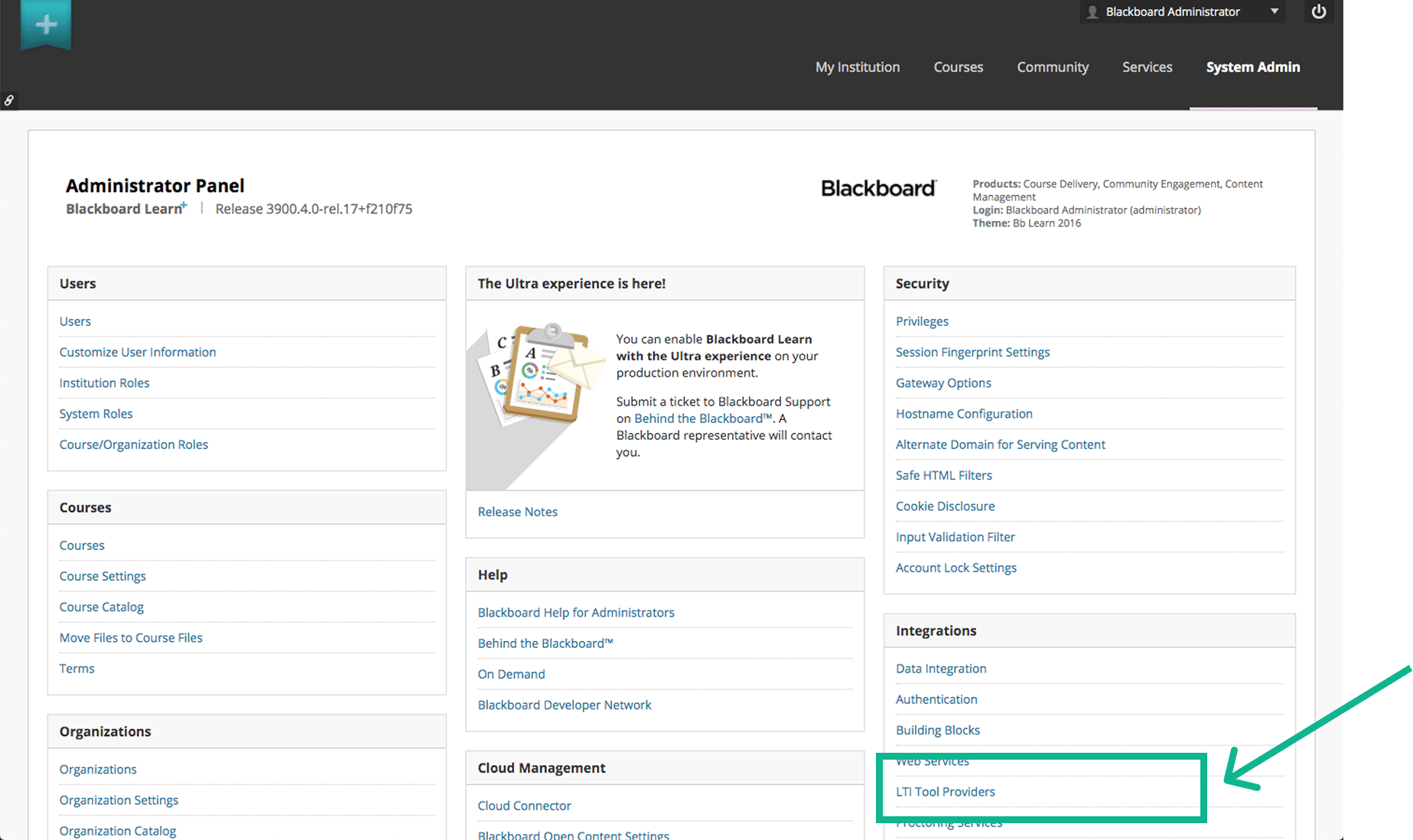
Select Register LTI 1.3 / Advantage Tool. Enter this StudyStash Client ID, then select Submit:
04fac04f-38fa-4c8d-a7f5-7381b045d3ac
Check that the application name is StudyStash before continuing.
2
Check the tool settings
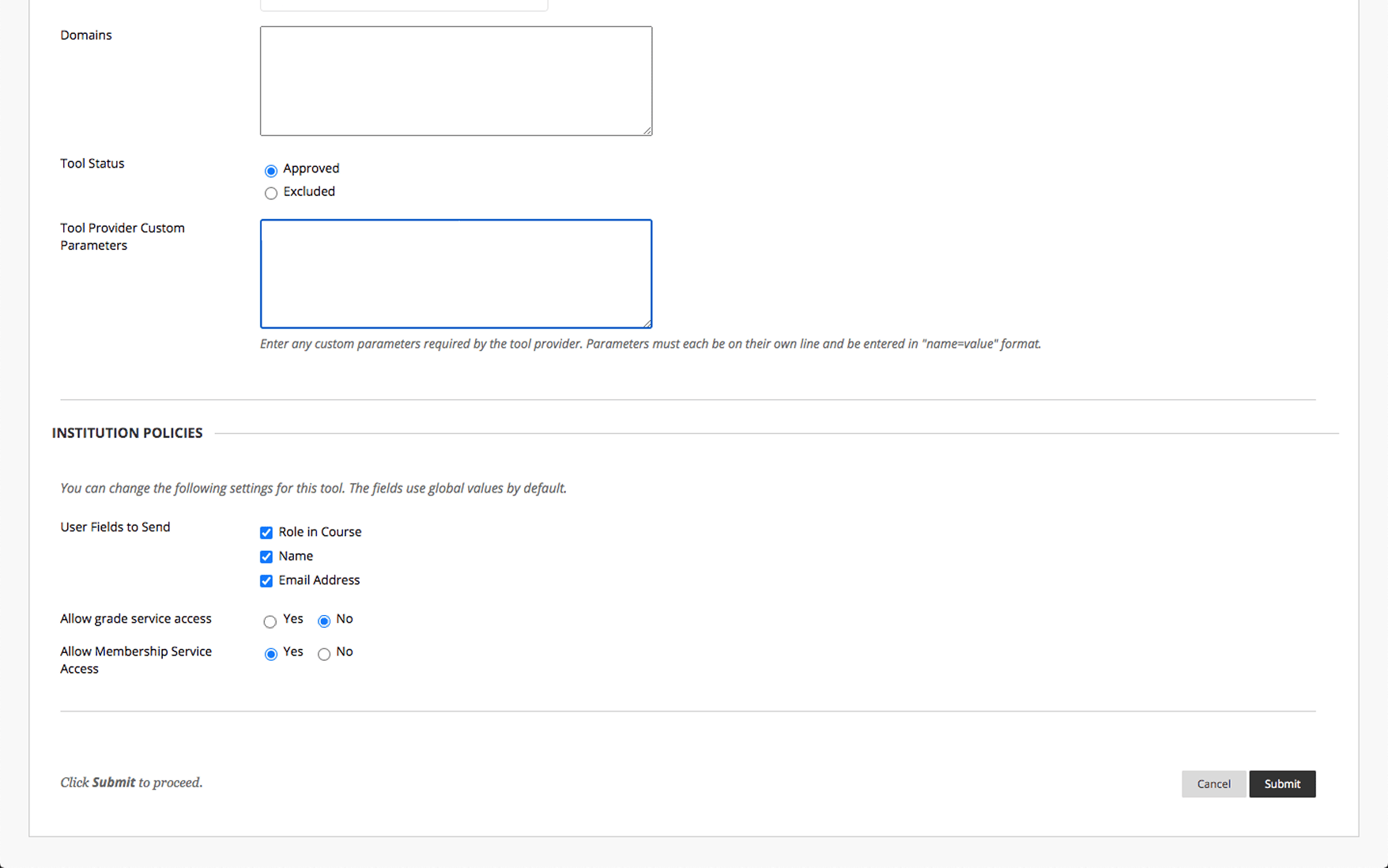
Use these settings:
Field
Value
Tool Status
Approved
User Fields to Send
Role in Course, Name, Email Address
Allow Grade Service Access
No
Allow Membership Service Access
Yes
Check the tool status, user fields and service access.
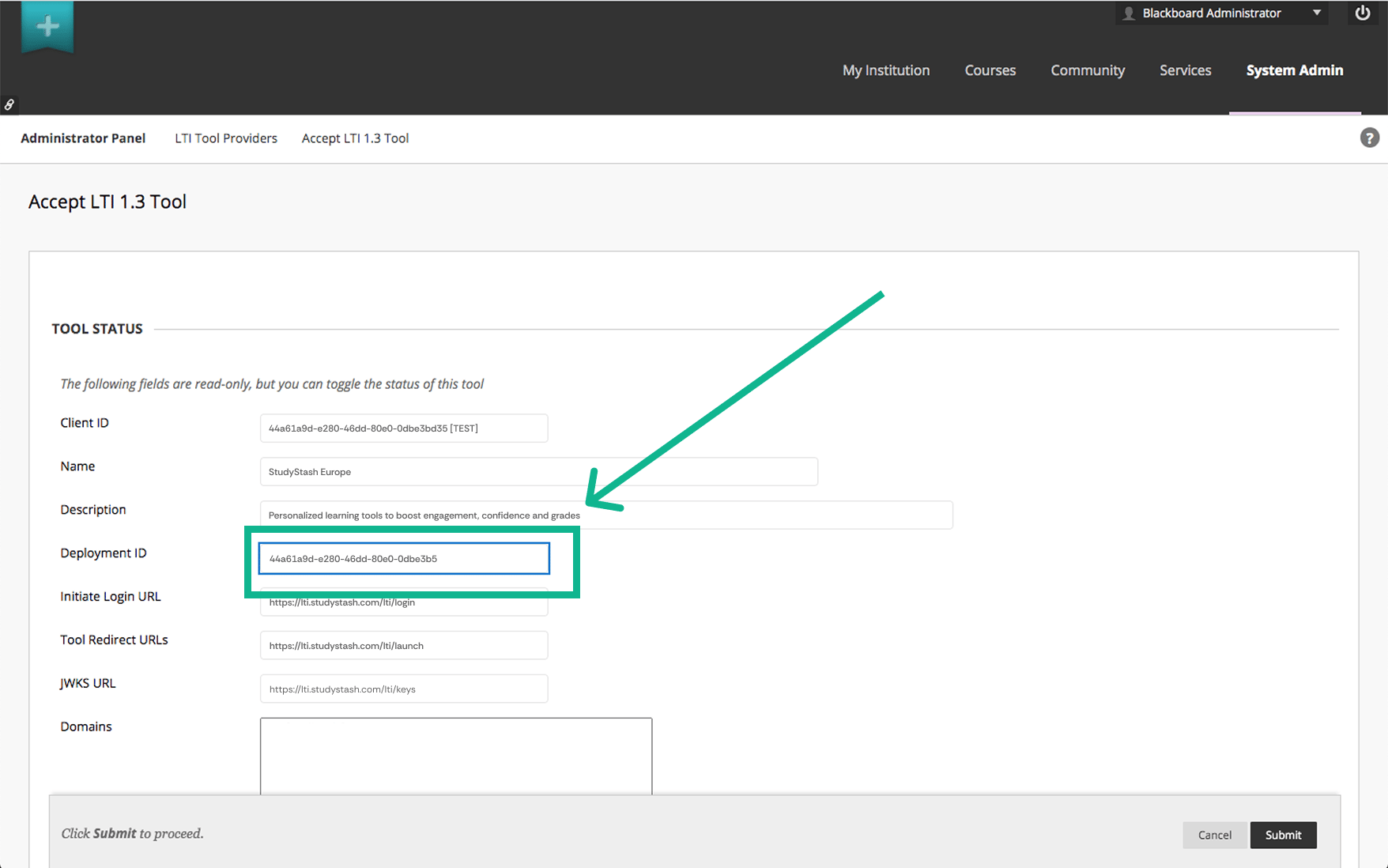
Select Submit to save the registration. Copy the provided by Blackboard.
Copy the Deployment ID from the registration details.
3
Send the deployment details
Submit your Client ID, Deployment URL and Deployment ID using the LTI setup support form.Wait for StudyStash to confirm activation, then test a launch before making the tool available to users.
{"docsConfig":{"theme":"mint","$schema":"https://mintlify.com/docs.json","name":"StudyStash Help Centre","description":"Guides and support for StudyStash students, instructors and administrators.","colors":{"primary":"#004C89","light":"#93BCE8","dark":"#004C89"},"logo":{"light":"https://mintcdn.com/studystash-help/UbXlxW0z5agaJ_Cy/logo/studystash-logo-colour-rgb.png?fit=max\u0026auto=format\u0026n=UbXlxW0z5agaJ_Cy\u0026q=85\u0026s=b42380e4f9b27366a5d79712531f7301","dark":"https://mintcdn.com/studystash-help/UbXlxW0z5agaJ_Cy/logo/studystash-logo-white-rgb.png?fit=max\u0026auto=format\u0026n=UbXlxW0z5agaJ_Cy\u0026q=85\u0026s=3ab46876df891935607077352b8c8f23","href":"/"},"favicon":"https://mintcdn.com/studystash-help/UbXlxW0z5agaJ_Cy/images/android-chrome-512x512.png?fit=max\u0026auto=format\u0026n=UbXlxW0z5agaJ_Cy\u0026q=85\u0026s=5bbbe16cd63c9616be8af0a2be969361","appearance":{"default":"light","strict":true},"background":{"color":{"light":"#FFFFFF","dark":"#0C1624"}},"navbar":{"links":[{"href":"/support","label":"Support"}],"primary":{"type":"button","label":"Open StudyStash","href":"https://studystash.com"}},"footer":{"links":[{"header":"StudyStash","items":[{"label":"Website","href":"https://studystash.com"},{"label":"Trust centre","href":"https://trust.studystash.com"},{"label":"Status","href":"https://status.studystash.com"},{"label":"Support requests","href":"https://internal.support.studystash.com/servicedesk/customer/portal/34"}]}]},"search":{"prompt":"Search help guides…"},"fonts":{"family":"Rethink Sans"},"styling":{"eyebrows":"breadcrumbs","latex":false},"contextual":{"options":[],"display":"header"},"navigation":{"pages":[]}},"deployment":{"deploymentMetadataValue":{"subdomain":"studystash-help","hasAudioNarration":false,"actualSubdomain":"studystash-help","customDomains":["help2.studystash.com"],"gitSource":{"type":"github","owner":"studystashapp","repo":"help-center","deployBranch":"main","contentDirectory":"","isPrivate":true,"mountPath":"","label":""},"chroma":{"latestBuiltDeploymentHistoryId":"6aec2e836ea3dafcfecbbbf9","collectionId":"b81fcb05-5829-47d9-8c78-f860a7ddfa21","liveDeploymentHistoryId":"6aec2e836ea3dafcfecbbbf9","schemaVersion":"v3"},"feedback":{"thumbs":false},"entitlements":{},"buildId":"6aec2e836ea3dafcfecbbbf9","clientVersion":"0.0.4067","searchFilterCounts":[{"language":"default","tag":"Administrators","count":25},{"language":"default","tag":"Students","count":14},{"language":"default","tag":"Instructors","count":12},{"language":"default","tag":"Get started","count":11},{"language":"default","tag":"Integrations","count":11},{"language":"default","tag":"Start here","count":8},{"language":"default","tag":"LMS integrations","count":7},{"language":"default","tag":"Your account","count":6},{"language":"default","tag":"Manage students and staff","count":5},{"language":"default","tag":"Pilots and evaluation","count":4}]},"assistantConfig":{"enableAskAiButton":false,"enableStarterQuestions":false,"enableContextualStarterQuestions":false,"enableAskAiSearchBar":true},"basePath":"","hasChatPermissions":false,"hasWebMcpPermissions":false,"toggles":[{"name":"kill-isr","enabled":true,"variant":{"name":"disabled","enabled":false,"feature_enabled":true},"impressionData":false},{"name":"agent-mintlify-slack","enabled":true,"variant":{"name":"disabled","enabled":false,"feature_enabled":true},"impressionData":false},{"name":"agent-integrations-settings","enabled":true,"variant":{"name":"disabled","enabled":false,"feature_enabled":true},"impressionData":false},{"name":"rbac-expansion","enabled":true,"variant":{"name":"disabled","enabled":false,"feature_enabled":true},"impressionData":false},{"name":"automations-pr-grouping","enabled":true,"variant":{"name":"disabled","enabled":false,"feature_enabled":true},"impressionData":false},{"name":"custom-prefix","enabled":true,"variant":{"name":"disabled","enabled":false,"feature_enabled":true},"impressionData":false},{"name":"analytics-v7","enabled":true,"variant":{"name":"disabled","enabled":false,"feature_enabled":true},"impressionData":false},{"name":"user-flows-analytics","enabled":true,"variant":{"name":"disabled","enabled":false,"feature_enabled":true},"impressionData":false},{"name":"no-publish-flow","enabled":true,"variant":{"name":"disabled","enabled":false,"feature_enabled":true},"impressionData":false},{"name":"workos-onboarding","enabled":true,"variant":{"name":"disabled","enabled":false,"feature_enabled":true},"impressionData":false},{"name":"llms-txt-v2","enabled":true,"variant":{"name":"disabled","enabled":false,"feature_enabled":true},"impressionData":false},{"name":"snapshot-serving-live","enabled":true,"variant":{"name":"disabled","enabled":false,"feature_enabled":true},"impressionData":false},{"name":"stripTemperatureMiddleware","enabled":true,"variant":{"name":"disabled","enabled":false,"feature_enabled":true},"impressionData":false},{"name":"support-platform-pylon-zendesk","enabled":true,"variant":{"name":"disabled","enabled":false,"feature_enabled":true},"impressionData":false},{"name":"snapshot-serving","enabled":true,"variant":{"name":"disabled","enabled":false,"feature_enabled":true},"impressionData":false},{"name":"instant-rollback","enabled":true,"variant":{"name":"disabled","enabled":false,"feature_enabled":true},"impressionData":false},{"name":"granular-notifications-server","enabled":true,"variant":{"name":"disabled","enabled":false,"feature_enabled":true},"impressionData":false},{"name":"granular-notifications","enabled":true,"variant":{"name":"disabled","enabled":false,"feature_enabled":true},"impressionData":false},{"name":"automations-fable","enabled":true,"variant":{"name":"disabled","enabled":false,"feature_enabled":true},"impressionData":false},{"name":"fixed-ai-action-pricing","enabled":true,"variant":{"name":"disabled","enabled":false,"feature_enabled":true},"impressionData":false},{"name":"automation-resolve-merge-conflict","enabled":true,"variant":{"name":"disabled","enabled":false,"feature_enabled":true},"impressionData":false},{"name":"scoped-publishing","enabled":true,"variant":{"name":"disabled","enabled":false,"feature_enabled":true},"impressionData":false},{"name":"mintql","enabled":true,"variant":{"name":"disabled","enabled":false,"feature_enabled":true},"impressionData":false},{"name":"page-level-analytics","enabled":true,"variant":{"name":"disabled","enabled":false,"feature_enabled":true},"impressionData":false},{"name":"editor-version-history-v2","enabled":true,"variant":{"name":"disabled","enabled":false,"feature_enabled":true},"impressionData":false},{"name":"billing-page-v2","enabled":true,"variant":{"name":"disabled","enabled":false,"feature_enabled":true},"impressionData":false},{"name":"full-page-search","enabled":true,"variant":{"name":"disabled","enabled":false,"feature_enabled":true},"impressionData":false},{"name":"workspace-projects","enabled":true,"variant":{"name":"disabled","enabled":false,"feature_enabled":true},"impressionData":false},{"name":"assistant-v5","enabled":true,"variant":{"name":"disabled","enabled":false,"feature_enabled":true},"impressionData":false},{"name":"fork-pr-previews","enabled":true,"variant":{"name":"disabled","enabled":false,"feature_enabled":true},"impressionData":false},{"name":"revalidation-jwt","enabled":true,"variant":{"name":"disabled","enabled":false,"feature_enabled":true},"impressionData":false},{"name":"vite-origin","enabled":true,"variant":{"name":"disabled","enabled":false,"feature_enabled":true},"impressionData":false},{"name":"workos-sso-scim","enabled":true,"variant":{"name":"disabled","enabled":false,"feature_enabled":true},"impressionData":false},{"name":"hobby-abuse-scan","enabled":true,"variant":{"name":"disabled","enabled":false,"feature_enabled":true},"impressionData":false},{"name":"dashboard-inbox","enabled":true,"variant":{"name":"disabled","enabled":false,"feature_enabled":true},"impressionData":false},{"name":"workos-signup","enabled":true,"variant":{"name":"disabled","enabled":false,"feature_enabled":true},"impressionData":false},{"name":"turbopuffer-dual-write","enabled":true,"variant":{"name":"disabled","enabled":false,"feature_enabled":true},"impressionData":false},{"name":"workos-enabled","enabled":true,"variant":{"name":"disabled","enabled":false,"feature_enabled":true},"impressionData":false},{"name":"approve-review-flow","enabled":true,"variant":{"name":"disabled","enabled":false,"feature_enabled":true},"impressionData":false},{"name":"sso-setup-deadline-banner","enabled":true,"variant":{"name":"disabled","enabled":false,"feature_enabled":true},"impressionData":false},{"name":"turbopuffer-serve","enabled":true,"variant":{"name":"disabled","enabled":false,"feature_enabled":true},"impressionData":false},{"name":"live-agents","enabled":true,"variant":{"name":"disabled","enabled":false,"feature_enabled":true},"impressionData":false}],"privacy":{"consentBanner":{"enabled":true}},"googleFontsInlined":true},"customCss":[{"filePath":"custom.css","content":":root,.ss-help-layout{--ss-brand-blue: #004c89;--ss-ink: #132b43;--ss-muted: #536578;--ss-line: #d9e2eb;--ss-surface: #f4f7fa;--ss-canvas: #ffffff;--ss-paper: #ffffff;--ss-accent: var(--ss-brand-blue);--ss-blue: var(--ss-brand-blue);--ss-tint: #e4edf3;--ss-on-accent: #ffffff}.dark{--ss-ink: #edf3fa;--ss-muted: #b6c5d6;--ss-line: #2c4058;--ss-surface: #1b2d43;--ss-canvas: #0c1624;--ss-paper: #142438;--ss-accent: #93bce8;--ss-blue: #93bce8;--ss-tint: #1d3550;--ss-on-accent: #0c1624}body:has(.ss-help-layout) #content-area{padding:0}.ss-help-layout{min-height:100vh;display:flex;flex-direction:column;overflow:clip;color:var(--ss-ink);background:var(--ss-canvas);font-family:\"Rethink Sans\", sans-serif;font-size:15px;line-height:1.55}.ss-help-layout *{box-sizing:border-box}.ss-help-layout :is(h1,h2,h3,p,ul){margin:0}.ss-help-layout a{color:inherit;text-decoration:none}.ss-help-layout a:hover{color:var(--ss-accent)}.ss-help-layout :is(a,button,input):focus-visible{outline:3px solid var(--ss-accent);outline-offset:5px}.ss-help-layout h1{font-size:48px;line-height:1.12;letter-spacing:-1.7px;font-weight:600;color:var(--ss-ink)}.ss-help-layout h2{font-size:25px;line-height:1.25;letter-spacing:-.65px;font-weight:600}.ss-help-header{border-bottom:1px solid var(--ss-line)}.ss-header-inner,.ss-footer-inner{max-width:1220px;padding:23px 40px;margin:0 auto;display:flex;align-items:center;justify-content:space-between;gap:24px}.ss-help-brand{display:flex;align-items:center;gap:18px;flex-shrink:0}.ss-help-brand img{display:block;width:153px;height:auto;margin:0}.ss-help-brand .ss-help-logo-dark{display:none}.dark .ss-help-brand .ss-help-logo-light{display:none}.dark .ss-help-brand .ss-help-logo-dark{display:block}.ss-help-brand>span{padding-left:18px;border-left:1px solid var(--ss-line);color:var(--ss-muted);font-size:13px}.ss-help-header-links{display:flex;align-items:center;gap:26px;font-size:13px;font-weight:500}.ss-help-open{display:inline-flex;align-items:center;justify-content:center;gap:10px;min-height:44px;border:1px solid var(--ss-brand-blue);padding:10px 16px;border-radius:8px;font-weight:600;white-space:nowrap}.ss-help-layout a.ss-help-open{background:var(--ss-brand-blue);color:#fff;box-shadow:0 1px 2px #132b4314;transition:background-color .15s ease}.ss-help-layout a.ss-help-open:hover{background:#003d6e;border-color:#003d6e;color:#fff}.ss-help-open svg{flex:0 0 auto}.ss-help-content{width:100%;max-width:1140px;flex:1;isolation:isolate;margin:0 auto;padding:0 40px}.ss-eyebrow{color:var(--ss-accent);font-size:12px;font-weight:600;letter-spacing:.03em}.ss-home-hero{display:grid;grid-template-columns:1fr 1.1fr;align-items:center;gap:40px;padding:18px 0;margin:42px 0 44px}.ss-home-hero h1{font-size:43px;letter-spacing:-1.5px}.ss-home-hero .ss-search{max-width:610px;margin:0 auto;text-align:left}.ss-search{position:relative;width:100%;text-align:left}.ss-search-launcher{display:flex;align-items:center;gap:12px;width:100%;min-height:58px;padding:8px 9px 8px 18px;border:1px solid var(--ss-line);border-radius:9px;background:var(--ss-paper);box-shadow:0 3px 8px #16353106;color:var(--ss-ink);font:inherit;text-align:left;cursor:pointer}.ss-search-launcher:hover{border-color:var(--ss-accent)}.ss-search-launcher:focus-visible{outline:2px solid var(--ss-accent);outline-offset:3px}.ss-search-launcher>svg{width:20px;height:20px;flex-shrink:0;color:var(--ss-accent)}.ss-search-placeholder{flex:1;min-width:0;color:var(--ss-muted);font-size:15px}.ss-search-action{border-radius:6px;padding:11px 18px;background:var(--ss-accent);color:var(--ss-on-accent);font-size:13px;font-weight:500}.ss-section-heading{display:flex;align-items:flex-end;justify-content:space-between;gap:20px;margin-bottom:22px}.ss-section-heading p{color:var(--ss-muted);font-size:14px;margin-top:7px}.ss-help-layout a.ss-help-link{display:inline-flex;align-items:center;gap:12px;color:var(--ss-accent);font-size:13px;font-weight:500}.ss-audience-grid{display:grid;grid-template-columns:repeat(3,minmax(0,1fr));gap:24px}.ss-audience-card{display:block;min-width:0;overflow:hidden;border:1px solid var(--ss-line);border-radius:10px}.ss-audience-card:hover{border-color:var(--ss-accent)}.ss-audience-copy{padding:24px}.ss-audience-copy h3{font-size:25px;font-weight:600;line-height:1.2;letter-spacing:-.7px}.ss-audience-copy p{font-size:14px;line-height:1.6;color:var(--ss-muted);margin:10px 0 0;min-height:44px}.ss-help-support{display:flex;align-items:center;gap:20px;padding:29px 32px;margin:30px 0 44px;border-radius:12px;background:var(--ss-tint)}.ss-help-support h2{font-size:23px;letter-spacing:-.5px;margin-bottom:6px}.ss-help-support p{color:var(--ss-muted);font-size:14px}.ss-help-button{display:inline-flex;align-items:center;justify-content:center;gap:22px;border:1px solid var(--ss-accent);padding:12px 18px;border-radius:7px;font-size:13px;font-weight:500;white-space:nowrap;min-height:44px}.ss-help-support .ss-help-button{margin-left:auto;background:var(--ss-accent);color:var(--ss-on-accent)}.ss-help-layout .ss-help-button:hover{color:var(--ss-accent);background:var(--ss-paper)}.ss-help-footer{border-top:1px solid var(--ss-line);color:var(--ss-muted);font-size:12px}.ss-footer-inner{padding-top:25px;padding-bottom:27px;align-items:flex-start}.ss-footer-inner>a{flex-shrink:0;font-weight:500;color:var(--ss-ink)}.ss-help-footer nav{display:flex;justify-content:flex-end;flex-wrap:wrap;gap:10px 22px}.ss-help-breadcrumb{display:flex;flex-wrap:wrap;align-items:center;gap:11px;margin:25px 0 19px;color:var(--ss-muted);font-size:13px}.ss-role-hero{position:relative;padding:44px 0 38px}.ss-role-hero-copy{max-width:620px;margin:0 auto;text-align:center}.ss-role-hero h1{color:white;font-size:43px;margin:0}.ss-role-hero h1+p{color:#e4edf3;margin-top:13px}.ss-role-hero .ss-search{margin-top:25px}.ss-role-start{position:relative;display:flex;align-items:center;justify-content:space-between;gap:24px;padding:26px 28px;margin:0 0 26px;border:1px solid var(--ss-line);border-radius:10px;background:var(--ss-paper);box-shadow:0 3px 12px #132b4308}.ss-role-start h2{font-size:23px;margin:6px 0}.ss-role-start p:not(.ss-eyebrow){font-size:14px;color:var(--ss-muted)}.ss-topic-nav{display:flex;flex-wrap:wrap;gap:8px;padding:0 0 25px}.ss-topic-nav a{display:block;padding:7px 13px;border:1px solid var(--ss-line);border-radius:6px;color:var(--ss-muted);font-size:13px}.ss-topic-nav a:hover{background:var(--ss-tint)}.ss-role-sections{display:grid;grid-template-columns:repeat(2,minmax(0,1fr));gap:24px;margin:0 0 48px}.ss-role-section{border:1px solid var(--ss-line);border-radius:10px;background:var(--ss-paper);padding:25px 26px 12px}.ss-role-section h2{font-size:21px;font-weight:600;margin-bottom:20px;letter-spacing:-.45px;scroll-margin-top:25px}.ss-role-section ul{list-style:none;padding:0}.ss-role-section li{margin:0;padding:0}.ss-role-section li a{display:flex;align-items:center;justify-content:space-between;gap:20px;padding:14px 0;border-top:1px solid var(--ss-line);font-size:14px;min-height:49px}.ss-role-section li a span:last-child{flex-shrink:0;color:var(--ss-accent)}.ss-role-section:last-child:nth-child(odd){grid-column:1 / -1}.ss-role-section:last-child:nth-child(odd) ul{display:grid;grid-template-columns:repeat(2,minmax(0,1fr));column-gap:36px}@media (max-width: 1000px){.ss-header-inner,.ss-footer-inner,.ss-help-content{padding-left:28px;padding-right:28px}.ss-audience-grid{gap:16px}.ss-audience-copy{padding:20px 18px}.ss-audience-copy h3{font-size:23px}.ss-role-hero h1{font-size:36px}}@media (max-width: 760px){.ss-help-brand>span{display:none}.ss-home-hero{grid-template-columns:1fr;gap:22px}.ss-home-hero h1{font-size:36px}.ss-audience-grid{grid-template-columns:1fr;gap:22px}.ss-audience-card{display:grid;grid-template-columns:124px minmax(0,1fr);align-items:center}.ss-audience-copy p{min-height:0}.ss-role-hero{padding:32px 0}.ss-role-sections{gap:18px}.ss-role-section{padding:22px 20px 9px}.ss-footer-inner{flex-direction:column;gap:16px}.ss-help-footer nav{justify-content:flex-start}}@media (max-width: 520px){.ss-header-inner{padding:17px 20px;gap:14px}.ss-help-brand img{width:139px}.ss-help-header-links{font-size:12px;gap:12px}.ss-header-inner{flex-wrap:wrap}.ss-help-header-links{width:100%;justify-content:space-between}.ss-help-content{padding:0 20px}.ss-home-hero{padding:0;margin:32px 0;gap:22px}.ss-home-hero h1{font-size:32px;letter-spacing:-1px;margin-top:9px}.ss-search-launcher{padding:6px 7px 6px 11px;gap:9px}.ss-search-placeholder{font-size:16px}.ss-search-action{padding:10px 12px}.ss-section-heading{align-items:flex-start;flex-direction:column;gap:13px}.ss-section-heading h2{font-size:25px}.ss-section-heading p{font-size:13px}.ss-audience-card{grid-template-columns:88px minmax(0,1fr)}.ss-audience-copy{padding:20px 18px}.ss-audience-copy h3{font-size:21px}.ss-audience-copy p{font-size:13px;margin-top:7px;margin-bottom:0}.ss-help-support{flex-direction:column;align-items:flex-start;padding:24px;margin:20px 0 30px;gap:18px}.ss-help-support h2{font-size:23px}.ss-help-support .ss-help-button{margin-left:0}.ss-footer-inner{padding:24px 20px}.ss-help-footer nav{gap:13px 19px}.ss-help-breadcrumb{font-size:12px;margin:22px 0 17px}.ss-role-hero h1{font-size:32px;letter-spacing:-1px}.ss-role-hero h1+p{font-size:14px}.ss-role-start{flex-direction:column;align-items:flex-start;gap:17px;padding:24px 20px}.ss-role-sections,.ss-role-section:last-child:nth-child(odd) ul{grid-template-columns:1fr}.ss-role-section{padding:22px 20px 8px}.ss-topic-nav{gap:7px;padding:18px 0 22px}.ss-topic-nav a{font-size:12px}}.ss-audience-nav{display:flex;align-items:center;gap:26px;max-width:1220px;margin:0 auto;padding:0 40px 14px;font-size:13px}.ss-audience-nav a{padding:6px 0;color:var(--ss-muted);border-bottom:2px solid transparent}.ss-audience-nav a[aria-current=\"page\"]{color:var(--ss-accent);border-color:var(--ss-accent);font-weight:600}.ss-audience-copy h3{display:flex;align-items:center;justify-content:space-between;gap:12px}.ss-audience-copy h3>span{color:var(--ss-accent);font-size:23px;font-weight:400}#content [data-component-part=\"step-indicator\"]{background:var(--ss-tint);color:var(--ss-accent);font-size:13px}#content [data-component-part=\"step-title\"]{font-size:19px;line-height:1.4;font-weight:600;color:var(--ss-ink);letter-spacing:-.25px}#content [data-component-part=\"step-line\"]{background:var(--ss-line)}#header .breadcrumb-list{flex-wrap:wrap}#header .breadcrumb-list a{color:var(--ss-accent)}@media (min-width: 1001px){.ss-help-header{position:relative}.ss-audience-nav{position:absolute;top:23px;left:50%;transform:translateX(-50%);padding:6px 0;gap:24px}}.ss-product-visual{display:flex;align-items:center;justify-content:center;height:170px;overflow:hidden;padding:24px;border-radius:9px 9px 0 0;background:var(--ss-surface)}.ss-product-window{display:block;flex-shrink:0;width:100%;max-width:340px;height:auto;overflow:hidden;border-radius:8px;box-shadow:0 2px 10px #16353108}.ss-product-students .ss-product-window{width:158px;height:124px;background:white}.ss-product-educators .ss-product-window{background:white}.ss-product-administrators .ss-product-window{max-width:196px}.ss-role-hero>.ss-product-visual{height:100%;min-height:260px;border-radius:9px}.ss-role-hero .ss-product-students .ss-product-window{width:230px;height:180px}.ss-role-hero .ss-product-administrators .ss-product-window{max-width:330px}@media (max-width: 1000px){.ss-audience-nav{padding-left:28px;padding-right:28px}.ss-home-hero{gap:24px}.ss-home-hero h1{font-size:36px}.ss-product-visual{height:162px;padding:18px}.ss-audience-copy p{min-height:44px}}@media (max-width: 760px){.ss-audience-card .ss-product-visual{height:100%;min-height:124px;padding:14px;border-radius:0}.ss-audience-card .ss-product-window{max-width:100%;height:auto}.ss-audience-copy p{min-height:0}.ss-role-hero>.ss-product-visual{display:none}}@media (max-width: 520px){.ss-header-inner{padding-bottom:10px}.ss-audience-nav{padding:0 20px 9px;gap:0;justify-content:space-between;font-size:12px}.ss-audience-nav a{min-height:44px;display:flex;align-items:center}.ss-home-hero{padding:0;gap:22px}.ss-home-hero h1{font-size:32px}.ss-audience-card .ss-product-visual{min-height:118px;padding:10px}}html:has(.ss-help-layout),body:has(.ss-help-layout){color-scheme:light;background:#ffffff}.ss-help-layout .ss-help-brand .ss-help-logo-light{display:block}.ss-help-layout .ss-help-brand .ss-help-logo-dark{display:none}.ss-help-layout-home .ss-home-hero{position:relative;display:flex;flex-direction:column;gap:25px;padding:44px 0 38px;margin:0;text-align:center}.ss-help-layout-home .ss-home-hero::before,.ss-help-layout-audience .ss-role-hero::before{content:'';position:absolute;z-index:-1;top:0;bottom:-135px;left:50%;width:100vw;transform:translateX(-50%);background:var(--ss-brand-blue)}.ss-help-layout-audience .ss-role-hero::before{bottom:-65px}.ss-help-layout-home .ss-home-hero h1{color:white}.ss-help-layout-home .ss-home-hero .ss-search{max-width:620px}.ss-help-layout-home .ss-audiences{position:relative;padding-bottom:52px}.ss-help-layout-home .ss-directory-heading{color:white;font-size:17px;font-weight:500;letter-spacing:-.25px;margin:0 0 20px}.ss-help-layout-home .ss-audience-card{display:block;background:var(--ss-paper);border-color:var(--ss-line);box-shadow:0 3px 12px #132b4308}.ss-help-layout-home .ss-audience-card:hover{border-color:var(--ss-accent)}.ss-help-layout-home .ss-audience-card .ss-product-visual{height:270px;min-height:0;padding:18px;border-radius:9px 9px 0 0}.ss-help-layout-home .ss-audience-card .ss-product-window{width:100%;max-width:min(300px, 100%);height:auto}.ss-help-layout-home .ss-product-students .ss-product-window{width:234px;aspect-ratio:1}.ss-help-layout-home .ss-product-administrators .ss-product-window{width:300px;max-width:100%;box-shadow:none;border-radius:0}.ss-help-layout-home .ss-audience-copy{padding:22px 24px}.ss-help-layout .ss-footer-inner{padding-top:25px;padding-bottom:25px}#footer.advanced-footer{width:100%;border-color:var(--ss-line);background:var(--ss-canvas);color:var(--ss-muted)}#footer.advanced-footer>div{max-width:1220px;padding:28px 40px;gap:16px}#footer.advanced-footer>div>div:first-child{align-items:center;gap:24px}#footer.advanced-footer>div>div:first-child>div{min-width:0;flex:0 1 auto}#footer.advanced-footer>div>div:first-child>div:last-child{display:block}#footer.advanced-footer .nav-logo{width:153px;max-width:100%;height:auto}#footer.advanced-footer>div>div:first-child div:has(>a[href^=\"https://\"]){display:flex;flex-direction:row;flex-wrap:wrap;justify-content:flex-end;gap:8px 24px}#footer.advanced-footer>div>div:first-child a[href^=\"https://\"]{display:inline-flex;align-items:center;min-height:32px;max-width:none;white-space:nowrap;color:var(--ss-muted);font-size:13px}#footer.advanced-footer>div>div:nth-child(2){background:var(--ss-line)}#footer.advanced-footer>div>div:last-child{gap:20px}#footer.advanced-footer>div>div:last-child a{color:var(--ss-muted);font-size:12px}#footer.advanced-footer>div>div:last-child a svg{height:12px}#footer.advanced-footer>div>div a[href]:hover{color:var(--ss-accent)}#footer.advanced-footer button[aria-pressed]{width:36px;height:36px;padding:10px;border-radius:6px;color:var(--ss-muted)}#footer.advanced-footer button[aria-pressed=\"true\"]{background:var(--ss-tint);color:var(--ss-accent)}#footer.advanced-footer button[aria-pressed]:hover{background:var(--ss-tint);color:var(--ss-accent)}#footer.advanced-footer :is(a,button):focus-visible{outline:2px solid var(--ss-accent);outline-offset:4px}@media (max-width: 1000px){#footer.advanced-footer>div{padding-left:28px;padding-right:28px}}@media (max-width: 760px){#footer.advanced-footer>div{padding:24px 20px}#footer.advanced-footer>div>div:first-child{flex-direction:column;align-items:flex-start;gap:16px}#footer.advanced-footer>div>div:first-child div:has(>a[href^=\"https://\"]){justify-content:flex-start;gap:4px 20px}#footer.advanced-footer>div>div:last-child{gap:12px}#footer.advanced-footer>div>div:last-child>div:last-child{gap:4px}}@media (max-width: 760px){.ss-help-layout-home .ss-audiences{padding-bottom:36px}.ss-help-layout-home .ss-audience-grid{gap:12px;max-width:480px;margin:0 auto}.ss-help-layout-home .ss-home-hero{padding:24px 0;gap:18px}.ss-help-layout-home .ss-home-hero::before{bottom:-100px}.ss-help-layout-home .ss-directory-heading{max-width:480px;margin-left:auto;margin-right:auto}.ss-help-layout-home .ss-audience-card{display:grid;grid-template-columns:96px minmax(0, 1fr);align-items:stretch}.ss-help-layout-home .ss-audience-card .ss-product-visual{height:100%;min-height:116px;padding:10px;border-radius:0}.ss-help-layout-home .ss-audience-card .ss-product-window{width:100%;max-width:100%}.ss-help-layout-home .ss-audience-copy{align-self:center;padding:17px 16px}.ss-help-layout-home .ss-audience-copy h3{font-size:20px;letter-spacing:-.4px;gap:8px}.ss-help-layout-home .ss-audience-copy p{margin-top:6px;min-height:0;font-size:13px;line-height:1.5}}@media (max-width: 520px){.ss-help-layout-home .ss-header-inner{padding-bottom:17px}.ss-help-layout-home .ss-directory-heading{font-size:16px;margin-bottom:16px}.ss-audience-copy h3>span{font-size:20px}}@media (max-width: 360px){.ss-audience-card{grid-template-columns:64px minmax(0,1fr)}.ss-help-layout-home .ss-audience-card{grid-template-columns:64px minmax(0,1fr)}.ss-help-layout-home .ss-audience-copy{padding-left:12px;padding-right:12px}.ss-help-layout-home .ss-audience-copy h3{font-size:18px}.ss-audience-copy{padding-left:15px;padding-right:15px}.ss-audience-copy h3{font-size:20px}}img[src*=\"/assets/lms/canvas.png\"]{transform:scale(1.4);clip-path:inset(16%)}img[src*=\"/assets/lms/moodle.png\"]{transform:scale(1.12)}.ss-announcement{margin:16px 0 28px;padding:20px;border:1px solid var(--ss-line);border-radius:8px;background:var(--ss-paper)}.ss-announcement-tools{display:flex;flex-wrap:wrap;align-items:center;justify-content:flex-end;gap:8px 12px;margin-bottom:16px}.ss-announcement-tools button{display:inline-flex;align-items:center;gap:8px;min-height:40px;padding:8px 12px;border:1px solid var(--ss-line);border-radius:6px;background:var(--ss-surface);color:var(--ss-accent);font-size:13px;font-weight:600;cursor:pointer}.ss-announcement-tools button:hover{border-color:var(--ss-accent)}.ss-announcement-tools button:focus-visible{outline:2px solid var(--ss-accent);outline-offset:3px}.ss-announcement-tools [role=\"status\"]{font-size:12px;color:var(--ss-muted)}.ss-announcement-content{font-size:15px;line-height:1.7;overflow-wrap:anywhere}.ss-announcement-content>[data-as=\"p\"]{display:block;margin:14px 0}.ss-announcement-content>:first-child{margin-top:0}.ss-announcement-content>:last-child{margin-bottom:0}body:not(:has(.ss-help-layout)) #header{padding-bottom:24px;margin-bottom:28px;border-bottom:1px solid var(--ss-line)}body:not(:has(.ss-help-layout)) #header h1{color:var(--ss-ink);font-weight:600;font-size:clamp(30px, 3vw, 40px);line-height:1.15;letter-spacing:-1px}body:not(:has(.ss-help-layout)) #header .prose{color:var(--ss-muted);line-height:1.65}body:not(:has(.ss-help-layout)) #content{--tw-prose-headings: var(--ss-ink);--tw-prose-links: var(--ss-accent);line-height:1.8}body:not(:has(.ss-help-layout)) #content h2{font-size:25px;line-height:1.3;letter-spacing:-.5px;font-weight:600}body:not(:has(.ss-help-layout)) #content h3{color:var(--ss-ink);font-size:20px;line-height:1.4;font-weight:600}.ss-article-screenshot{margin:24px 0;max-width:680px;border:1px solid var(--ss-line);border-radius:10px;overflow:hidden;background:var(--ss-surface)}.ss-article-screenshot .ss-screenshot-crop{display:block;width:100%;height:auto;background:white}.ss-article-screenshot figcaption{display:flex;flex-wrap:wrap;justify-content:space-between;gap:8px 18px;padding:13px 16px;border-top:1px solid var(--ss-line);font-size:13px;line-height:1.5;color:var(--ss-muted)}.ss-article-screenshot figcaption a{color:var(--ss-accent);font-weight:500;text-decoration:underline;text-underline-offset:3px}.ss-article-screenshot a:focus-visible{outline:3px solid var(--ss-accent);outline-offset:-3px}.ss-article-screenshot.ss-crop-menu{max-width:370px}.ss-article-screenshot.ss-crop-sharing{max-width:520px}.ss-screenshot{border-radius:10px}.ss-video{border-radius:10px}@media (max-width: 520px){body:not(:has(.ss-help-layout)) #header{padding-bottom:20px;margin-bottom:24px}body:not(:has(.ss-help-layout)) #content h2{font-size:23px}}.ss-video{margin:28px 0;overflow:hidden;border:1px solid var(--ss-line);border-radius:10px;background:var(--ss-surface)}.ss-video video{display:block;width:100%;height:auto;max-height:520px;margin:0;background:#eaf0f4;border-radius:0}.ss-video figcaption{padding:13px 16px;display:flex;justify-content:space-between;align-items:baseline;flex-wrap:wrap;gap:4px 12px;color:var(--ss-ink);font-size:13px;line-height:1.5}.ss-video figcaption span{color:var(--ss-muted);font-size:11px;white-space:nowrap}.ss-checklist,.ss-finder{border:1px solid var(--ss-line);padding:24px;border-radius:6px;margin:24px 0;background:var(--ss-surface);color:var(--ss-ink)}.ss-checklist-heading{display:flex;flex-wrap:wrap;justify-content:space-between;gap:10px;align-items:center}.ss-checklist-heading h3{margin:0;font-size:18px;font-weight:700}.ss-checklist-heading span{color:var(--ss-muted);font-size:12px}.ss-checklist progress{display:block;width:100%;height:7px;accent-color:#087b79;margin:16px 0;border:0;border-radius:5px;overflow:hidden}.ss-checklist progress::-webkit-progress-bar{background:#cfe1e3}.ss-checklist progress::-webkit-progress-value{background:#087b79}.ss-checklist ul{list-style:none;padding:0;margin:0}.ss-checklist li{display:flex;align-items:start;gap:14px;padding:18px 0;border-bottom:1px solid var(--ss-line)}.ss-checklist li:last-child{border:0}.ss-checklist input{width:20px;height:20px;margin-top:2px;accent-color:#087b79;flex:0 0 auto}.ss-checklist label{cursor:pointer;font-size:15px;font-weight:650}.ss-checklist li p{margin:5px 0;color:var(--ss-muted);font-size:13px;line-height:1.6}.ss-checklist a,.ss-finder a{color:var(--ss-blue);font-size:13px;font-weight:650}.ss-small{font-size:12px;color:var(--ss-muted);line-height:1.6;margin-top:16px}.ss-complete{color:var(--ss-accent);font-weight:650;font-size:14px}.ss-finder fieldset{border:0;padding:0;margin:0 0 24px;min-width:0}.ss-finder legend{font-size:16px;font-weight:650;margin-bottom:14px}.ss-choices{display:flex;flex-wrap:wrap;gap:10px}.ss-choices button{text-align:left;font-size:14px;padding:12px 16px;border-radius:5px;border:1px solid var(--ss-line);background:transparent;color:var(--ss-ink);cursor:pointer}.ss-choices button[aria-pressed=\"true\"]{color:#fff;border-color:#086c72;background:#086c72}.ss-finder-result{border-top:1px solid var(--ss-line);padding-top:20px}.ss-finder-result h3{margin:0 0 8px;font-size:18px;font-weight:700}.ss-finder-result p{color:var(--ss-muted);font-size:14px;line-height:1.7}.ss-finder-result ul{list-style:none;margin:14px 0 0;padding:0;display:grid;gap:12px}.ss-finder :is(a,button):focus-visible,.ss-checklist :is(a,input):focus-visible{outline:3px solid #159897;outline-offset:4px;border-radius:5px}.ss-route-card{border-radius:6px!important}.ss-route-card h2{font-size:18px}#content-area h2{letter-spacing:-.02em}#content-area h3{letter-spacing:-.015em}.ss-transcript{padding:0 16px 14px;font-size:13px;color:var(--ss-muted)}.ss-transcript summary{cursor:pointer;color:var(--ss-blue);font-weight:600}.ss-transcript p{margin:14px 0 0;line-height:1.8}.ss-screenshot{border-radius:10px;border-color:var(--ss-line);background:var(--ss-surface)}.ss-screenshot img{border-radius:3px}#topbar-cta-button{background:transparent}#topbar-cta-button a>span{background:var(--ss-brand-blue);border-radius:7px}@media (max-width: 480px){.ss-checklist,.ss-finder{padding:18px}.ss-choices{flex-direction:column}.ss-choices button{width:100%}.ss-video figcaption{padding:10px 12px}}#navbar{color:var(--ss-ink)}#navbar-transition{background:#ffffff;border-color:var(--ss-line);backdrop-filter:none}#navbar a:has(>.nav-logo){display:flex;align-items:center;flex-shrink:0;gap:16px}#navbar a:has(>.nav-logo)::after{content:\"Help centre\";padding-left:16px;border-left:1px solid var(--ss-line);color:var(--ss-muted);font-size:14px;font-weight:400;white-space:nowrap}#navbar .nav-logo{width:153px;height:auto}#navbar #search-bar-entry{max-width:400px;height:40px;border:1px solid var(--ss-line);border-radius:7px;background:var(--ss-surface);color:var(--ss-muted);box-shadow:none}#navbar #search-bar-entry:hover{border-color:#9aafc2;background:#edf2f6}#navbar [data-search-item=\"trigger-icon\"]{color:var(--ss-muted)}#navbar [data-search-item=\"trigger-hint\"]{border:1px solid var(--ss-line);border-radius:4px;padding:0 5px;background:white;color:var(--ss-muted);font-weight:400}#navbar .navbar-link a{min-height:40px;padding:0 8px;color:var(--ss-muted);font-weight:500}#navbar .navbar-link a:hover{color:var(--ss-brand-blue)}#navbar #topbar-cta-button>a{min-height:40px;padding:9px 15px;border-radius:7px;background:var(--ss-brand-blue);color:white;box-shadow:0 1px 2px #132b4314}#navbar #topbar-cta-button>a:hover{background:#003d6e}#navbar #topbar-cta-button>a>span{display:none}#navbar #topbar-cta-button>a>div{gap:8px}#navbar .nav-tabs{align-items:center;gap:6px}#navbar .nav-tabs-item{height:36px;padding:0 14px;border-radius:6px;color:var(--ss-muted);font-size:14px;text-shadow:none}#navbar .nav-tabs-item:hover{background:var(--ss-surface);color:var(--ss-brand-blue)}#navbar .nav-tabs-item[data-active=\"true\"]{background:var(--ss-tint);color:var(--ss-brand-blue);font-weight:600}#navbar .nav-tabs-item>div{display:none}#navbar :is(a,button):focus-visible{outline:2px solid var(--ss-brand-blue);outline-offset:3px}#navbar #search-bar-entry-mobile,#navbar button[aria-label=\"More actions\"]{width:40px;height:40px;border-radius:7px;color:var(--ss-muted)}#navbar #search-bar-entry-mobile:hover,#navbar button[aria-label=\"More actions\"]:hover{background:var(--ss-surface)}#navbar button[aria-label=\"More actions\"]::after{inset:0}@media (min-width: 1024px){body:has(.ss-help-layout-home) #search-bar-entry{visibility:hidden}}@media (max-width: 600px){#navbar .nav-logo{width:140px}#navbar a:has(>.nav-logo)::after{display:none}}#navbar button:has(>div>.sr-only)>div:last-child>div:first-child{display:none}nav[aria-label=\"Mobile menu\"] a{min-height:44px;color:var(--ss-ink)}nav[aria-label=\"Mobile menu\"] a[href=\"https://studystash.com\"]{margin-top:4px;border-radius:7px;background:var(--ss-brand-blue);color:white}nav[aria-label=\"Mobile menu\"] a[href=\"https://studystash.com\"]:hover{background:#003d6e}nav[aria-label=\"Mobile menu\"] a:focus-visible{outline:2px solid var(--ss-brand-blue);outline-offset:3px}.ss-setup-table{container-type:inline-size;margin:24px 0;color:var(--ss-ink);font-size:14px;line-height:1.6}.ss-setup-table table{width:100%;table-layout:fixed;border-collapse:collapse;text-align:left}.ss-setup-table th,.ss-setup-table td{padding:14px 12px;border-bottom:1px solid var(--ss-line);vertical-align:top;overflow-wrap:anywhere}.ss-setup-table thead th{background:var(--ss-surface);font-weight:600}.ss-setup-table th:first-child{width:30%}.ss-setup-table tbody th{font-weight:500}.ss-setup-value{min-width:0}.ss-setup-value code{background:none;border:0;padding:0;display:block;font-size:13px;line-height:1.7;white-space:normal;overflow-wrap:anywhere;color:var(--ss-ink)}.ss-setup-value button{display:inline-flex;align-items:center;min-height:36px;margin-top:6px;padding:4px 10px;border:1px solid var(--ss-line);border-radius:5px;background:var(--ss-paper);color:var(--ss-accent);font:inherit;font-size:12px;font-weight:600;cursor:pointer}.ss-setup-value button:hover{border-color:var(--ss-accent);background:var(--ss-surface)}.ss-setup-value button:focus-visible,a.ss-request-action:focus-visible{outline:2px solid var(--ss-accent);outline-offset:3px}.ss-copy-status{margin-top:8px;color:var(--ss-muted);font-size:13px}.ss-visually-hidden{position:absolute;width:1px;height:1px;padding:0;margin:-1px;overflow:hidden;clip-path:inset(50%);white-space:nowrap;border:0}#content a.ss-request-action{display:inline-flex;align-items:center;min-height:44px;margin:8px 0 18px;padding:10px 16px;border:0;border-radius:7px;background:var(--ss-brand-blue);color:white;font-weight:600;text-decoration:none}#content a.ss-request-action:hover{background:#003d6e}@media (max-width: 600px){.ss-setup-table table,.ss-setup-table tbody,.ss-setup-table tr,.ss-setup-table tbody th,.ss-setup-table td{display:block;width:100%}.ss-setup-table thead{position:absolute;width:1px;height:1px;overflow:hidden;clip-path:inset(50%)}.ss-setup-table tbody tr{padding:14px 0;border-bottom:1px solid var(--ss-line)}.ss-setup-table tbody th,.ss-setup-table td{padding:0;border:0}.ss-setup-table tbody th:first-child{width:100%;margin-bottom:6px;font-weight:600}.ss-setup-table td+td{margin-top:12px}.ss-setup-table td::before{content:attr(data-label);display:block;margin-bottom:4px;color:var(--ss-muted);font-size:12px}.ss-setup-value button{min-height:44px;padding:6px 14px}}@container (max-width: 600px){.ss-setup-wide,.ss-setup-wide tbody,.ss-setup-wide tr,.ss-setup-wide tbody th,.ss-setup-wide td{display:block;width:100%}.ss-setup-wide thead{position:absolute;width:1px;height:1px;overflow:hidden;clip-path:inset(50%)}.ss-setup-wide tbody tr{padding:14px 0;border-bottom:1px solid var(--ss-line)}.ss-setup-wide tbody th,.ss-setup-wide td{padding:0;border:0}.ss-setup-wide tbody th:first-child{width:100%;margin-bottom:8px;font-weight:600}.ss-setup-wide td+td{margin-top:12px}.ss-setup-wide td::before{content:attr(data-label);display:block;margin-bottom:4px;color:var(--ss-muted);font-size:12px}}.tab-container:has(>.ss-lms-access-tabs){container-type:inline-size}.ss-lms-access-tabs [role=\"tab\"]:focus-visible{outline:2px solid var(--ss-accent);outline-offset:3px;border-radius:5px}@container (max-width: 460px){.ss-lms-access-tabs{display:grid;grid-template-columns:repeat(2, minmax(0, 1fr));gap:8px;overflow:visible;border-bottom:0}.ss-lms-access-tabs [data-component-part=\"tab-button\"]{justify-content:center;max-width:none;min-height:44px;margin:0;padding:9px 8px;border:1px solid var(--ss-line);border-radius:7px;color:var(--ss-ink)}.ss-lms-access-tabs [data-active=\"true\"]{border-color:var(--ss-accent);background:var(--ss-tint);color:var(--ss-accent)}}"}],"page":{"pagePath":"integrations/blackboard","slug":"/integrations/blackboard","pageMetadata":{"icon":"/assets/lms/blackboard.png","title":"Set up StudyStash in Blackboard","sidebarTitle":"Set up Blackboard","description":"Register the LTI tool and send your deployment details to StudyStash.","href":"/integrations/blackboard"},"description":{"compiledSource":"\"use strict\";\nconst {jsx: _jsx} = arguments[0];\nconst {useMDXComponents: _provideComponents} = arguments[0];\nfunction _createMdxContent(props) {\n const _components = {\n p: \"p\",\n ..._provideComponents(),\n ...props.components\n };\n return _jsx(_components.p, {\n children: \"Register the LTI tool and send your deployment details to StudyStash.\"\n });\n}\nfunction MDXContent(props = {}) {\n const {wrapper: MDXLayout} = {\n ..._provideComponents(),\n ...props.components\n };\n return MDXLayout ? _jsx(MDXLayout, {\n ...props,\n children: _jsx(_createMdxContent, {\n ...props\n })\n }) : _createMdxContent(props);\n}\nreturn {\n default: MDXContent\n};\n","frontmatter":{},"scope":{}},"pageType":"default","mdx":{"mdxSource":{"compiledSource":"\"use strict\";const{Fragment:_Fragment,jsx:_jsx,jsxs:_jsxs}=arguments[0];const{useMDXComponents:_provideComponents}=arguments[0];function _createMdxContent(props){const _components={a:`a`,code:`code`,p:`p`,pre:`pre`,span:`span`,strong:`strong`,tbody:`tbody`,td:`td`,th:`th`,thead:`thead`,tr:`tr`,..._provideComponents(),...props.components},{CodeBlock,Frame,OptimizedImage,Step,Steps,Table,Tooltip}=_components;if(!CodeBlock)_missingMdxReference(`CodeBlock`,true);if(!Frame)_missingMdxReference(`Frame`,true);if(!OptimizedImage)_missingMdxReference(`OptimizedImage`,true);if(!Step)_missingMdxReference(`Step`,true);if(!Steps)_missingMdxReference(`Steps`,true);if(!Table)_missingMdxReference(`Table`,true);if(!Tooltip)_missingMdxReference(`Tooltip`,true);return _jsxs(_Fragment,{children:[_jsxs(_components.p,{children:[`You need Blackboard administrator access to manage `,_jsxs(_components.strong,{children:[_jsx(Tooltip,{tip:`Learning Tools Interoperability: the standard used to connect StudyStash to your learning management system.`,children:`LTI`}),` Tool Providers`]}),` in the `,_jsx(_components.strong,{children:`Administrator Tools`}),` panel.`]}),`\n`,_jsx(_components.p,{children:`This guide uses manual registration. Dynamic registration is available on request.`}),`\n`,_jsxs(Steps,{children:[_jsxs(Step,{title:`Register the tool`,titleSize:`h2`,id:`register-the-tool`,children:[_jsxs(_components.p,{children:[`Open `,_jsx(_components.strong,{children:`Admin → Administrator Tools → Integrations → LTI Tool Providers`}),`.`]}),_jsx(Frame,{className:`ss-screenshot`,caption:`Open LTI Tool Providers from Administrator Tools.`,children:_jsx(OptimizedImage,{loading:`lazy`,src:`https://mintcdn.com/studystash-help/FFz54l9hIeIDPaHl/assets/123076626/122912854-bb-lti.png?fit=max\u0026auto=format\u0026n=FFz54l9hIeIDPaHl\u0026q=85\u0026s=3949b528ce8014c4aa1fb90f5defc86b`,alt:`Open LTI Tool Providers from Administrator Tools.`,\"data-og-width\":`1847`,width:`1847`,\"data-og-height\":`1098`,height:`1098`,\"data-path\":`assets/123076626/122912854-bb-lti.png`,\"data-optimize\":`true`,\"data-opv\":`3`,srcset:`https://mintcdn.com/studystash-help/FFz54l9hIeIDPaHl/assets/123076626/122912854-bb-lti.png?w=280\u0026fit=max\u0026auto=format\u0026n=FFz54l9hIeIDPaHl\u0026q=85\u0026s=bcd21b3b588b61790c350d414ea8a1e4 280w, https://mintcdn.com/studystash-help/FFz54l9hIeIDPaHl/assets/123076626/122912854-bb-lti.png?w=560\u0026fit=max\u0026auto=format\u0026n=FFz54l9hIeIDPaHl\u0026q=85\u0026s=222facd027954457917554645f3df1b0 560w, https://mintcdn.com/studystash-help/FFz54l9hIeIDPaHl/assets/123076626/122912854-bb-lti.png?w=840\u0026fit=max\u0026auto=format\u0026n=FFz54l9hIeIDPaHl\u0026q=85\u0026s=19d66f8420e3cfeead3617e55e349a91 840w, https://mintcdn.com/studystash-help/FFz54l9hIeIDPaHl/assets/123076626/122912854-bb-lti.png?w=1100\u0026fit=max\u0026auto=format\u0026n=FFz54l9hIeIDPaHl\u0026q=85\u0026s=046b619ce4086e8f84c934ec50461215 1100w, https://mintcdn.com/studystash-help/FFz54l9hIeIDPaHl/assets/123076626/122912854-bb-lti.png?w=1650\u0026fit=max\u0026auto=format\u0026n=FFz54l9hIeIDPaHl\u0026q=85\u0026s=9a6ade0a479e0928ebef0c0b285253dc 1650w, https://mintcdn.com/studystash-help/FFz54l9hIeIDPaHl/assets/123076626/122912854-bb-lti.png?w=2500\u0026fit=max\u0026auto=format\u0026n=FFz54l9hIeIDPaHl\u0026q=85\u0026s=841f01a4f1f06f5893d03b7f1b593a94 2500w`})}),_jsxs(_components.p,{children:[`Select `,_jsx(_components.strong,{children:`Register LTI 1.3 / Advantage Tool`}),`. Enter this `,_jsx(_components.strong,{children:`StudyStash Client ID`}),`, then select `,_jsx(_components.strong,{children:`Submit`}),`:`]}),_jsx(CodeBlock,{filename:``,numberOfLines:`2`,language:`text`,children:_jsx(_components.pre,{className:`shiki shiki-themes github-light-default dark-plus`,style:{backgroundColor:`#ffffff`,\"--shiki-dark-bg\":`#0B0C0E`,color:`#1f2328`,\"--shiki-dark\":`#D4D4D4`},language:`text`,children:_jsxs(_components.code,{language:`text`,numberOfLines:`2`,children:[_jsx(_components.span,{className:`line`,children:_jsx(_components.span,{children:`04fac04f-38fa-4c8d-a7f5-7381b045d3ac`})}),`\n`,_jsx(_components.span,{className:`line`,children:_jsx(_components.span,{})})]})})}),_jsxs(_components.p,{children:[`Check that the application name is `,_jsx(_components.strong,{children:`StudyStash`}),` before continuing.`]})]}),_jsxs(Step,{title:`Check the tool settings`,titleSize:`h2`,id:`check-the-tool-settings`,children:[_jsx(_components.p,{children:`Use these settings:`}),_jsxs(Table,{children:[_jsx(_components.thead,{children:_jsxs(_components.tr,{children:[_jsx(_components.th,{children:`Field`}),_jsx(_components.th,{children:`Value`})]})}),_jsxs(_components.tbody,{children:[_jsxs(_components.tr,{children:[_jsx(_components.td,{children:`Tool Status`}),_jsx(_components.td,{children:`Approved`})]}),_jsxs(_components.tr,{children:[_jsx(_components.td,{children:`User Fields to Send`}),_jsx(_components.td,{children:`Role in Course, Name, Email Address`})]}),_jsxs(_components.tr,{children:[_jsx(_components.td,{children:`Allow Grade Service Access`}),_jsx(_components.td,{children:`No`})]}),_jsxs(_components.tr,{children:[_jsx(_components.td,{children:`Allow Membership Service Access`}),_jsx(_components.td,{children:`Yes`})]})]})]}),_jsx(Frame,{className:`ss-screenshot`,caption:`Check the tool status, user fields and service access.`,children:_jsx(OptimizedImage,{loading:`lazy`,src:`https://mintcdn.com/studystash-help/FFz54l9hIeIDPaHl/assets/123076626/122912865-d2l.png?fit=max\u0026auto=format\u0026n=FFz54l9hIeIDPaHl\u0026q=85\u0026s=212bf8d765c83696f29f8d8531efd839`,alt:`Check the tool status, user fields and service access.`,\"data-og-width\":`1756`,width:`1756`,\"data-og-height\":`1098`,height:`1098`,\"data-path\":`assets/123076626/122912865-d2l.png`,\"data-optimize\":`true`,\"data-opv\":`3`,srcset:`https://mintcdn.com/studystash-help/FFz54l9hIeIDPaHl/assets/123076626/122912865-d2l.png?w=280\u0026fit=max\u0026auto=format\u0026n=FFz54l9hIeIDPaHl\u0026q=85\u0026s=d9c9abd53d5269511f9a1405e8df5acf 280w, https://mintcdn.com/studystash-help/FFz54l9hIeIDPaHl/assets/123076626/122912865-d2l.png?w=560\u0026fit=max\u0026auto=format\u0026n=FFz54l9hIeIDPaHl\u0026q=85\u0026s=7b967e284a92f8a9f78fb9b92b9b7e2f 560w, https://mintcdn.com/studystash-help/FFz54l9hIeIDPaHl/assets/123076626/122912865-d2l.png?w=840\u0026fit=max\u0026auto=format\u0026n=FFz54l9hIeIDPaHl\u0026q=85\u0026s=6468ce0cafadbdec65643f8d3ed0b5cd 840w, https://mintcdn.com/studystash-help/FFz54l9hIeIDPaHl/assets/123076626/122912865-d2l.png?w=1100\u0026fit=max\u0026auto=format\u0026n=FFz54l9hIeIDPaHl\u0026q=85\u0026s=2150a468cd7cb9975c6703b741558016 1100w, https://mintcdn.com/studystash-help/FFz54l9hIeIDPaHl/assets/123076626/122912865-d2l.png?w=1650\u0026fit=max\u0026auto=format\u0026n=FFz54l9hIeIDPaHl\u0026q=85\u0026s=b53c5f4aff962ae8c57c100c36798abd 1650w, https://mintcdn.com/studystash-help/FFz54l9hIeIDPaHl/assets/123076626/122912865-d2l.png?w=2500\u0026fit=max\u0026auto=format\u0026n=FFz54l9hIeIDPaHl\u0026q=85\u0026s=6f60fde24c0784385150f6272f240604 2500w`})}),_jsxs(_components.p,{children:[`Select `,_jsx(_components.strong,{children:`Submit`}),` to save the registration. Copy the `,_jsx(Tooltip,{tip:`The identifier your LMS assigns to this installation of StudyStash.`,children:_jsx(_components.strong,{children:`Deployment ID`})}),` provided by Blackboard.`]}),_jsx(Frame,{className:`ss-screenshot`,caption:`Copy the Deployment ID from the registration details.`,children:_jsx(OptimizedImage,{loading:`lazy`,src:`https://mintcdn.com/studystash-help/FFz54l9hIeIDPaHl/assets/123076626/123076658-d2l-lti-1.png?fit=max\u0026auto=format\u0026n=FFz54l9hIeIDPaHl\u0026q=85\u0026s=d30c71a9b89381522aa6e80237d040ab`,alt:`Copy the Deployment ID from the registration details.`,\"data-og-width\":`1756`,width:`1756`,\"data-og-height\":`1098`,height:`1098`,\"data-path\":`assets/123076626/123076658-d2l-lti-1.png`,\"data-optimize\":`true`,\"data-opv\":`3`,srcset:`https://mintcdn.com/studystash-help/FFz54l9hIeIDPaHl/assets/123076626/123076658-d2l-lti-1.png?w=280\u0026fit=max\u0026auto=format\u0026n=FFz54l9hIeIDPaHl\u0026q=85\u0026s=a2ae4f4e45e122fcb7a5a556c2d3c33b 280w, https://mintcdn.com/studystash-help/FFz54l9hIeIDPaHl/assets/123076626/123076658-d2l-lti-1.png?w=560\u0026fit=max\u0026auto=format\u0026n=FFz54l9hIeIDPaHl\u0026q=85\u0026s=52c8d526d814c04fe76b0364745ca9bb 560w, https://mintcdn.com/studystash-help/FFz54l9hIeIDPaHl/assets/123076626/123076658-d2l-lti-1.png?w=840\u0026fit=max\u0026auto=format\u0026n=FFz54l9hIeIDPaHl\u0026q=85\u0026s=200ebf9c6c2abbfaf9e37c39dcd30be8 840w, https://mintcdn.com/studystash-help/FFz54l9hIeIDPaHl/assets/123076626/123076658-d2l-lti-1.png?w=1100\u0026fit=max\u0026auto=format\u0026n=FFz54l9hIeIDPaHl\u0026q=85\u0026s=68b9ccb5ba7556584e17d4ca3afe0a04 1100w, https://mintcdn.com/studystash-help/FFz54l9hIeIDPaHl/assets/123076626/123076658-d2l-lti-1.png?w=1650\u0026fit=max\u0026auto=format\u0026n=FFz54l9hIeIDPaHl\u0026q=85\u0026s=821df36ec9020cba4971f8dd2609d90b 1650w, https://mintcdn.com/studystash-help/FFz54l9hIeIDPaHl/assets/123076626/123076658-d2l-lti-1.png?w=2500\u0026fit=max\u0026auto=format\u0026n=FFz54l9hIeIDPaHl\u0026q=85\u0026s=1b069ce09bb828c09f64362597215ed6 2500w`})})]}),_jsxs(Step,{title:`Send the deployment details`,titleSize:`h2`,id:`send-the-deployment-details`,children:[_jsxs(_components.p,{children:[`Submit your `,_jsx(_components.strong,{children:`Client ID`}),`, `,_jsx(_components.strong,{children:`Deployment URL`}),` and `,_jsx(_components.strong,{children:`Deployment ID`}),` using the `,_jsx(_components.a,{href:`https://internal.support.studystash.com/servicedesk/customer/portal/34/group/107/create/273`,children:`LTI setup support form`}),`.`]}),_jsx(_components.p,{children:`Wait for StudyStash to confirm activation, then test a launch before making the tool available to users.`})]})]})]})}function MDXContent(props={}){const{wrapper:MDXLayout}={..._provideComponents(),...props.components};return MDXLayout?_jsx(MDXLayout,{...props,children:_jsx(_createMdxContent,{...props})}):_createMdxContent(props)}return{default:MDXContent};function _missingMdxReference(id,component){throw new Error(`Expected `+(component?`component`:`object`)+\" `\"+id+\"` to be defined: you likely forgot to import, pass, or provide it.\")}","frontmatter":{},"scope":{"config":{},"pageMetadata":{"icon":"/assets/lms/blackboard.png","title":"Set up StudyStash in Blackboard","sidebarTitle":"Set up Blackboard","description":"Register the LTI tool and send your deployment details to StudyStash.","href":"/integrations/blackboard"}}},"mdxSourceWithNoJs":null},"mdxExtracts":{"tableOfContents":[{"title":"Register the tool","slug":"register-the-tool","depth":2,"children":[]},{"title":"Check the tool settings","slug":"check-the-tool-settings","depth":2,"children":[]},{"title":"Send the deployment details","slug":"send-the-deployment-details","depth":2,"children":[]}],"codeExamples":{}},"jsLinks":[],"subdomain":"studystash-help","siteName":"StudyStash Help Centre","title":"Set up StudyStash in Blackboard - StudyStash Help Centre","navMaps":{"firstHrefInVersion":{},"firstHrefInLanguage":{}},"lastModified":"2026-11-05T04:51:28.457Z","originalFileLocation":"integrations/blackboard.mdx"},"headHtml":"\u003cscript data-mint-head>(function(){var d=document.documentElement,p=\"light\";if(!p){try{p=localStorage.getItem(\"isDarkMode\")}catch(e){}if(p==='true')p='dark';else if(p==='false')p='light';if(p!=='light'\u0026\u0026p!=='dark'\u0026\u0026p!=='system')p=\"light\"}var r=p==='system'?(matchMedia(\"(prefers-color-scheme: dark)\").matches?'dark':'light'):p;d.classList.remove(r==='dark'?'light':'dark');d.classList.add(r);d.setAttribute(\"data-theme-preference\",p)})();\u003c/script>\u003cmeta data-mint-head name=\"description\" content=\"Register the LTI tool and send your deployment details to StudyStash.\">\u003cmeta data-mint-head name=\"application-name\" content=\"StudyStash Help Centre\">\u003cmeta data-mint-head name=\"generator\" content=\"Mintlify\">\u003clink data-mint-head rel=\"icon\" type=\"image/png\" sizes=\"192x192\" href=\"/mintlify-assets/_mintlify/favicons/studystash-help/-b5B2t5a5Xx_s6QU/_generated/favicon/android-chrome-192x192.png\" media=\"(prefers-color-scheme: light)\">\u003clink data-mint-head rel=\"apple-touch-icon\" type=\"image/png\" sizes=\"180x180\" href=\"/mintlify-assets/_mintlify/favicons/studystash-help/-b5B2t5a5Xx_s6QU/_generated/favicon/apple-touch-icon.png\">\u003clink data-mint-head rel=\"icon\" type=\"image/png\" sizes=\"16x16\" href=\"/mintlify-assets/_mintlify/favicons/studystash-help/-b5B2t5a5Xx_s6QU/_generated/favicon/favicon-16x16.png\" media=\"(prefers-color-scheme: light)\">\u003clink data-mint-head rel=\"icon\" type=\"image/png\" sizes=\"32x32\" href=\"/mintlify-assets/_mintlify/favicons/studystash-help/-b5B2t5a5Xx_s6QU/_generated/favicon/favicon-32x32.png\" media=\"(prefers-color-scheme: light)\">\u003clink data-mint-head rel=\"shortcut icon\" type=\"image/x-icon\" href=\"/mintlify-assets/_mintlify/favicons/studystash-help/-b5B2t5a5Xx_s6QU/_generated/favicon/favicon.ico\" media=\"(prefers-color-scheme: light)\">\u003clink data-mint-head rel=\"icon\" type=\"image/png\" sizes=\"192x192\" href=\"/mintlify-assets/_mintlify/favicons/studystash-help/-b5B2t5a5Xx_s6QU/_generated/favicon-dark/android-chrome-192x192.png\" media=\"(prefers-color-scheme: dark)\">\u003clink data-mint-head rel=\"icon\" type=\"image/png\" sizes=\"16x16\" href=\"/mintlify-assets/_mintlify/favicons/studystash-help/-b5B2t5a5Xx_s6QU/_generated/favicon-dark/favicon-16x16.png\" media=\"(prefers-color-scheme: dark)\">\u003clink data-mint-head rel=\"icon\" type=\"image/png\" sizes=\"32x32\" href=\"/mintlify-assets/_mintlify/favicons/studystash-help/-b5B2t5a5Xx_s6QU/_generated/favicon-dark/favicon-32x32.png\" media=\"(prefers-color-scheme: dark)\">\u003clink data-mint-head rel=\"shortcut icon\" type=\"image/x-icon\" href=\"/mintlify-assets/_mintlify/favicons/studystash-help/-b5B2t5a5Xx_s6QU/_generated/favicon-dark/favicon.ico\" media=\"(prefers-color-scheme: dark)\">\u003cmeta data-mint-head property=\"og:title\" content=\"Set up StudyStash in Blackboard - StudyStash Help Centre\">\u003cmeta data-mint-head property=\"og:description\" content=\"Register the LTI tool and send your deployment details to StudyStash.\">\u003cmeta data-mint-head property=\"og:site_name\" content=\"StudyStash Help Centre\">\u003cmeta data-mint-head property=\"og:url\" content=\"https://help2.studystash.com/integrations/blackboard\">\u003cmeta data-mint-head property=\"og:type\" content=\"website\">\u003cmeta data-mint-head property=\"og:image\" content=\"https://studystash-help.mintlify.app/_mintlify/api/og/v2?division=LMS+integrations\u0026amp;title=Set+up+StudyStash+in+Blackboard\u0026amp;description=Register+the+LTI+tool+and+send+your+deployment+details+to+StudyStash.\u0026amp;theme=6572ff383200a8150fc7ac1b\u0026amp;signature=469d59724f2327fbbcee27665e87a380678e15a6a5e5c15bfcaf352eb1f8ae58\">\u003cmeta data-mint-head property=\"og:image:width\" content=\"1200\">\u003cmeta data-mint-head property=\"og:image:height\" content=\"630\">\u003cmeta data-mint-head name=\"twitter:card\" content=\"summary_large_image\">\u003cmeta data-mint-head name=\"twitter:title\" content=\"Set up StudyStash in Blackboard - StudyStash Help Centre\">\u003cmeta data-mint-head name=\"twitter:description\" content=\"Register the LTI tool and send your deployment details to StudyStash.\">\u003cmeta data-mint-head name=\"twitter:image\" content=\"https://studystash-help.mintlify.app/_mintlify/api/og/v2?division=LMS+integrations\u0026amp;title=Set+up+StudyStash+in+Blackboard\u0026amp;description=Register+the+LTI+tool+and+send+your+deployment+details+to+StudyStash.\u0026amp;theme=6572ff383200a8150fc7ac1b\u0026amp;signature=469d59724f2327fbbcee27665e87a380678e15a6a5e5c15bfcaf352eb1f8ae58\">\u003cmeta data-mint-head name=\"twitter:image:width\" content=\"1200\">\u003cmeta data-mint-head name=\"twitter:image:height\" content=\"630\">\u003cmeta data-mint-head name=\"msapplication-config\" content=\"/mintlify-assets/_mintlify/favicons/studystash-help/-b5B2t5a5Xx_s6QU/_generated/favicon/browserconfig.xml\">\u003cmeta data-mint-head name=\"apple-mobile-web-app-title\" content=\"StudyStash Help Centre\">\u003cmeta data-mint-head name=\"msapplication-TileColor\" content=\"#004C89\">\u003clink data-mint-head rel=\"canonical\" href=\"https://help2.studystash.com/integrations/blackboard\">\u003clink data-mint-head rel=\"alternate\" type=\"application/xml\" href=\"/sitemap.xml\">\u003clink data-mint-head rel=\"alternate\" type=\"text/markdown\" href=\"/integrations/blackboard.md\">\u003cscript data-mint-head type=\"application/ld+json\">{\"@context\":\"https://schema.org\",\"@graph\":[{\"@type\":\"Organization\",\"@id\":\"https://help2.studystash.com/#organization\",\"name\":\"StudyStash Help Centre\",\"url\":\"https://help2.studystash.com\",\"logo\":{\"@type\":\"ImageObject\",\"url\":\"https://mintcdn.com/studystash-help/UbXlxW0z5agaJ_Cy/logo/studystash-logo-colour-rgb.png?fit=max\u0026auto=format\u0026n=UbXlxW0z5agaJ_Cy\u0026q=85\u0026s=b42380e4f9b27366a5d79712531f7301\"}},{\"@type\":\"WebSite\",\"@id\":\"https://help2.studystash.com#website\",\"name\":\"StudyStash Help Centre\",\"url\":\"https://help2.studystash.com\",\"publisher\":{\"@id\":\"https://help2.studystash.com/#organization\"}},{\"@type\":\"WebPage\",\"@id\":\"https://help2.studystash.com/integrations/blackboard#webpage\",\"url\":\"https://help2.studystash.com/integrations/blackboard\",\"name\":\"Set up StudyStash in Blackboard\",\"description\":\"Register the LTI tool and send your deployment details to StudyStash.\",\"dateModified\":\"2026-11-05T04:51:28.457Z\",\"isPartOf\":{\"@id\":\"https://help2.studystash.com#website\"},\"breadcrumb\":{\"@id\":\"https://help2.studystash.com/integrations/blackboard#breadcrumb\"}},{\"@type\":\"BreadcrumbList\",\"@id\":\"https://help2.studystash.com/integrations/blackboard#breadcrumb\",\"itemListElement\":[{\"@type\":\"ListItem\",\"position\":1,\"name\":\"Integrations\",\"item\":\"https://help2.studystash.com/integrations/canvas\"},{\"@type\":\"ListItem\",\"position\":2,\"name\":\"LMS integrations\",\"item\":\"https://help2.studystash.com/integrations/canvas\"},{\"@type\":\"ListItem\",\"position\":3,\"name\":\"Set up StudyStash in Blackboard\",\"item\":\"https://help2.studystash.com/integrations/blackboard\"}]},{\"@type\":[\"Article\",\"TechArticle\"],\"@id\":\"https://help2.studystash.com/integrations/blackboard#article\",\"headline\":\"Set up StudyStash in Blackboard\",\"name\":\"Set up StudyStash in Blackboard\",\"description\":\"Register the LTI tool and send your deployment details to StudyStash.\",\"url\":\"https://help2.studystash.com/integrations/blackboard\",\"mainEntityOfPage\":{\"@id\":\"https://help2.studystash.com/integrations/blackboard#webpage\"},\"dateModified\":\"2026-11-05T04:51:28.457Z\",\"publisher\":{\"@id\":\"https://help2.studystash.com/#organization\"},\"isPartOf\":{\"@id\":\"https://help2.studystash.com#website\"}}]}\u003c/script>\u003cscript data-mint-head type=\"application/ld+json\">{\"@context\":\"https://schema.org\",\"@type\":\"WebSite\",\"name\":\"StudyStash Help Centre\",\"creator\":{\"@type\":\"Organization\",\"name\":\"Mintlify\",\"url\":\"https://mintlify.com\"}}\u003c/script>","siteName":"StudyStash Help Centre","nav":{"global":null,"tabs":[{"tab":"Start here","pages":[{"title":"Start here","href":""}]},{"tab":"Students","pages":[{"title":"Students","href":"/students/overview"}]},{"tab":"Instructors","pages":[{"title":"Instructors","href":"/educators/overview"}]},{"tab":"Administrators","groups":[{"group":"Get started","root":{"title":"Get started for administrators","sidebarTitle":"Get started","href":"/administrators/overview"},"expanded":true,"pages":[{"title":"Use the Admin Dashboard","sidebarTitle":"Admin Dashboard","href":"/administrators/admin-dashboard"},{"title":"Get documents for your pilot","sidebarTitle":"Pilot documentation","href":"/administrators/pilot-documentation"}]},{"group":"Manage students and staff","pages":[{"group":"Import students and staff","root":{"title":"Import students and instructors","sidebarTitle":"Import students and staff","href":"/administrators/student-csv-template"},"pages":[{"icon":"https://mintlify.s3.us-west-1.amazonaws.com/studystash-help/assets/lms/canvas.png","title":"Export a student list from Canvas","sidebarTitle":"Export from Canvas","href":"/administrators/export-canvas-roster"},{"icon":"https://mintlify.s3.us-west-1.amazonaws.com/studystash-help/assets/lms/moodle.png","title":"Export a student list from Moodle","sidebarTitle":"Export from Moodle","href":"/administrators/export-moodle-roster"}]},{"title":"Set up instructor insight emails","sidebarTitle":"Set up insight emails","href":"/administrators/set-up-insight-emails"},{"title":"Set student reminder dates","sidebarTitle":"Student reminders","href":"/administrators/student-reminders"},{"title":"Understand student activity","sidebarTitle":"Active students","href":"/administrators/active-students"}]},{"group":"Integrations","pages":[{"group":"LMS integrations","pages":[{"icon":"https://mintlify.s3.us-west-1.amazonaws.com/studystash-help/assets/lms/canvas.png","title":"Set up StudyStash in Canvas","sidebarTitle":"Set up Canvas","href":"/integrations/canvas"},{"group":"Moodle","icon":"/assets/lms/moodle.png","pages":[{"icon":"https://mintlify.s3.us-west-1.amazonaws.com/studystash-help/assets/lms/moodle.png","title":"Set up StudyStash in Moodle","sidebarTitle":"Set up Moodle","href":"/integrations/moodle"},{"group":"Roll out to multiple courses","root":{"icon":"https://mintlify.s3.us-west-1.amazonaws.com/studystash-help/assets/lms/moodle.png","title":"Roll out StudyStash to multiple Moodle courses","sidebarTitle":"Roll out to multiple courses","href":"/integrations/moodle-course-sync"},"pages":[{"icon":"https://mintlify.s3.us-west-1.amazonaws.com/studystash-help/assets/lms/moodle.png","title":"Moodle rollout: opt-in","sidebarTitle":"Opt-in courses","href":"/integrations/moodle-opt-in-sync"},{"icon":"https://mintlify.s3.us-west-1.amazonaws.com/studystash-help/assets/lms/moodle.png","title":"Moodle rollout: opt-out","sidebarTitle":"Opt-out courses","href":"/integrations/moodle-opt-out-sync"}]}]},{"group":"D2L Brightspace","icon":"/assets/lms/brightspace.png","pages":[{"icon":"https://mintlify.s3.us-west-1.amazonaws.com/studystash-help/assets/lms/brightspace.png","title":"Set up StudyStash in D2L Brightspace","sidebarTitle":"Set up Brightspace","href":"/integrations/d2l-brightspace"},{"icon":"https://mintlify.s3.us-west-1.amazonaws.com/studystash-help/assets/lms/brightspace.png","title":"Open StudyStash in a new window in Brightspace","sidebarTitle":"Open in a new window","description":"By default, Brightspace may display StudyStash embedded within the course page.","href":"/integrations/brightspace-new-window"}]},{"icon":"https://mintlify.s3.us-west-1.amazonaws.com/studystash-help/assets/lms/blackboard.png","title":"Set up StudyStash in Blackboard","sidebarTitle":"Set up Blackboard","href":"/integrations/blackboard"}]},{"group":"Single sign-on","pages":[{"title":"Set up single sign-on","sidebarTitle":"Set up SSO","description":"Submit your SAML metadata, let StudyStash finish setup and test your institution’s sign-in.","href":"/integrations/single-sign-on"},{"icon":"https://mintlify.s3.us-west-1.amazonaws.com/studystash-help/assets/integrations/microsoft-entra.svg","title":"Set up Microsoft Entra ID","sidebarTitle":"Microsoft Entra ID","href":"/integrations/microsoft-entra-id"},{"title":"Scope access for your pilot","sidebarTitle":"Access during a pilot","href":"/administrators/pilot-sso-scope"}]},{"group":"Other integrations","pages":[{"icon":"https://mintlify.s3.us-west-1.amazonaws.com/studystash-help/assets/integrations/eab.png","title":"Connect StudyStash to Navigate360","sidebarTitle":"Navigate360","href":"/integrations/navigate360"}]}]},{"group":"Content compatibility","pages":[{"title":"SCORM, H5P and other content formats","sidebarTitle":"Content formats","href":"/integrations/scorm-xapi-h5p"},{"title":"Use third-party course content","sidebarTitle":"Third-party content","href":"/educators/third-party-content"},{"title":"Video and transcripts","sidebarTitle":"Video and transcripts","href":"/educators/video-uploads"}]},{"group":"Pilots and evaluation","pages":[{"title":"Request a custom consent form","sidebarTitle":"Custom consent forms","href":"/administrators/custom-consent-form"},{"title":"Request a live demo","sidebarTitle":"Request a demo","href":"/administrators/request-demo"},{"title":"Pilot evaluation questions","sidebarTitle":"Evaluation questions","href":"/educators/evaluation-questions"},{"title":"StudyStash and D2L Lumi","href":"/about/studystash-and-d2l-lumi"}]}]}]},"basePath":"","title":"Set up StudyStash in Blackboard - StudyStash Help Centre","buildId":"dpl_9VVk5y1P8k1ATeJguVngy9Q3cmbD","deploymentId":"dpl_9VVk5y1P8k1ATeJguVngy9Q3cmbD","dynamics":["07c022d89b","a74be98ba7"],"chunks":["Frame-BdiBGm0H.js","DynamicMarkdown-CbqEDjbV.js","zoom-image-lightbox-CvtNkYOX.js","lightbox-handle-r17bVUz3.js"]}