Register the LTI tool, create a deployment and arrange activation with StudyStash.
You need Brightspace administrator access to manage Advantage tools through Manage Extensibility.This guide uses manual registration. Dynamic registration is available on request.
1
Register the tool
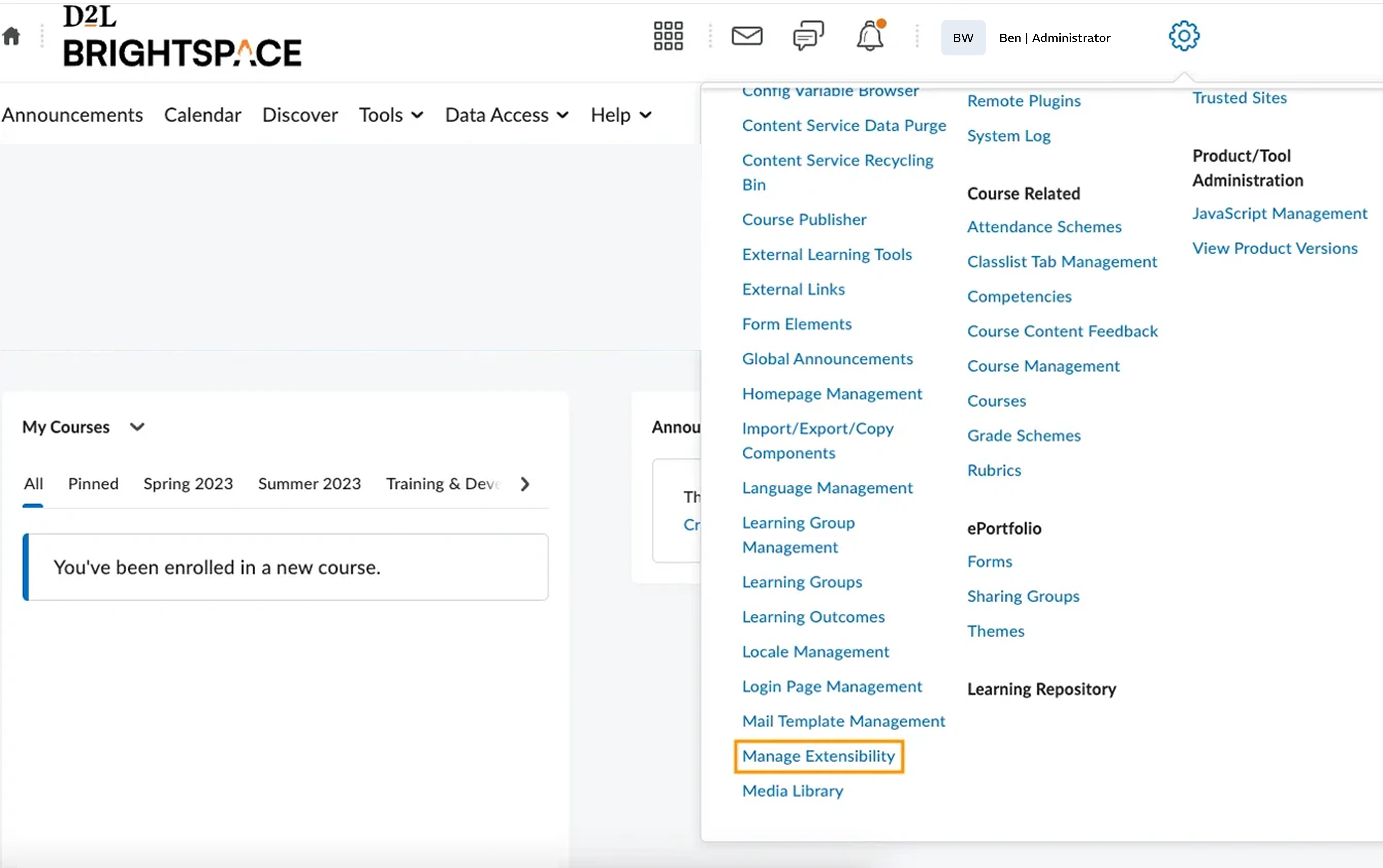
Open the Settings cog → Manage Extensibility.
Open Manage Extensibility from Brightspace settings.
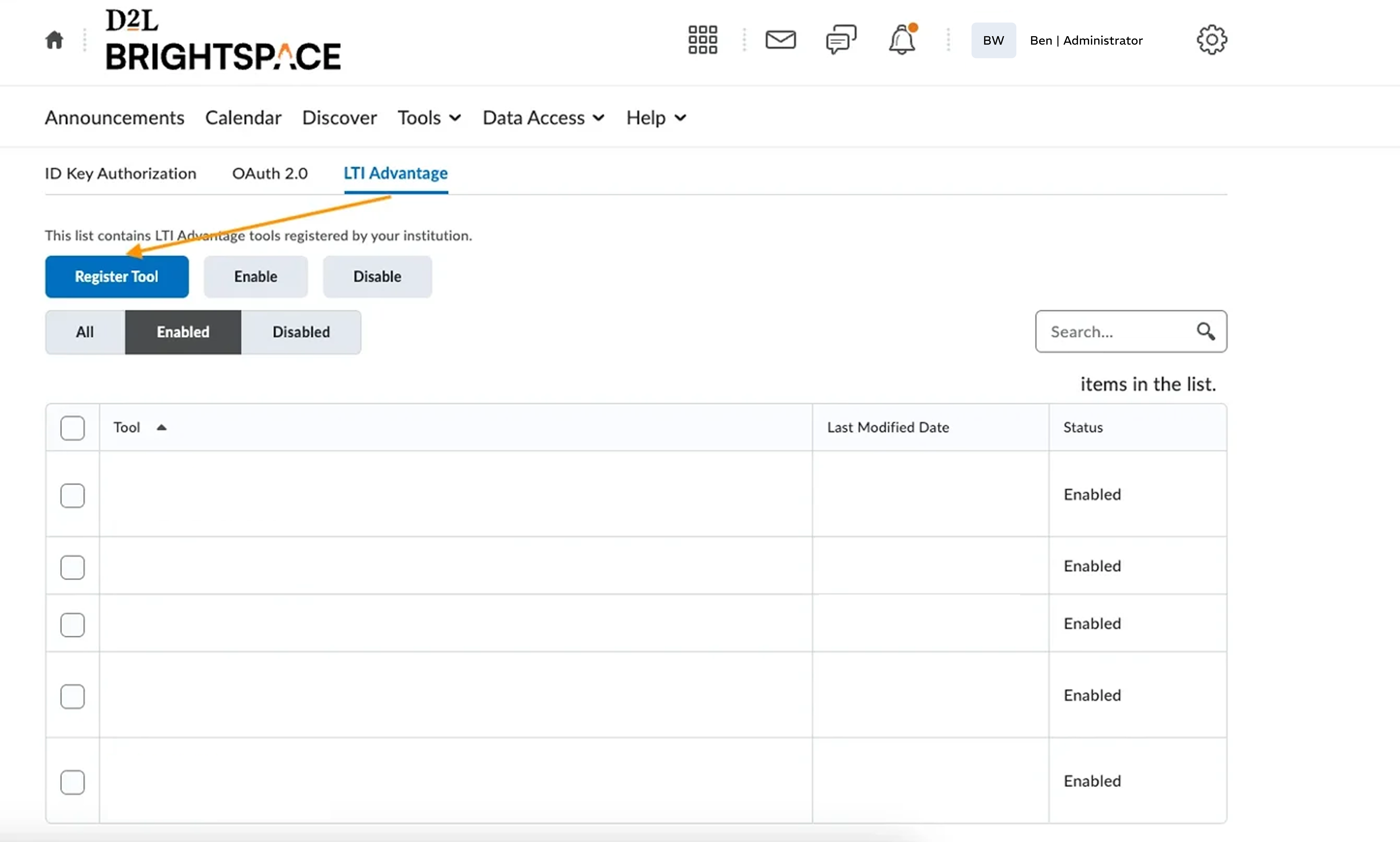
Choose LTI Advantage → Register Tool → Standard Registration.
Register a standard LTI Advantage tool.
Enter:Under Extensions, enable Names and Role Provisioning Services.Under Security Settings, enable Org unit information, User information and Link information.Select Register and copy the Client ID.
2
Create a deployment
From the confirmation dialog, select View Deployments → New Deployment.Under Security Settings, enable Org unit information, User information and Link information.Select Add Org Units and choose the departments or courses to include. Select Create Deployment and copy the .
3
Add the course link
From the deployment page, select View Links → New Link.Select Save and Close.
4
Arrange activation and test access
Submit your Client ID, Deployment URL and Deployment ID using the LTI setup support form.StudyStash needs these details to enable the integration before users can launch it. Once activation is confirmed, test the course link.