

Open the share menu
In My Files, open the resource’s three-dot Actions menu and select Share. You can also open a resource and select the share icon beside its title.Invite someone by email
- Enter the person’s institution email address in the share dialog.
- Check the address, then send the invitation.
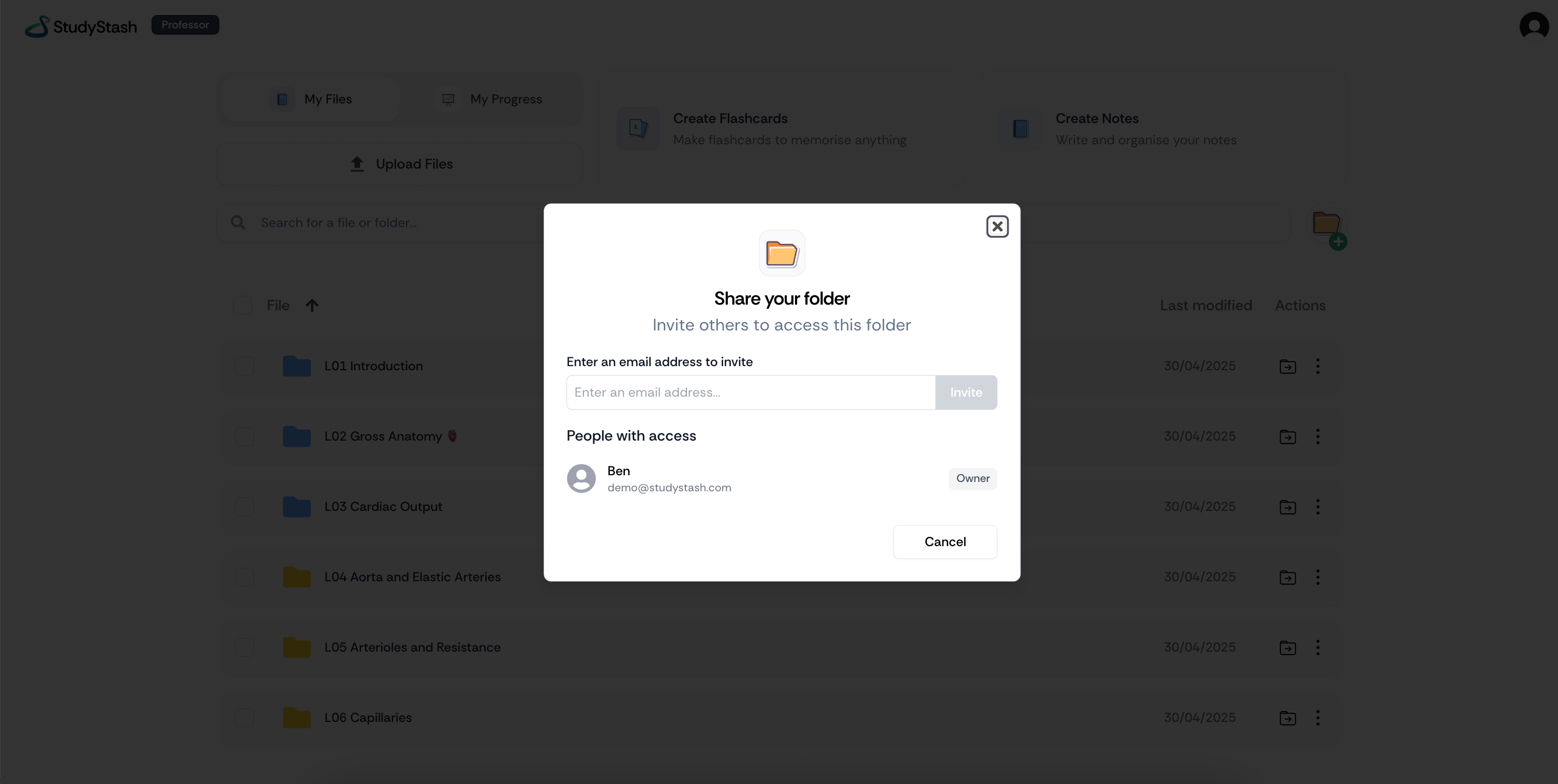
Enter the institution email address of the person you want to invite.
Share a link
- In Share your resource, choose Anyone with the link.
- Select the copy icon. The File is now public message confirms the sharing setting changed.
- Send the copied link to the people you want to share with.
Share a folder
In My Stash, open the three-dot menu beside a folder and select Share. Choose an invitation or link in the same way as for a resource.People who can access a shared study resource can make a copy. Check that you have permission to share the content before sending an invitation or link.